
In this article:
- To enable Moderation:
- Accessing the Moderation panel
- AI Moderator
- What participants see
- The Moderation panel — Live view and All Responses
- Settings reference
Moderation lets you review and approve responses before they appear on screen, either manually or with AI assistance. This is particularly useful for large audiences, public events, or any context where unvetted content could be disruptive.
Note: Moderation is available on Q&A polls.
To enable Moderation:
- Open your Q&A question in the editor.
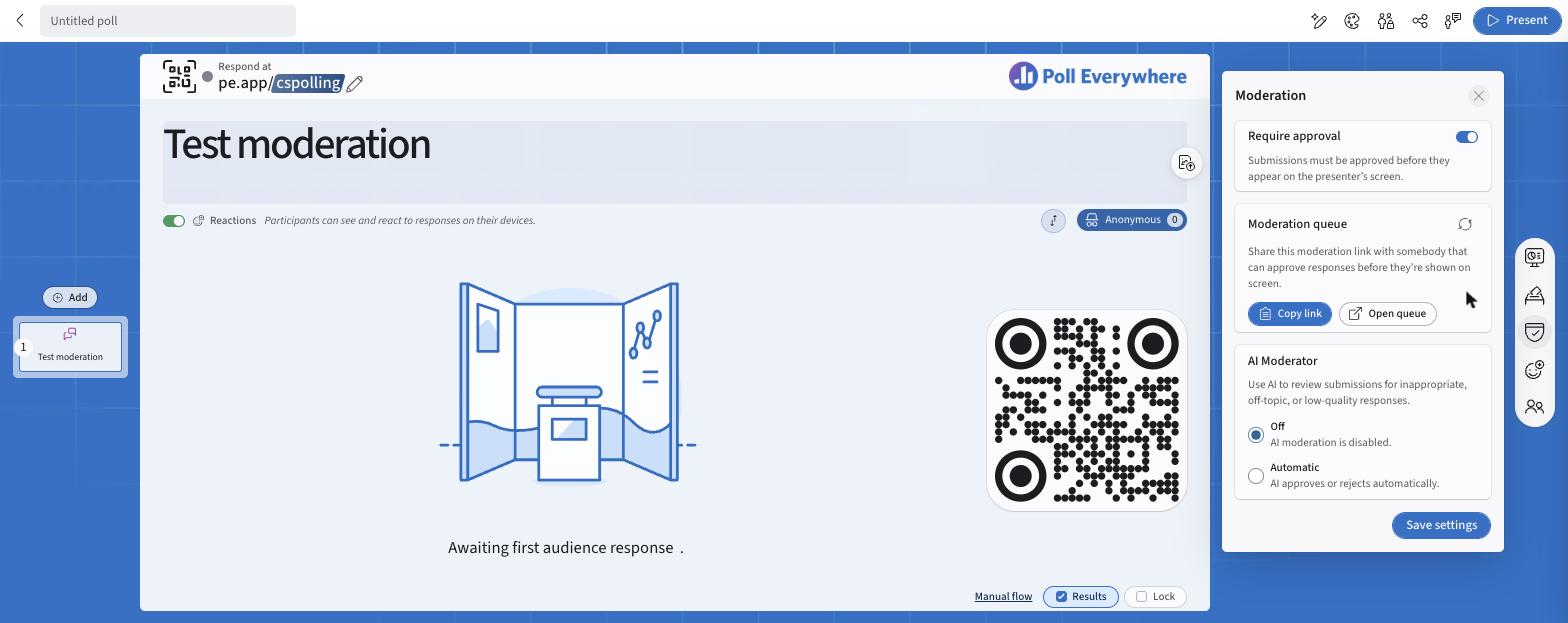
- Select Moderation (shield icon) on the right rail.
- Turn on Require approval.
- Optionally choose an AI Moderator setting (see below).
- Select Save settings.
Accessing the Moderation panel
Once Require approval is on, the panel shows a Moderation queue card:
- Open queue: opens the queue in a new tab so you can moderate on a second screen while your poll is displayed on another.
- Copy link: copies the queue link so a trusted co-presenter or moderator can manage the queue while you present. Anyone with the link can approve or reject responses in real time.
- ↻ (rotate): resets the link if it was shared with the wrong person.
You can also find the queue link in Share → Moderation.
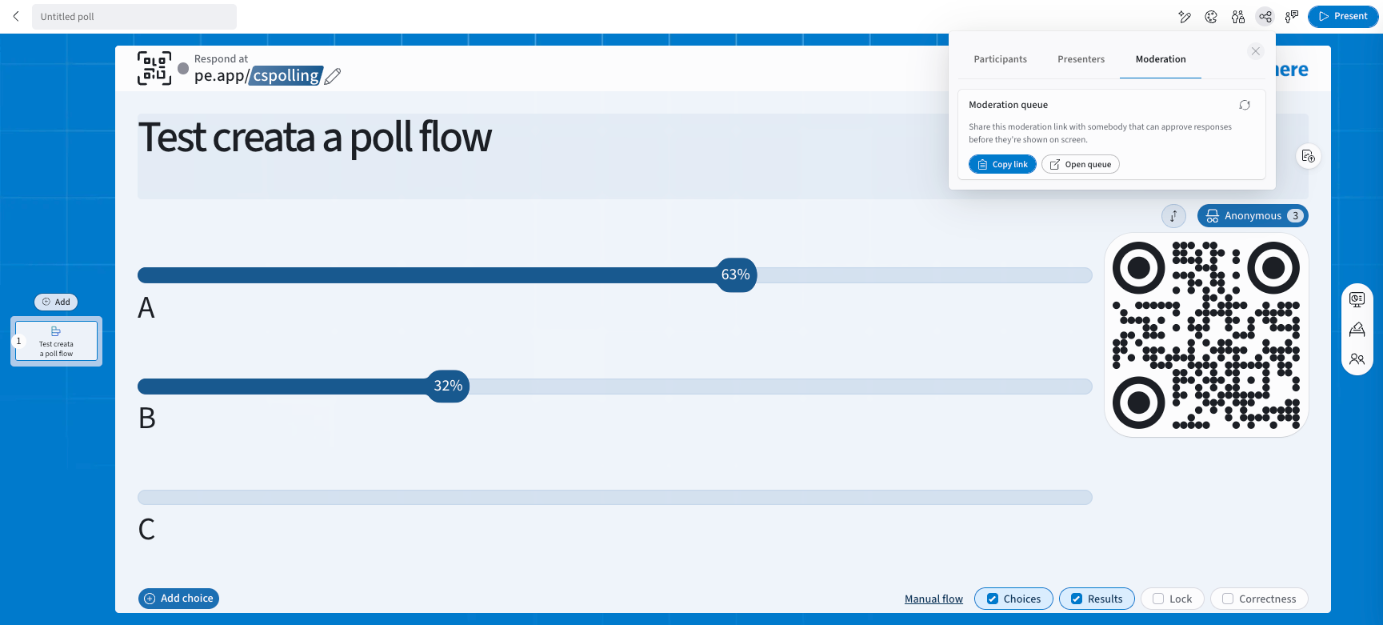
The moderation link is tied to this specific poll. Keep it secure and only share it with people you trust to moderate your session.
AI Moderator
When Require Approval is on, you can optionally enable the AI Moderator to pre-screen submissions automatically.
- Off (default): AI moderation is disabled. All submissions go into the manual queue.
- Automatic: AI approves or rejects submissions automatically based on relevance and appropriateness. You can still override any AI decision manually in the moderation panel.
When Automatic is selected, a Moderation Guidance field appears. Use this to give the AI specific instructions for your context (e.g. "Only approve responses relevant to workplace productivity"). If left blank, the AI applies a general professional appropriateness standard.
What participants see
Once enabled, all incoming responses are held in a moderation queue and will not appear on screen until you approve them. With AI Moderator enabled: "Submissions will be moderated with AI assistance." When Require Approval is active, participants see a notice on their device confirming that their submission will be reviewed before it is displayed on screen.
After submitting, participants can see a list of their own submissions and which ones have been approved.
The Moderation panel — Live view and All Responses
The moderation link opens a dedicated panel with:
Live view: incoming responses are added to the bottom of the list in real-time chronological order. This order is intentional: it prevents accidental approvals or rejections as the list shifts when a new submission arrives while you are about to click.
All Responses: shows every submission with its current status: Approved, Pending, or Rejected. Most recent responses appear at the top. In both views, you can:
- Approve a response: it immediately appears on the presenter's screen
- Reject a response: when manually rejecting, you are prompted to enter an optional "reason for rejection". The response remains visible in the moderation queue with a Rejected status; it is not removed from the list
- Override an AI decision —you can reverse any automatic approval or rejection made by the AI Moderator at any time.
Settings reference
| Setting | Location | What it does |
|---|---|---|
| Results | Bottom bar | Shows/hides responses on screen |
| Lock | Bottom bar | Prevents new responses from being submitted |
| Flow & Timer | Bottom bar → flow name | Flow type and countdown timer |
| Moderation | Right rail | Holds responses for review before they appear on screen |
| Response settings | Right rail | Single/multiple submissions, allow changing answers |
| Anonymity / Name tags | Right rail → Audience | Identity display |
| Participation restrictions | Top bar | Organization, teams, courses, participant groups |
If you have any questions or run into issues, please contact the Technical Support team