
In this article:
- Switch between percentages and counts
- Where it works
- Set the default for new activities
- Set the default for everyone in the account
- When the results label is locked
- Frequently asked questions
Multiple choice results normally show each choice as a percentage of the responses. You can switch any multiple choice activity to show the number of responses instead, and switch it back at any time, including while you are presenting.
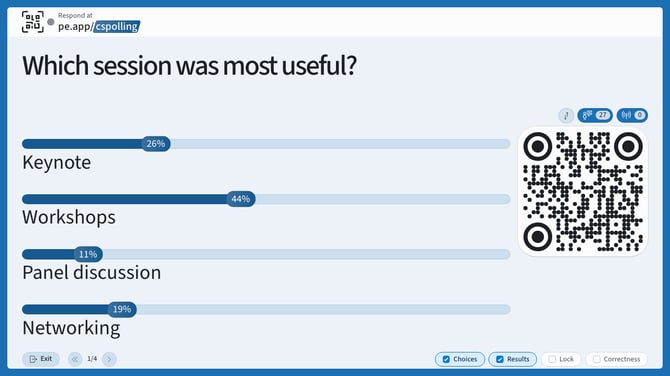
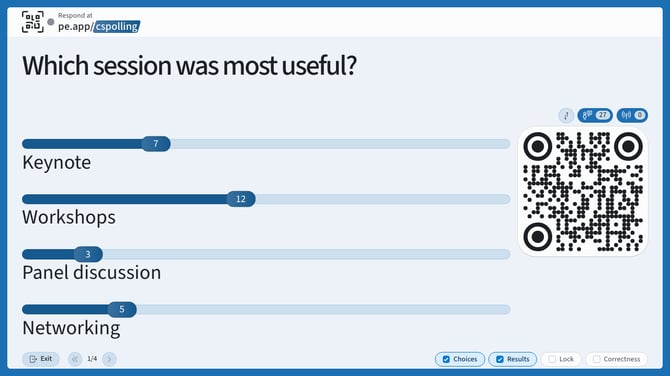
Counts are useful when the exact number matters more than the share, such as a small audience where percentages can be misleading, or a room where you want to say "twelve people picked this" rather than "44 percent".
Switch between percentages and counts
The number itself is the control. Select any percentage or count on the chart and every label on that activity switches.
- Present or edit a multiple choice activity.
- Select any of the numbers on the chart.
- The labels switch to the other format. Select a number again to switch back.
Percentages, the default view:
Counts, after selecting one of the numbers:
Note: The setting applies to the whole activity, not to a single choice. Selecting one number switches all of them.
Where it works
This is available on every multiple choice visualization: bar, donut, likert and radar. On donut, likert and radar charts, the numbers sit in the legend beside each choice.
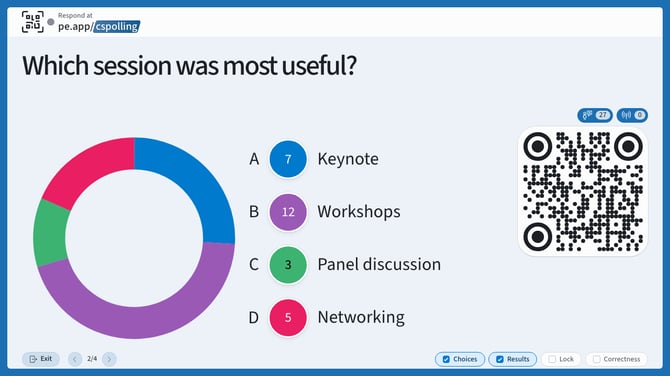
Ranking and clickable image activities are not included, because their results are not a share of the responses.
The bars and segments themselves do not change size when you switch. They are always drawn from each choice's share of the responses, so only the label changes.
Set the default for new activities
If you almost always want one format, you can set it once so that new multiple choice activities start that way.
- Select the My settings icon (bottom left) and open the Defaults tab.
- Find Results label in the Presentation section.
- Choose Percentage or Count.
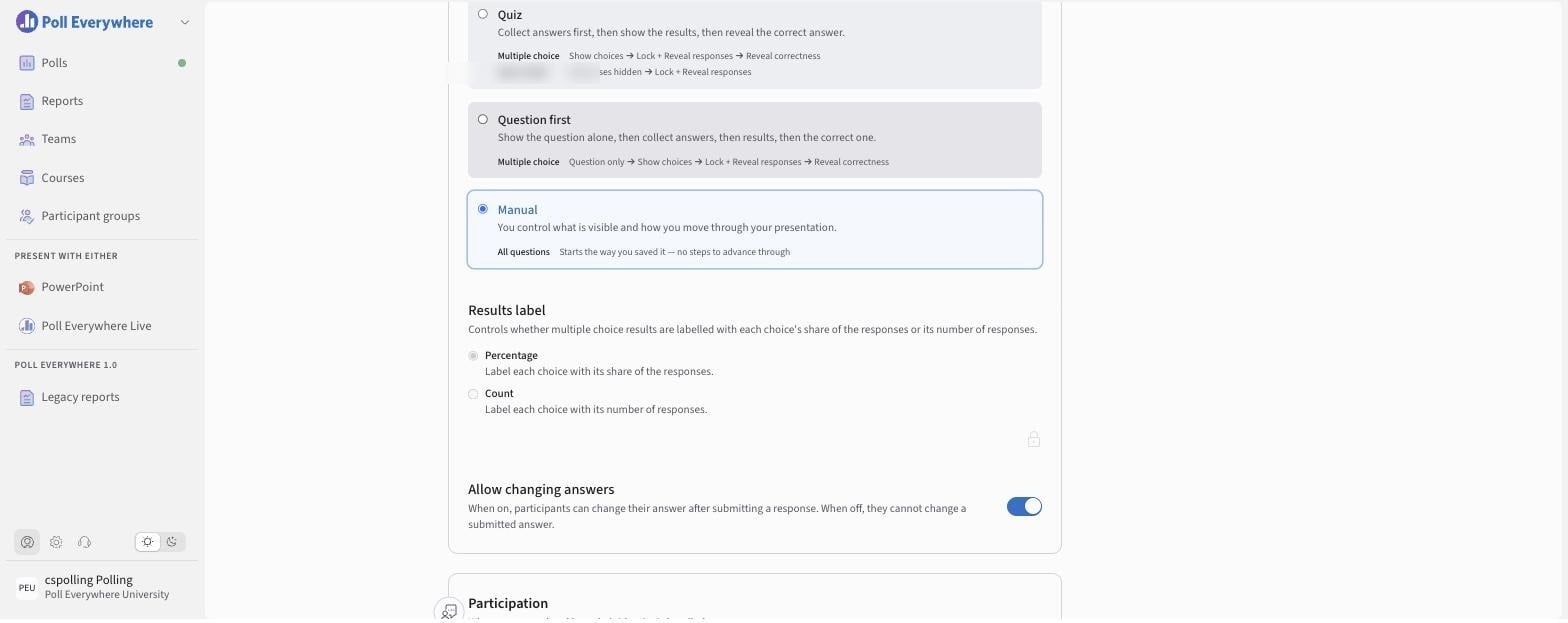
This sets the starting format for activities you create from now on. Activities you have already made keep whatever they were last set to, and you can still switch any individual activity by selecting its numbers.
Set the default for everyone in the account
Account administrators can set the same default for the whole account. Go to Organization settings, open the Defaults tab, and find Results label in the Questions section. What you choose there is the starting point for anyone who has not picked their own.
Apply the default to polls that already exist
Changing the account default normally only affects activities made from then on. Straight after you change it, the setting also offers to apply your choice to polls that already exist.
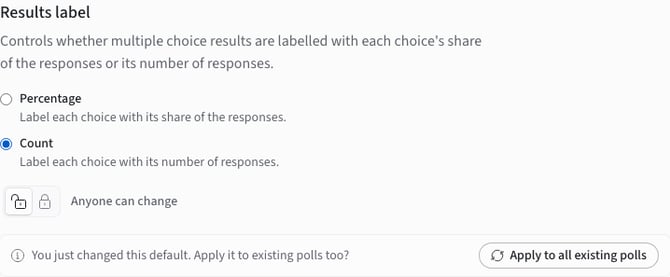
- Set Results label to the format you want.
- Select Apply to all existing polls.
- Confirm.
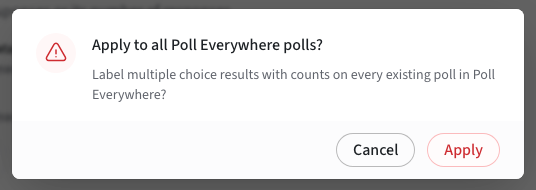
Note: This relabels every multiple choice activity in the account, including activities where someone has already chosen a format for themselves. There is no matching undo, so switching back means running it again with the other format. The work happens in the background and can take a few minutes on a large account.
The offer only appears when the default actually changes. If you have moved on from the page and want it back, set the option to the other format and then back again.
When the results label is locked
Administrators can also lock the results label so that the whole account reports the same way. The lock sits on the same setting, underneath the two options.
Admins select the lock icon under the setting. The bar then reads Locked and shows N exempt users. Select it to add exemptions.
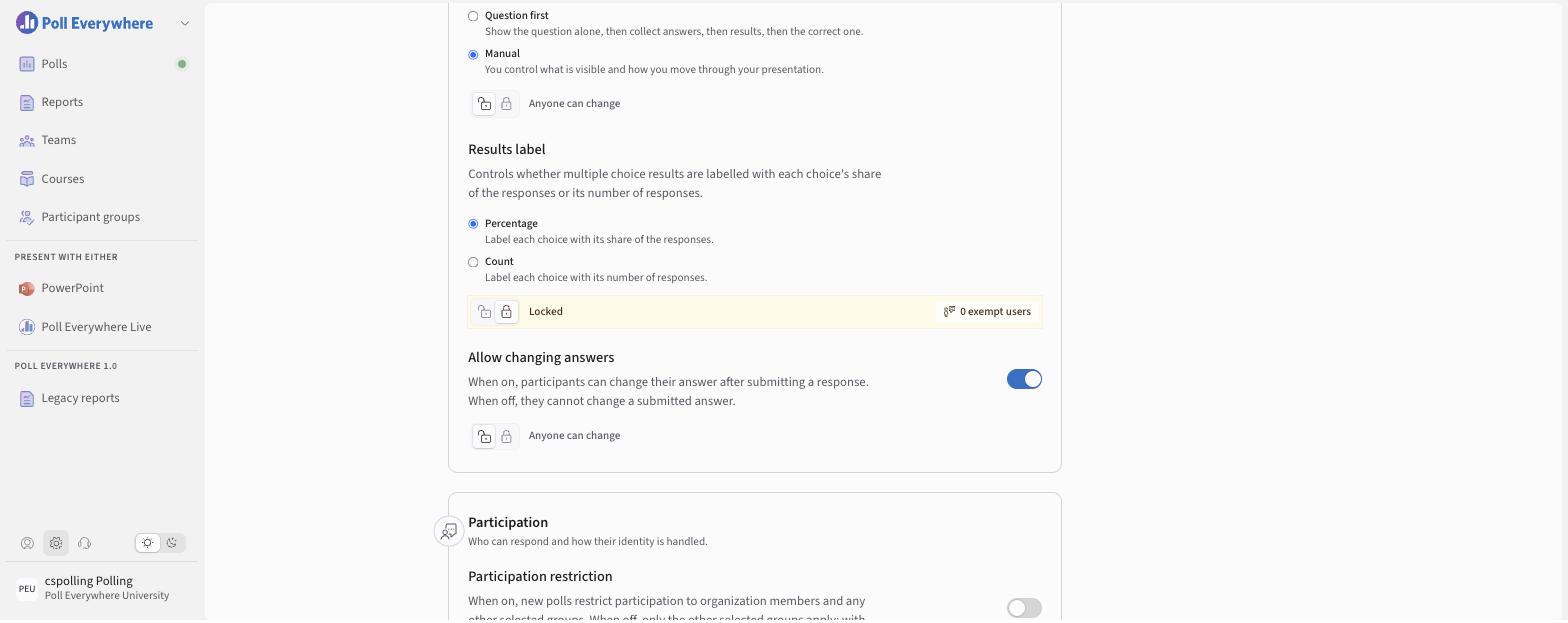
While it is locked:
- Nobody else can change their own default.
- Activities that already use the locked format have no switch. Selecting a number does nothing.
- Activities still using the other format can be switched, but only towards the locked format, and only once. You are asked to confirm first, because you won't be able to switch back while the lock is in place.
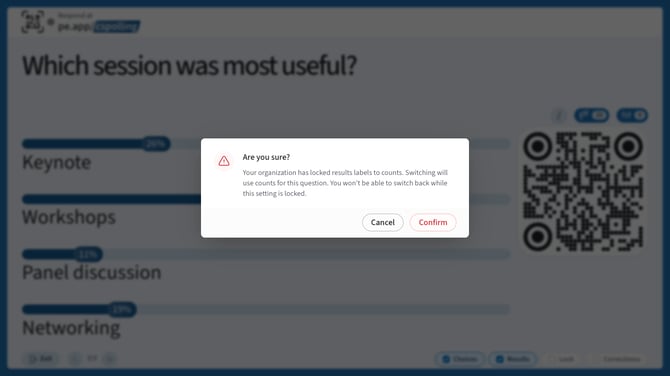
Administrators can exempt individual people from a lock. Anyone exempt keeps the ordinary switch on every activity.
Frequently asked questions
Do my participants see the change?
No. Participants never see the aggregate results for multiple choice activities on their own devices, so this only affects what is on the presentation screen.
Can I show percentages and counts at the same time?
Not currently. An activity shows one or the other.
Can I change the format on polls I have already made?
Yes. Select any number on the chart to switch that activity. Administrators can change every existing poll at once with Apply to all existing polls.
Why can I switch an activity to counts but not back to percentages?
Your account has the results label locked to counts. Switching towards the locked format is allowed once, and the confirmation says so before you do it. Ask an administrator to unlock the setting or to exempt you from it.
What happens on a multiple choice activity where people can pick more than one answer?
Percentages are calculated as a share of all the responses collected, not as a share of the people responding, so they add up to 100 percent across the choices. Counts avoid that ambiguity by reporting exactly how many responses each choice received.
Does switching the format change my results?
No. It changes only how the results are labelled. Nothing about the responses themselves changes, and your reports and exports are unaffected.