
In this article:
- Open Convert Legacy Slides
- Add and convert your PowerPoint files
- Review your conversion results
- Review question and survey changes
- Continue and download your converted files
- Convert multiple PowerPoint files
- Troubleshoot conversion issues
Open Convert Legacy Slides
After migrating to Poll Everywhere 2.0, your existing PowerPoint presentations may still reference polls from Poll Everywhere 1.0. Converting these presentations reconnects their poll slides to the migrated questions in your Poll Everywhere 2.0 account.
Note: The Convert Legacy Slides feature is only available to accounts that have migrated from Poll Everywhere 1.0 to Poll Everywhere 2.0. If your account has not been migrated, this option will not appear in your sidebar.
To access the converter from the Poll Everywhere website:
- Sign in to your Poll Everywhere 2.0 account.
- Select Convert Legacy Slides from the sidebar.
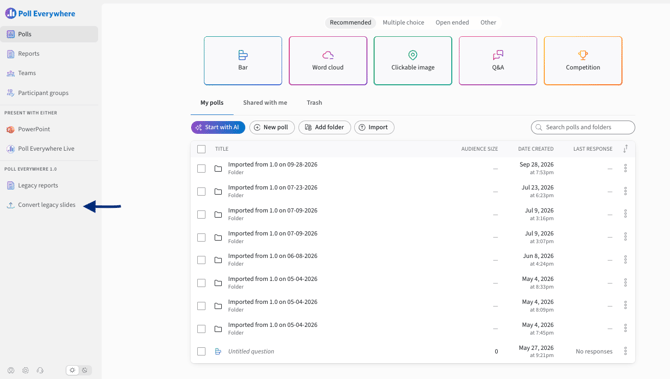
You can also access the converter from the Poll Everywhere PowerPoint add-in or the Poll Everywhere Live app tray.
You must have permission to present the polls included in your presentation to convert them. Assistants can also convert presentations if they have permission to present the associated polls.
The conversion page allows you to add PowerPoint files, choose where you'll present, and review the results before downloading converted copies.
Add and convert your PowerPoint files
- Drag and drop your PowerPoint presentation into the conversion area.
- Choose where you plan to present your slides.
- In PowerPoint: Present using the Poll Everywhere add-in.
- In the Poll Everywhere Live app: Present using the Poll Everywhere Live app.
- Select Convert My Slides.
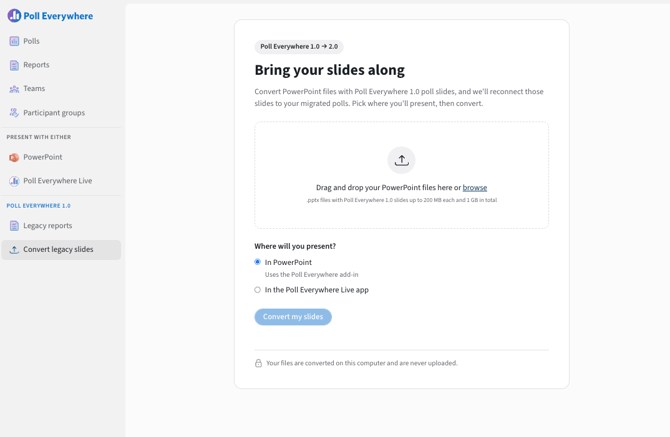
Note: If you're converting a presentation as an assistant, select In PowerPoint. The Live app option is not available for assistant conversions because it embeds the converting user's join code.
A progress bar displays the conversion status. When processing finishes, a review appears with the results for your presentation.
At this stage, your converted presentation has not been downloaded. You'll have an opportunity to review the results before continuing.
Review your conversion results
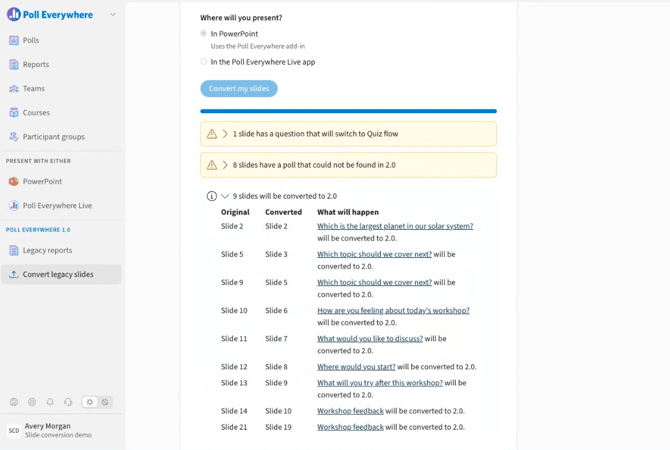
The conversion review shows what will change in your PowerPoint presentation and identifies any slides that may need attention.
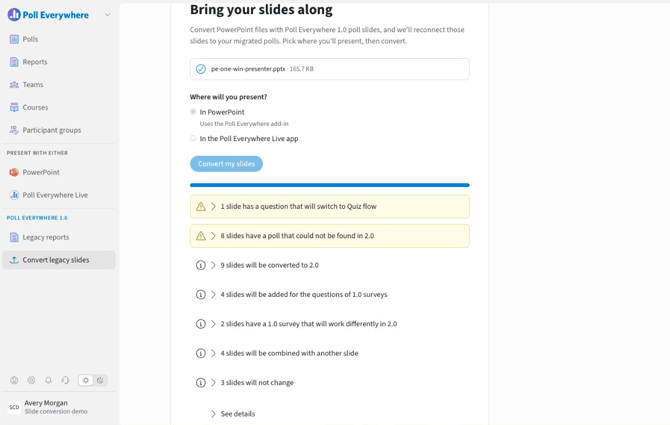
Expand a category to see more information about the affected slides. The review includes:
- Original: The slide's location in your original presentation.
- Converted: The slide's location in the converted presentation.
- What will happen: What will happen to the slide during conversion.
Use this information to identify which slides will be updated, combined, or left unchanged.
Check polls that could not be found
If a poll cannot be found in your Poll Everywhere 2.0 account, its slide retains the original Poll Everywhere 1.0 poll.
- Expand the category for polls that could not be found.
- Review the affected slides and their locations in the original and converted presentations.
- Identify any slides you may need to remove or replace before presenting.
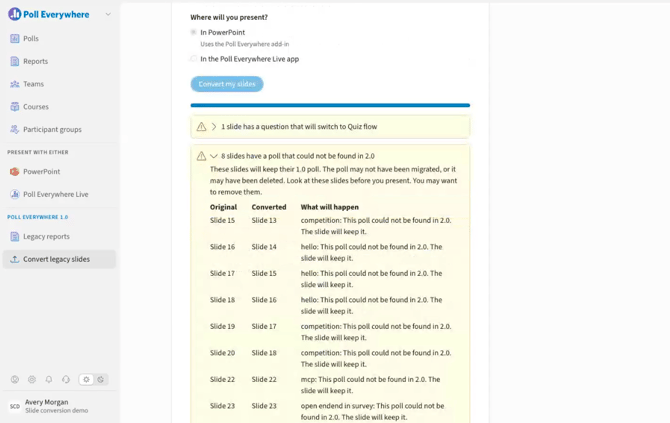
Important: Slides containing polls that could not be found are not automatically removed. Review these slides in your downloaded presentation before presenting.
Check converted and combined slides
Poll slides that match migrated questions are updated to reference their Poll Everywhere 2.0 versions.
Some Poll Everywhere 1.0 polls use multiple PowerPoint slides. In Poll Everywhere 2.0, each poll uses one slide, so repeated poll slides are combined during conversion.
Your other presentation content remains intact.
Select See Details to review the complete list of changes, including slides that will remain unchanged.
Review removed Poll Everywhere 1.0 content
The 1.0 content removed warning identifies slides containing outdated Poll Everywhere 1.0 content.
If a slide contains only this content, the entire slide is removed during conversion. The Converted column displays Deleted to indicate that the slide will not appear in your converted presentation.
Question slides are not affected by this specific removal process.
Expand the warning to review any affected slides before continuing.
Review Question and survey changes
Depending on the questions and surveys in your presentation, conversion may update question flow settings or add slides.
Review these changes before continuing so you understand how your presentation and questions will behave in Poll Everywhere 2.0.
Review question flow changes
Some questions migrated from Poll Everywhere 1.0 may use Manual Flow in Poll Everywhere 2.0. Eligible questions can be updated to Quiz Flow during conversion.
The review identifies:
- Questions that will switch to Quiz Flow when you continue.
- Questions that cannot switch because of validation errors.
Each question title links to its editor, allowing you to review the question before proceeding.
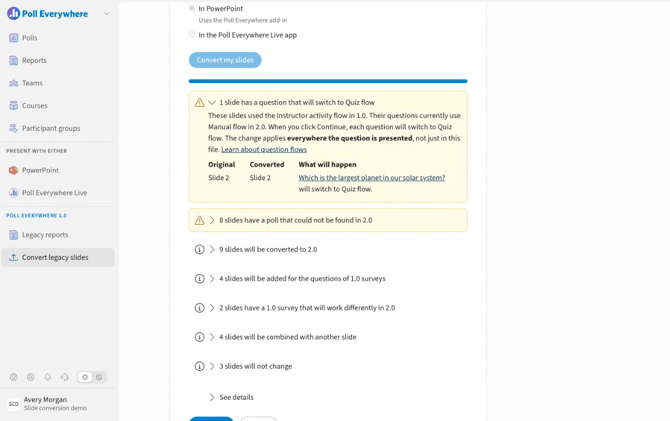
Important: When you select Continue, eligible questions are updated to Quiz Flow in your Poll Everywhere account. This change applies wherever those questions are presented, not just in the converted PowerPoint file.
Review survey slide changes
Surveys work differently in Poll Everywhere 2.0.
In Poll Everywhere 1.0, participants could complete surveys at their own pace while the presenter viewed a slide showing how many participants had finished.
In Poll Everywhere 2.0, presenters display one question at a time, and participants respond to the question currently on screen.
To accommodate this change, conversion adds any missing survey question slides after the original survey slide.
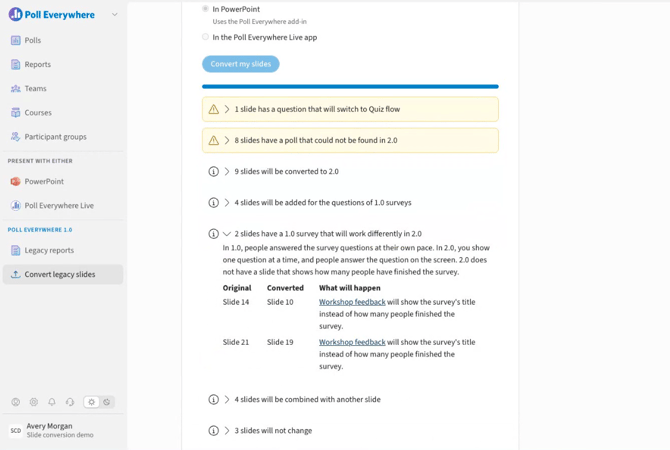
Review the list of added slides to understand how your survey will appear in the converted presentation.
Continue and download your converted files
Once you've reviewed the conversion results and understand the changes:
- Select Continue.
- Wait while eligible questions are updated to Quiz Flow.
- When processing finishes, select Download Converted File.
- Open your downloaded PowerPoint presentation.
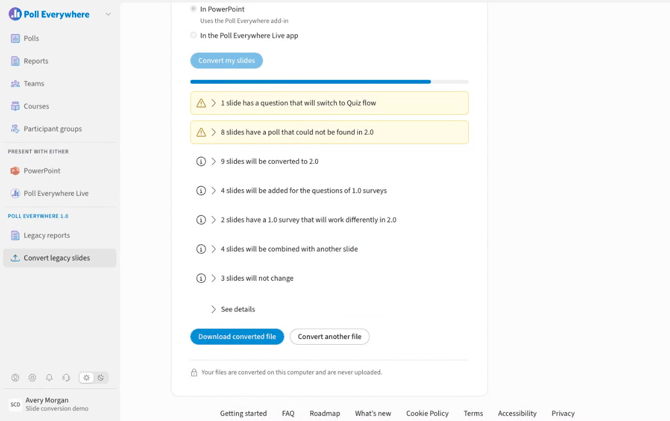
The converted presentation also removes outdated Poll Everywhere warning text and links from poll slide speaker notes.
Your original PowerPoint file remains unchanged.
Before presenting, review your converted presentation to confirm:
- Poll slides that could not be found have been removed or replaced, if necessary.
- Combined slides appear as expected.
- Added survey questions appear in the correct order.
- Your Poll Everywhere questions work as expected when presented.
Convert multiple PowerPoint files
If you have several presentations to update, you can convert them together instead of processing each file individually.
The conversion tool supports:
- 200 MB maximum per file
- 1 GB maximum combined file size
To convert multiple presentations, drag and drop your PowerPoint files into the conversion area and follow the same conversion steps.
One progress bar tracks the entire conversion, and the review displays a separate section for each file.
After reviewing the results, select Continue and download your converted presentations.
When multiple presentations are converted successfully, they are downloaded together in a ZIP file named PE 2.0 Converted YYYY-MM-DD.zip.
Extract the ZIP file to access your converted PowerPoint presentations.
Note: If one file cannot be converted, the other valid presentations can still be processed. Files that fail conversion are excluded from the downloaded ZIP file.
Troubleshoot conversion errors
If you encounter an issue during conversion, review the warning or error message to identify the problem and determine what to do next.
A PowerPoint file cannot be converted
If a file cannot be processed, the conversion review displays an error explaining why.
Confirm that the file is a valid PowerPoint presentation (.pptx) and try converting it again.
The following files are not supported:
- Password-protected (encrypted) files
- Old .ppt files from PowerPoint 2003 and earlier
- Digitally signed files
- Macro-enabled files (.pptm, .ppsm, .potm)
- Slideshow files (.ppsx), which must be saved as .pptx first
- Template files (.potx), which must be saved as .pptx first
Note: If you're converting multiple files, an error with one file will not prevent other valid presentations from converting. Files that fail conversion are excluded from the download.
A poll cannot be found in Poll Everywhere 2.0
If a poll cannot be found in your migrated account, its slide retains the original Poll Everywhere 1.0 poll.
Review the affected slide numbers in the conversion results. After downloading your presentation, remove or replace these slides if necessary.
A question cannot switch to Quiz Flow
Questions with validation errors remain in Manual Flow until the issues are resolved.
To address these errors:
- Review the validation errors listed in the conversion results.
- Select the affected question title to open its editor.
- Correct the identified issues.
- Run the conversion again to update the question.
A converted presentation contains additional slides
If your original presentation included surveys, conversion may add missing question slides to support how surveys work in Poll Everywhere 2.0.
Expand the survey changes in the conversion review to see which slides were added and where they will appear in your converted presentation.