
Reports turn your responses into insights you can filter, save and export.
Create a report
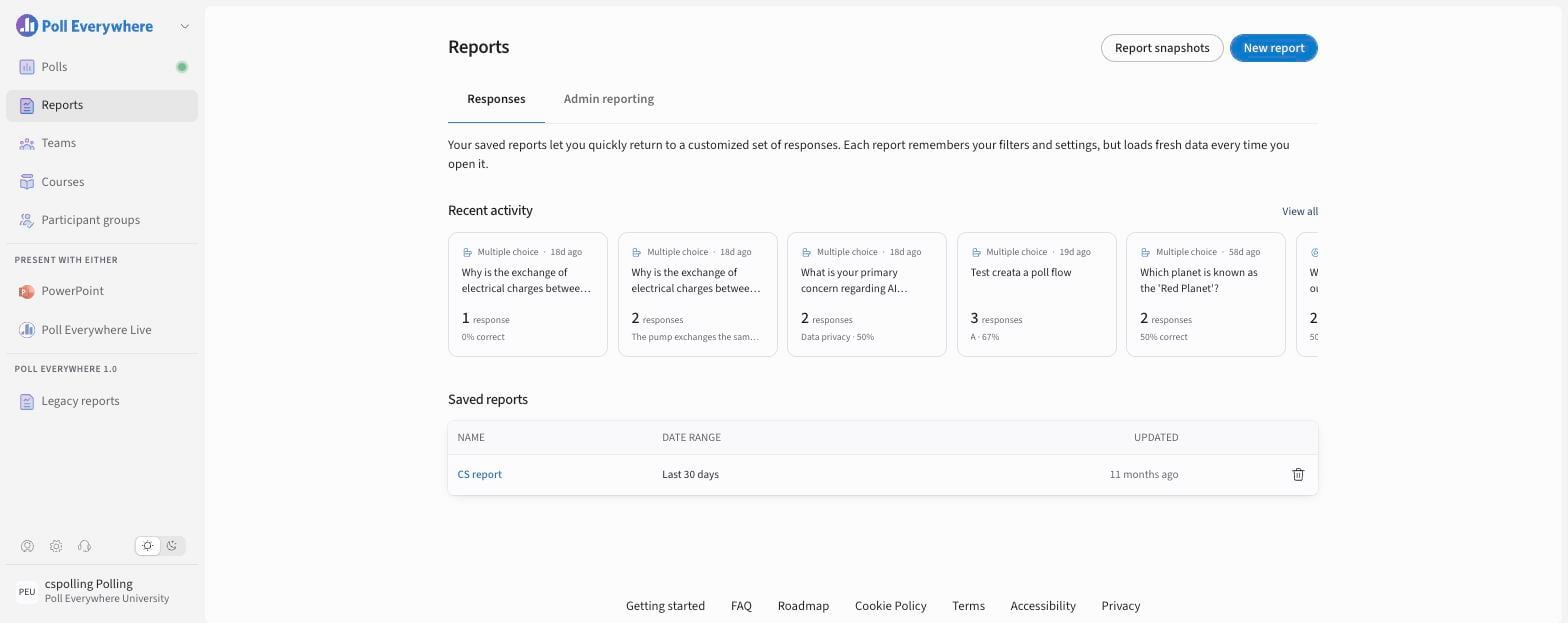
- Select Reports in the left navigation.
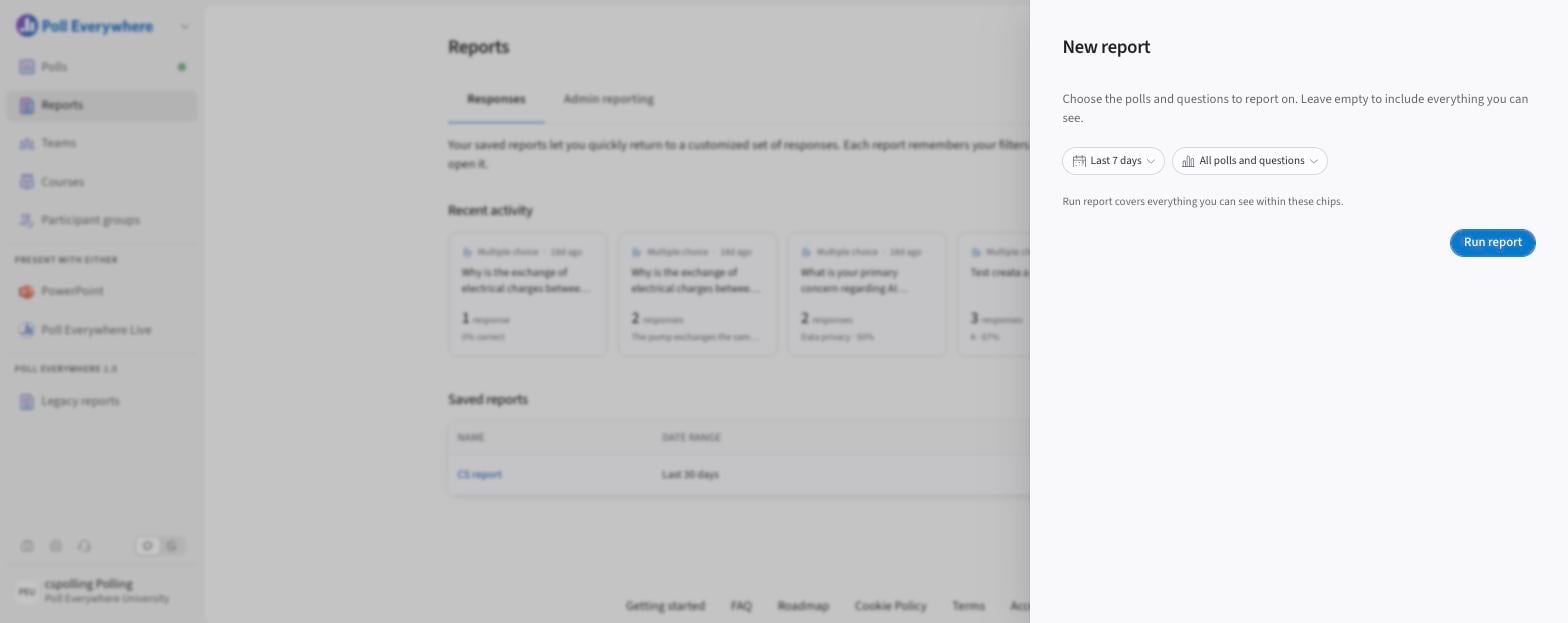
- Select New report.
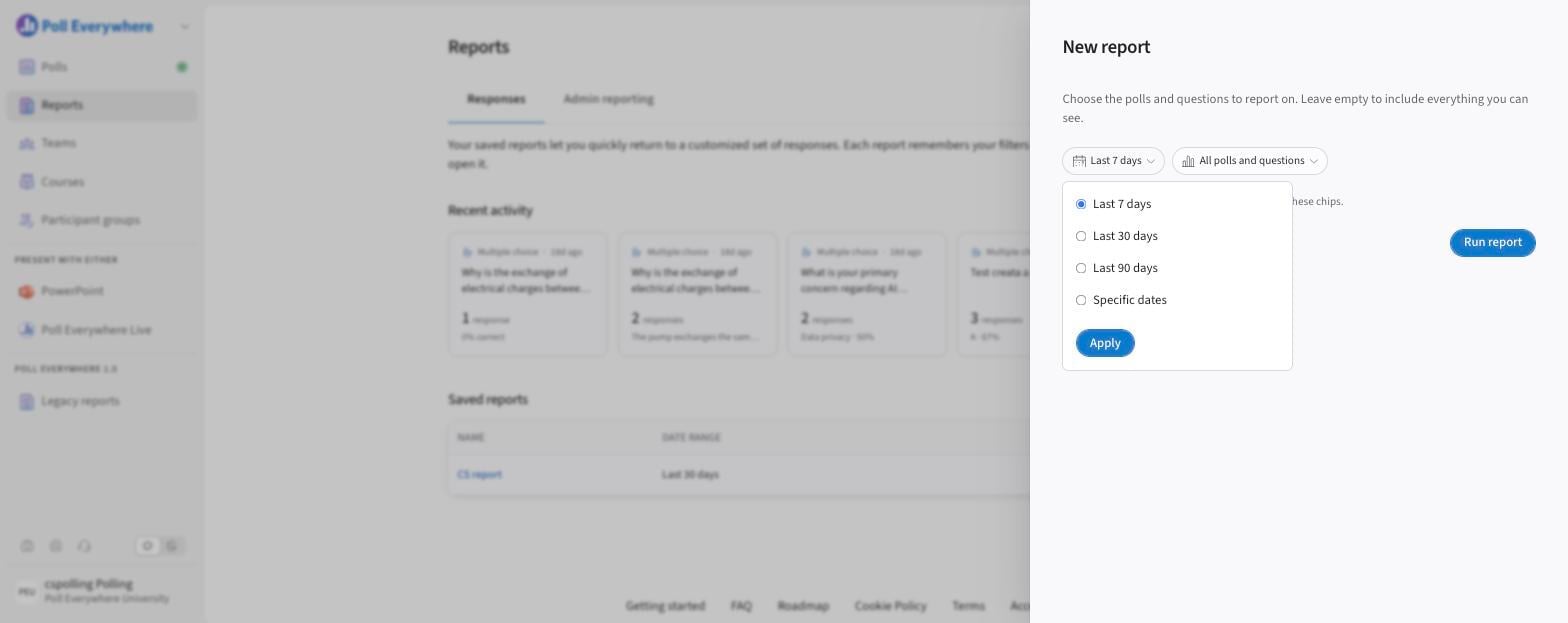
- Choose a date range: Last 7 days, Last 30 days, Last 90 days or Specific dates, then Apply.
- Optionally choose specific polls or questions with All polls and questions. Leave it empty to include everything you can see.
- Select Run report.
Read your report
Use the tabs across the top:
| Tab | Shows |
|---|---|
| Overview | Totals (Responses, Participants, Questions, Responses per question) and a Responses-over-time chart, then a per-poll breakdown |
| Question summary | Results per question |
| Question details | Every response per question |
| Participant details | Results per participant |
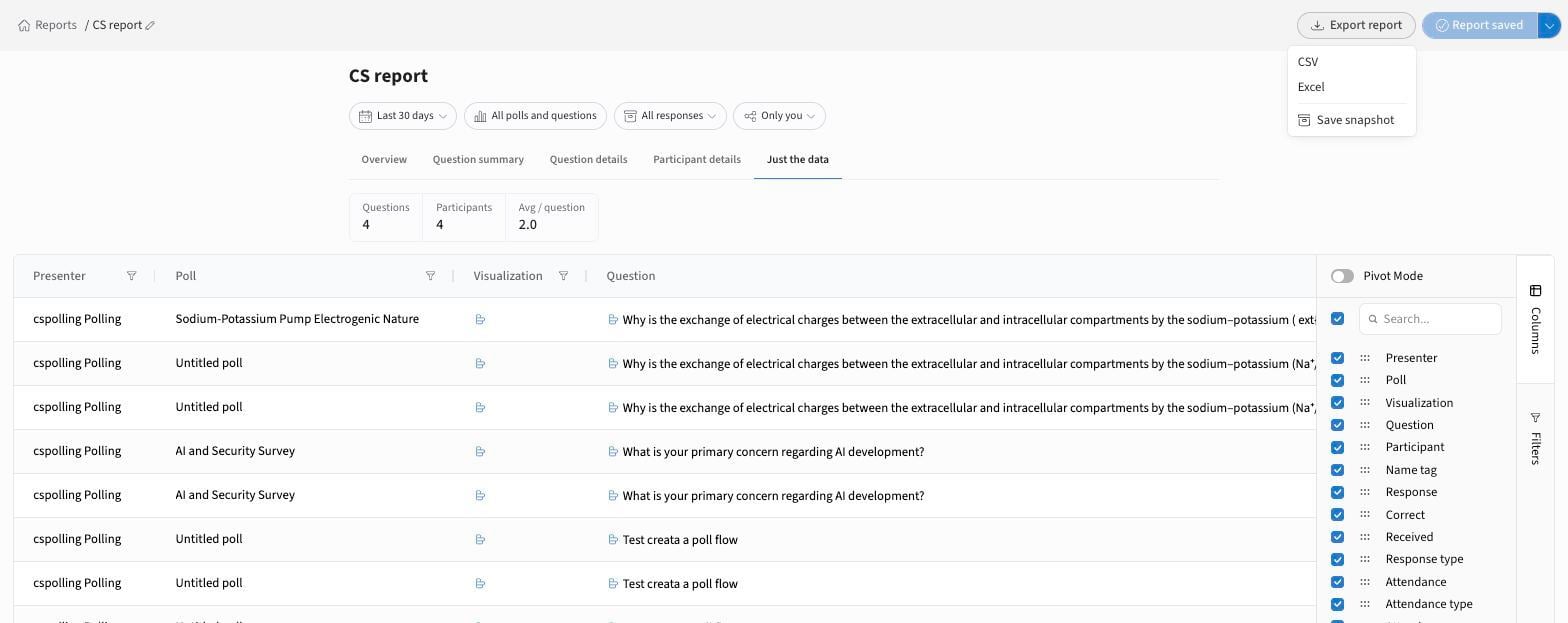
| Just the data | A raw, sortable table with Columns and Filters panels |
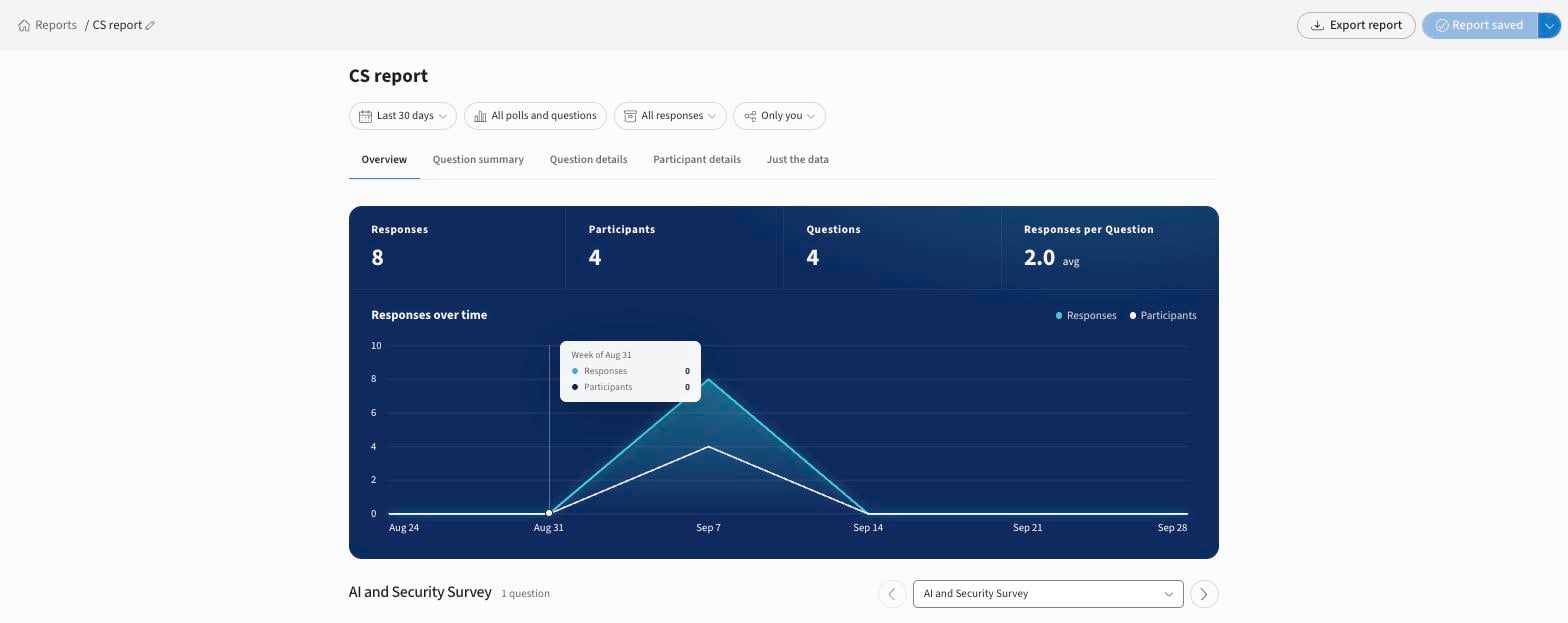
Refine with the filter chips: date, polls/questions, All responses (include or exclude archived responses) and presenter (Only you or others).
Save and rename
Reports save automatically (Report saved). Select the pencil next to the name in the breadcrumb to rename it. To keep a copy with different filters, open the dropdown beside Report saved and select Save as new report.
Saved reports appear on the Reports page under Saved reports and load fresh data each time you open them.
Export
Select Export report and choose:
- CSV
- Excel
- Save snapshot: a point-in-time copy processed in the background.
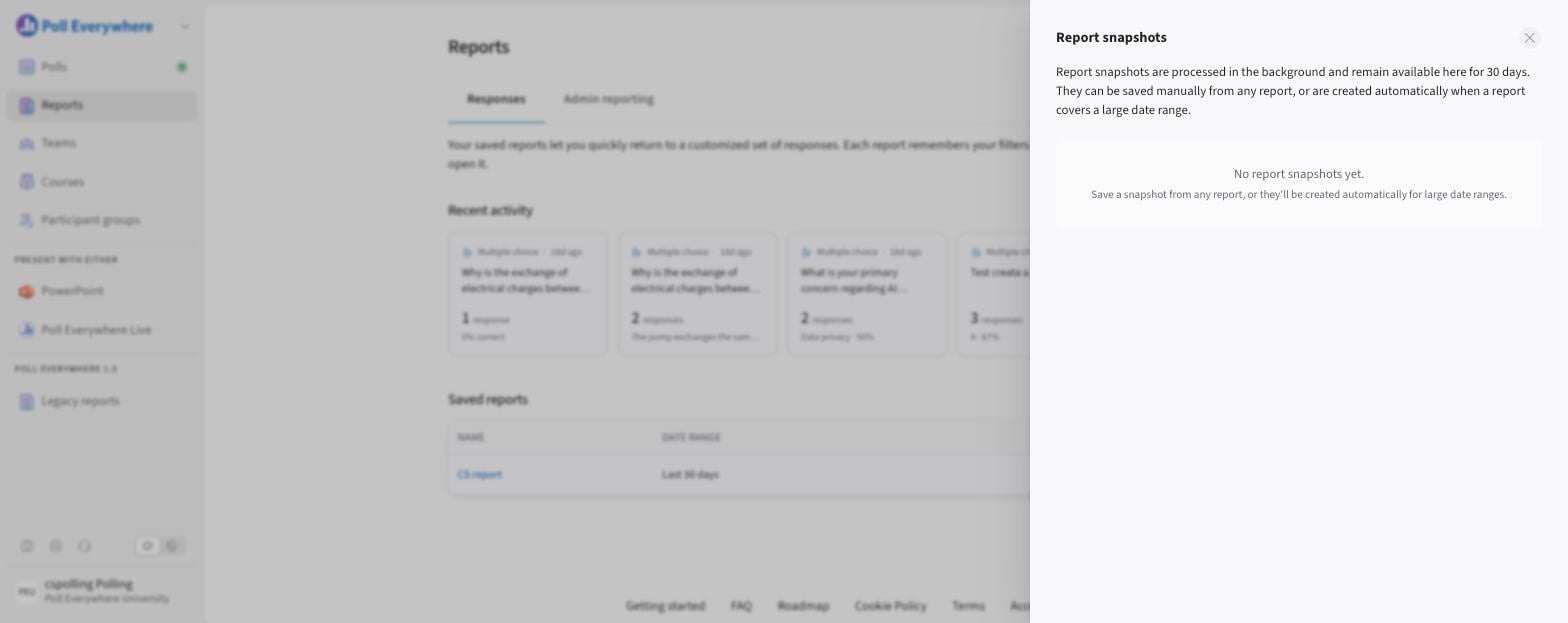
Report snapshots
Select Report snapshots on the Reports page to download snapshots. Snapshots stay available for 30 days. They're created automatically when a report covers a large date range.
If you have any questions or run into issues, please contact the Technical Support team.