
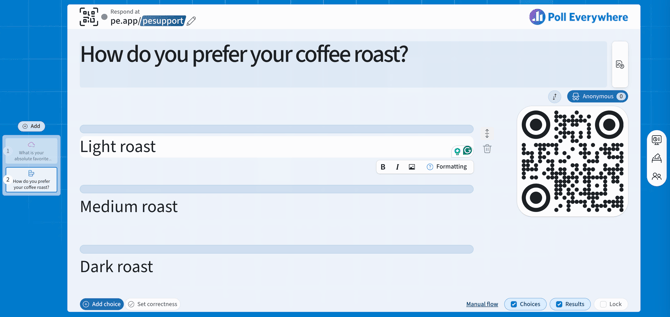
With Poll Everywhere 2.0 you edit directly on the slide. There's no separate editing window.
- Title: click the title to type. A toolbar appears with B, I, Tt (text size) and Formatting help.
- Choices: click a choice to type. To format the text or add an image, use the toolbar that appears: Bold, Italic, and Add image.
- Mark correct answers: select Set correctness below the choices, select the check on each correct choice, then select Done. See Setting Correctness in Poll Everywhere 2.0.
- Reorder or delete a choice: point to the choice (or tab to it) to show its controls on the right. Use the reorder handle to drag, or open its menu and select Move up or Move down. Select Delete to remove the choice. You can also drag slides in the slide pane to reorder them.
- Add: + Add choice (bottom left) or Add in the slide pane for new slides.
Note: changes save automatically.
If you have any questions or run into issues, please contact the Technical Support team.