
After you've created a poll, the AI Assistant can rewrite, extend or restructure it for you. Just describe the change in plain language.
Open the AI Assistant
- Open your poll in the editor.
- Select the AI Assistant icon (magic wand) in the top bar.
- The Poll assistant drawer opens on the right.
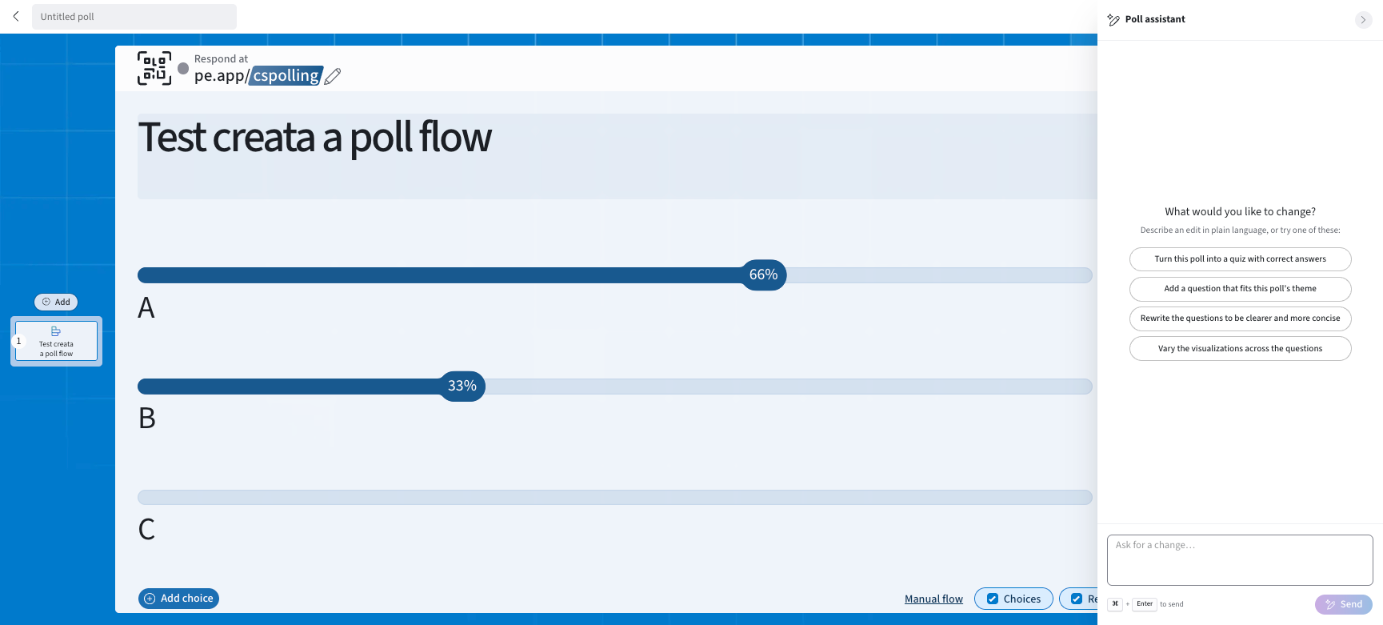
Ask for a change
Pick a suggestion or type your own request in Ask for a change…, then press ⌘ + Enter (Mac) or select Send.
| Suggestion | What it does |
|---|---|
| Turn this poll into a quiz with correct answers | Adds correct answers so the poll can be scored |
| Add a question that fits this poll's theme | Drafts a new question in the same topic |
| Rewrite the questions to be clearer and more concise | Tightens wording across the poll |
| Vary the visualizations across the questions | Mixes chart types (e.g. Bar, Donut, Word cloud) |
Other things you can ask:
- "Make question 2 harder."
- "Add a fifth answer choice to every question."
- "Fix spelling and grammar."
- "Simplify the language for first-year students."
Review before you present
Changes appear directly in the editor, so there's no separate window to open. Always check AI edits for accuracy and tone.
What the AI Assistant can't change: it works across the whole poll and can add, reorder and edit questions and change most settings, but it can't change participation restrictions, themes or sharing, and it can't delete responses. Make those changes yourself from the top bar.
Don't see the AI Assistant? AI may be turned off in My settings → Features or by your administrator in Organization settings → Features.
If you have any questions or run into issues, please contact the Technical Support team.