
In this article:
Presenters can collect anonymous responses during live sessions. This allows presenters to toggle anonymity without interrupting the participant experience, even mid-response. The design is to support more flexible and transparent presentations while maintaining audience trust.
Turn anonymity on or off
- Open the question in the editor or in present mode.
- Select Audience on the right rail.
- Toggle Anonymity: "Participants will respond anonymously to this question. Their responses cannot be tied to their identities."
- When it's on, the slide shows an Anonymous chip next to the response counter.
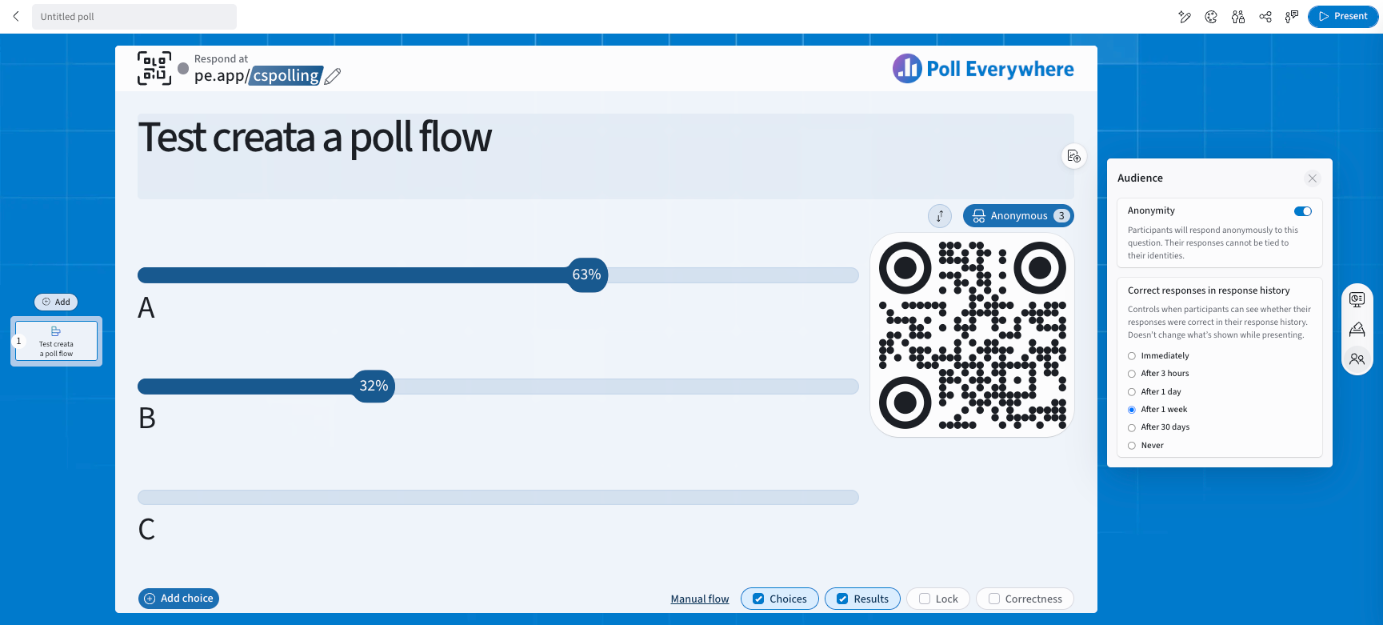
Set your default in My settings → Defaults → Anonymity. Admins can set and lock it for everyone in Organization settings → Defaults → User anonymity. On Q&A questions, turning on Anonymity turns off Name tags.
The anonymity feature:
- If a presenter turns on anonymity while a participant is typing, the participant's text will not be lost. Their response will continue to display — now anonymously.
- If a presenter turns off anonymity, participants will see a friendly informational message letting them know the change has occurred. This replaces the previous warning-style banner.
- The response field updates automatically to reflect the current anonymity setting in real time.
These improvements ensure participants are clearly informed and that no input is lost during changes.
What do participants see?
- When anonymity is enabled, participants will see a message indicating that their response will be anonymous.
- If the setting is turned off, the new message will let them know that their name will now be attached to any future responses.
All changes are non-intrusive and easy to follow, helping avoid confusion during live presentations. Anonymity can be toggled on or off at any point while the poll is active. Participants will not lose their typed responses if the setting changes during their input.
This gives presenters more flexibility without disrupting the flow of interaction.