
Participant groups let you organize your audience into named groups so you can:
- restrict who can respond to a poll
- run graded assignments
- track attendance
No LMS is needed.
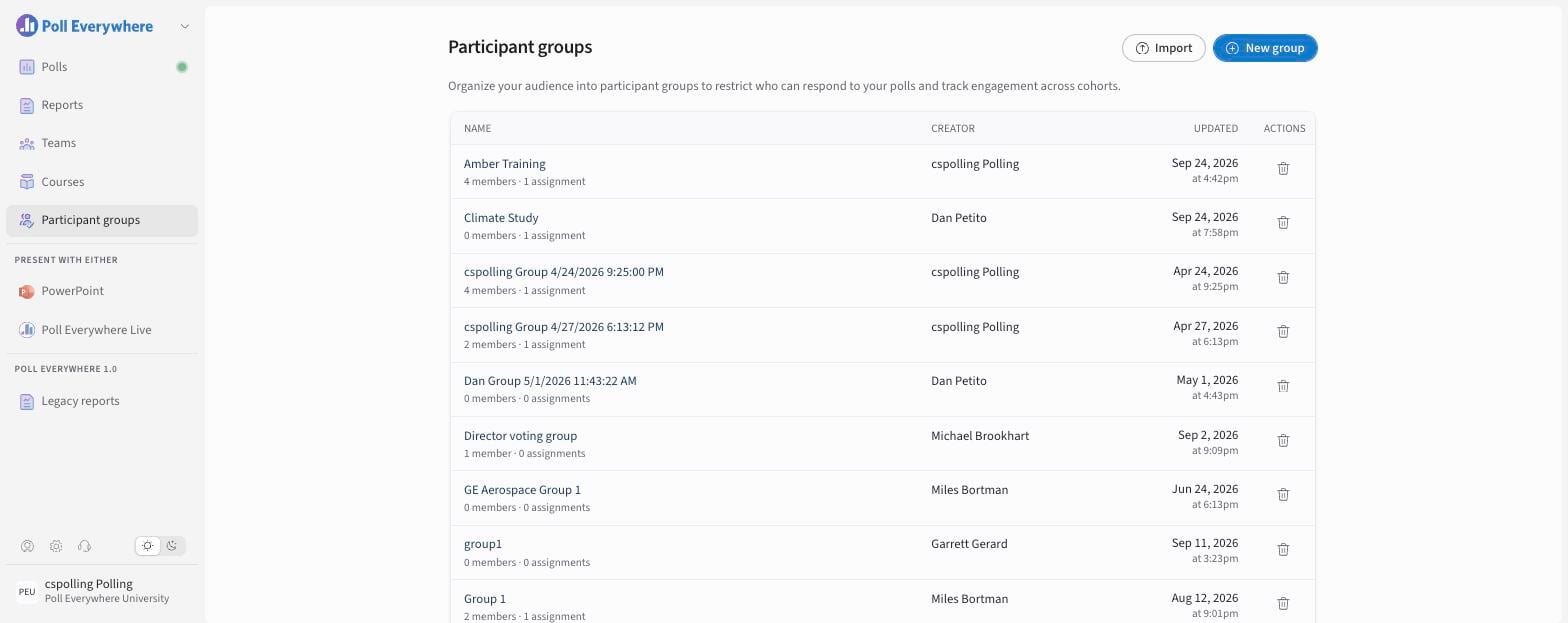
The Participant groups page
Select Participant groups in the left navigation. You'll see every group in your organization, who created it and when it was last updated.
Create a group
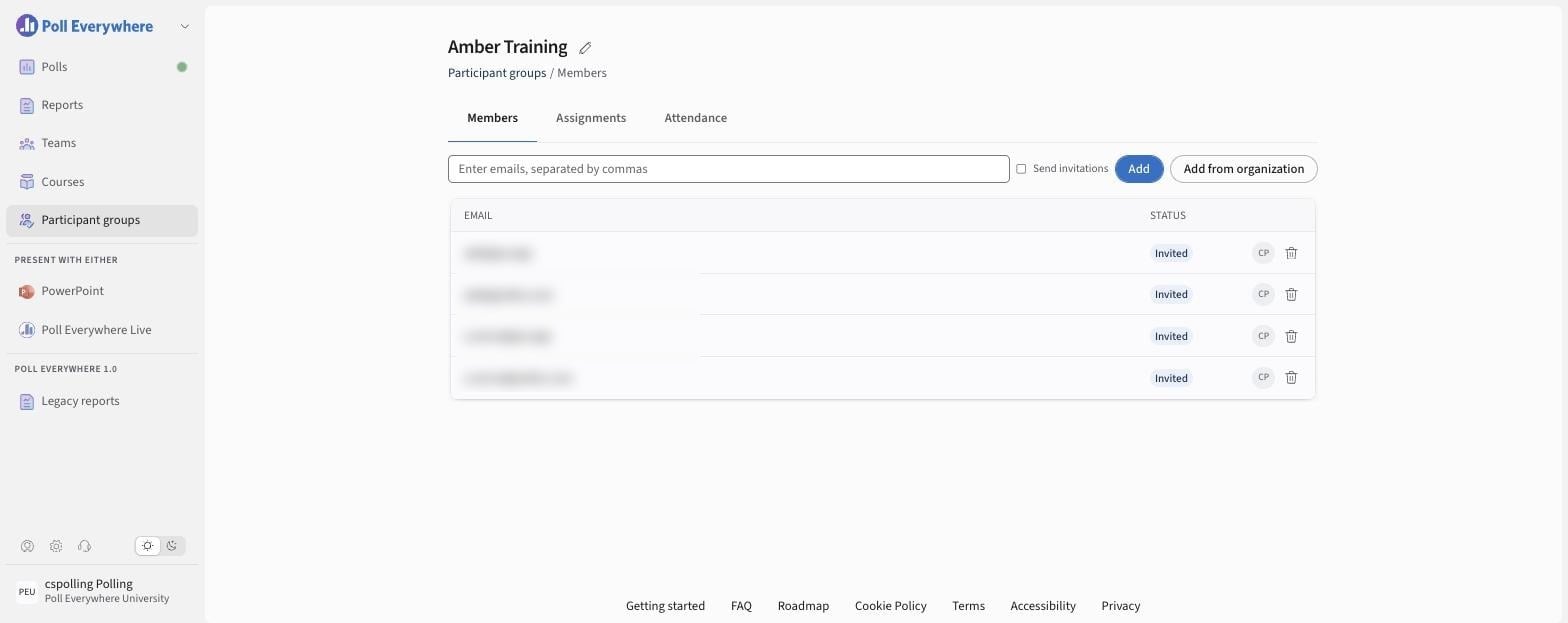
- Select New group and name it.
- On Members, enter emails separated by commas and select Add. Tick Send invitations to email them an invite, or use Add from organization to pick existing members.
Import groups from a CSV
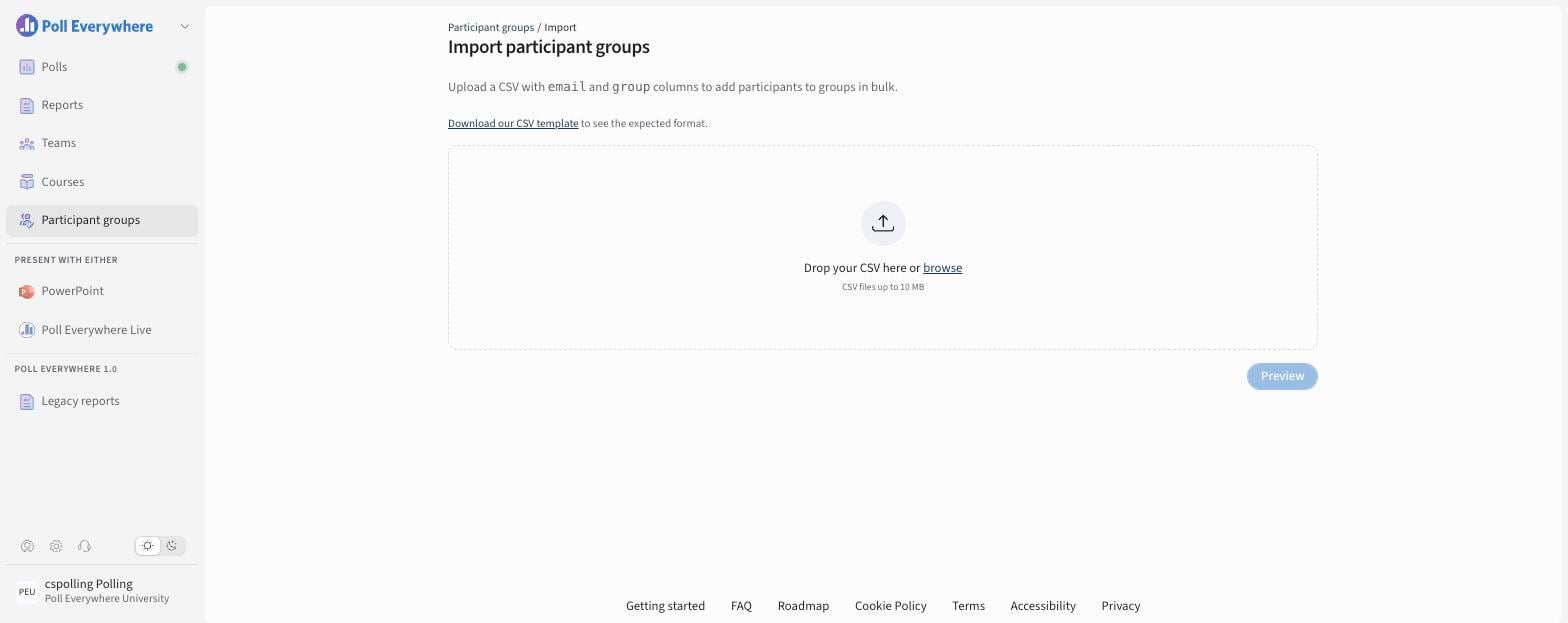
- Select Import.
- Select Download our CSV template. It has email and group columns.
- Drop your CSV in the upload area (or browse), up to 10 MB.
- Select Preview to check the results, then confirm.
Assignments
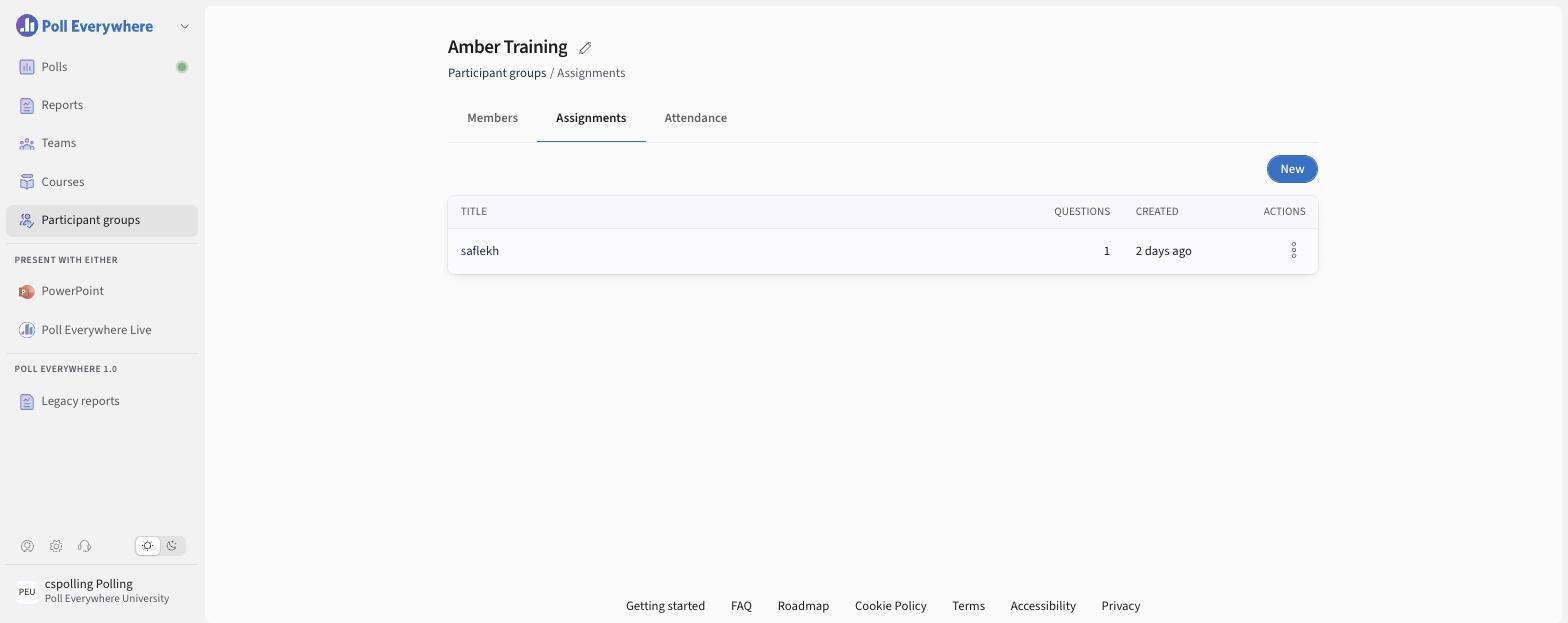
Open a group → Assignments → New. Select polls or questions from My polls or Shared with me, then set the grading configuration. Results include grades, participation, correctness and attendance, and can be exported for an external gradebook.
Attendance
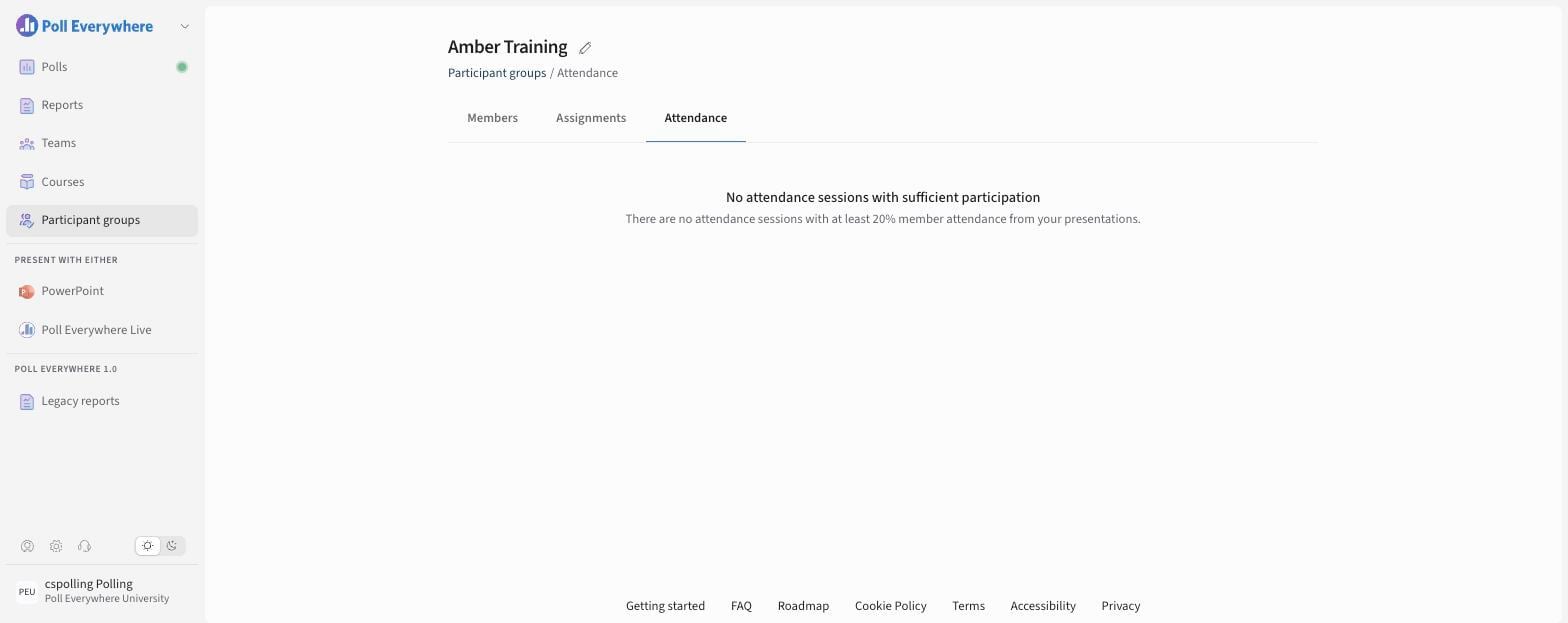
Open a group → Attendance to see attendance sessions where at least 20% of members checked in.
Restrict a poll to a group
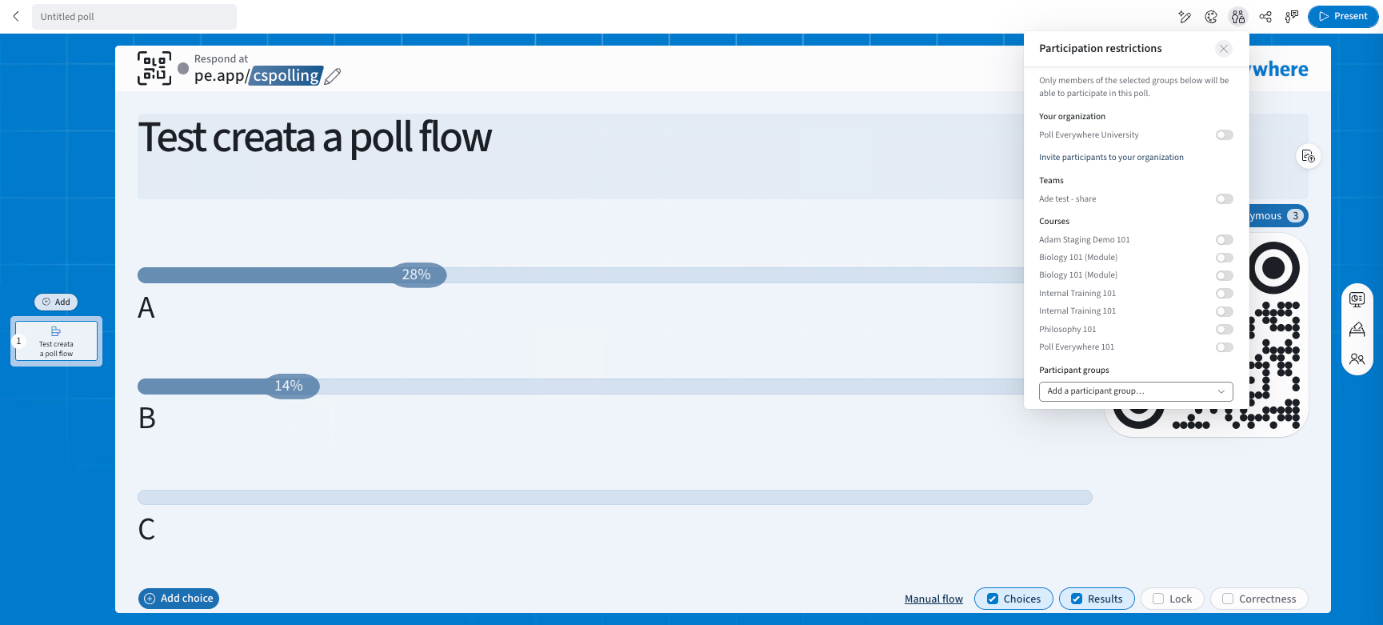
In the editor, select Participation restrictions (top bar) → Participant groups → choose one or more groups. Anyone in at least one selected group can respond. The list includes groups created by other people in your organization.
Managing people across the organization
To resend or revoke invitations, or remove people from the organization, administrators use Organization settings → User management.
If you have any questions or run into issues, please contact the Technical Support team.