
In this article:
- Getting registered
- Create your account
- Responding during class
- Checking in for attendance
- Quick tips for success
- Need help? We’ve got you
Welcome! Your instructor is using Poll Everywhere 2.0 to collect responses, track participation, and (sometimes) take attendance. This guide walks you through what to expect and how to participate smoothly—no pop quizzes here (unless your instructor made one 😄).
Getting registered
If your class uses Poll Everywhere through your school's learning management system (LMS), you are added to your instructor's class automatically. You do not need to wait for an invitation email. The first time you open a Poll Everywhere activity, sign in with your school email (or Google, Microsoft or Apple if your instructor allows it). If you did get an invitation email from your school, you can still use it.
Most instructors need your responses tied to your institution's email address so they can:
- Assign participation or attendance credit
- Review class performance
- Grade responses
Create your account
- Click the Open Poll Everywhere 2.0 button in the email.
- Create your password.
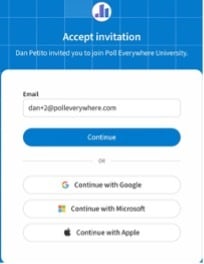
- When prompted, select your organization, this will be the name of your school or university.
- You can also sign in using Google, Microsoft, or Apple if your instructor allows it.
Once you’re set up, you’re ready to participate in class.
Responding during class
During class, your instructor will display a Poll Everywhere activity on screen. You'll see a join link such as pe.app/instructorscode.
To respond:
- Go to the join link from your phone, tablet, or laptop, or scan the QR code shown on screen
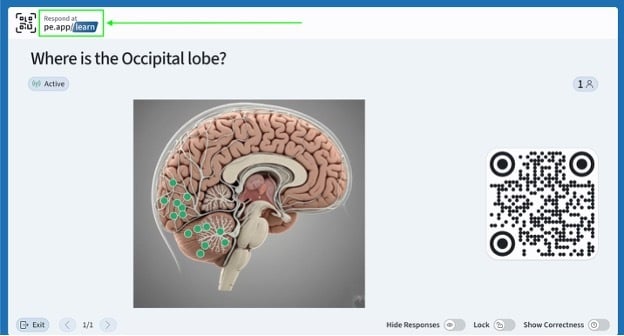
- You’ll be taken directly to the activity and can respond in real time.
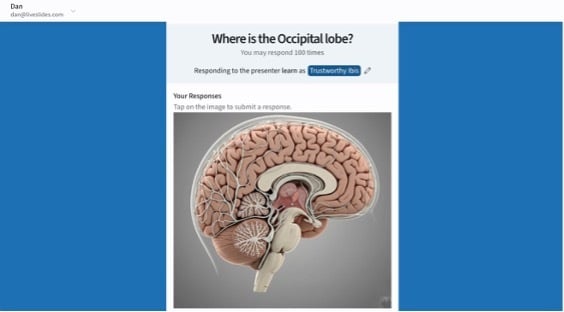
Heads-up: Some activities require you to log in before responding. Keep your Poll Everywhere password handy—future you will be grateful.
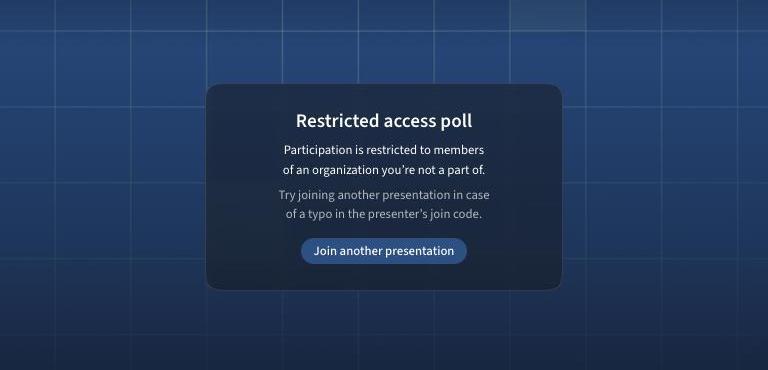
If you see Restricted access poll, the activity is limited to a group you're not signed in to. Sign in with your school email, or ask your instructor.
Checking in for attendance
If your instructor is using Poll Everywhere for attendance, you’ll need to be physically present to check in.
When attendance is active, you’ll see a “Check-in required” message with a yellow dot in the top-left corner of the response page.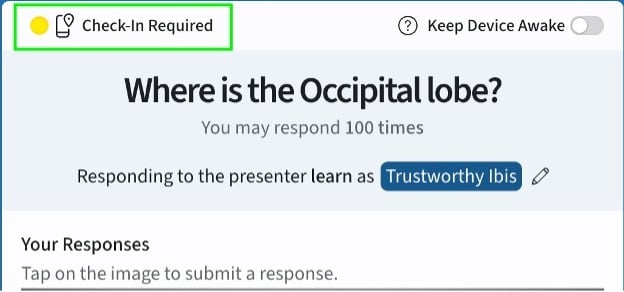
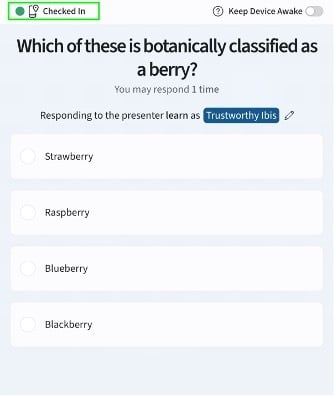
Successful check-in
Once verified, you’ll see a confirmation message letting you know your attendance was recorded automatically. That’s it—you’re checked in.
If check-in doesn’t work
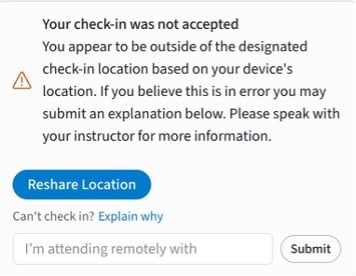
Sometimes tech has opinions. If your check-in isn’t automatically verified, you’ll see a pop-up asking for more info.
You can:
- Click Explain why and provide a reason (remote attendance, exemption, illness, etc.)
- Talk to your instructor after class if you were present but couldn’t check in
Notes: Your instructor can review and resolve these cases.
You can learn more about Checking in with Rotating Codes here: Checking in with Rotating Codes (For Students)
Quick tips for success
- Bring a charged device (Poll Everywhere does not love 1% battery life)
- Use your school email when registering
- Join the activity as soon as it appears—some polls close quickly
- If something looks wrong, ask your instructor or contact support
- Want to look back at your answers? Select your name at the top left of the response page and choose Response history. Your instructor decides when you can see whether your answers were correct, so this may not show straight away.
Need help? We’ve got you
If you run into technical issues, Poll Everywhere Support is happy to help:
Email: pe2support@polleverywhere.com
We promise real humans, not robots (unless you like robots).