
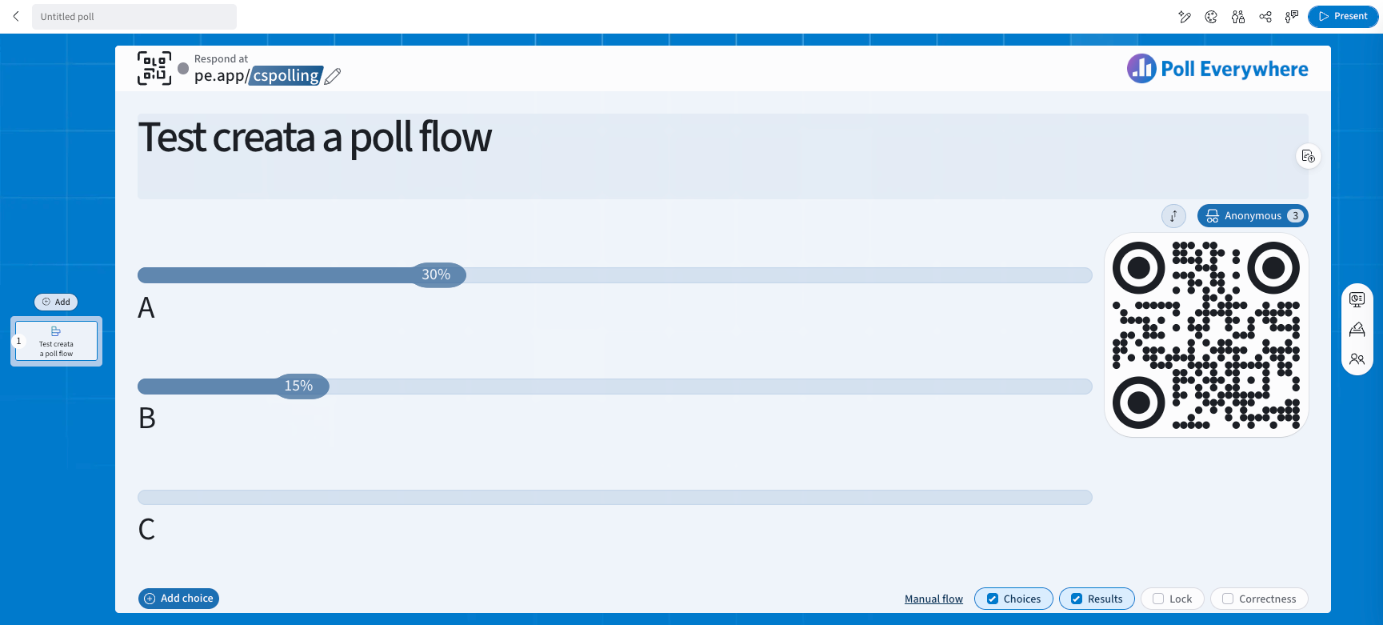
The question page is where you build and present each slide. It has four areas: the slide pane on the left, the question slide in the centre, the top bar, and the right rail.
Slide pane
The thumbnails on the left show every slide in your poll.
- Click a thumbnail to jump to it.
- Drag thumbnails to reorder.
- Select Add to insert a new question, Competition, Attendance, Content or Media slide.
- Hover a thumbnail and use its ⋯ Actions menu for slide options.
Question slide
- Respond at pe.app/yourcode: your join link. Select the pencil to edit your join code. Select the QR icon to show or hide join instructions. A green dot means the slide is live.
- Question title and choices: click to edit inline.
- Upload a reference image: the icon at the right of the title.
- Sort responses and the Responded counter (shows Anonymous when anonymity is on).
- QR code: participants scan it to join.
Top bar
| Button | What it does |
|---|---|
| AI Assistant | Opens the Poll assistant to edit the poll with AI. |
| Design | Choose a theme or customize font, accent, background and logo. |
| Participation restrictions | Limit responses to your organization, teams, courses or participant groups. |
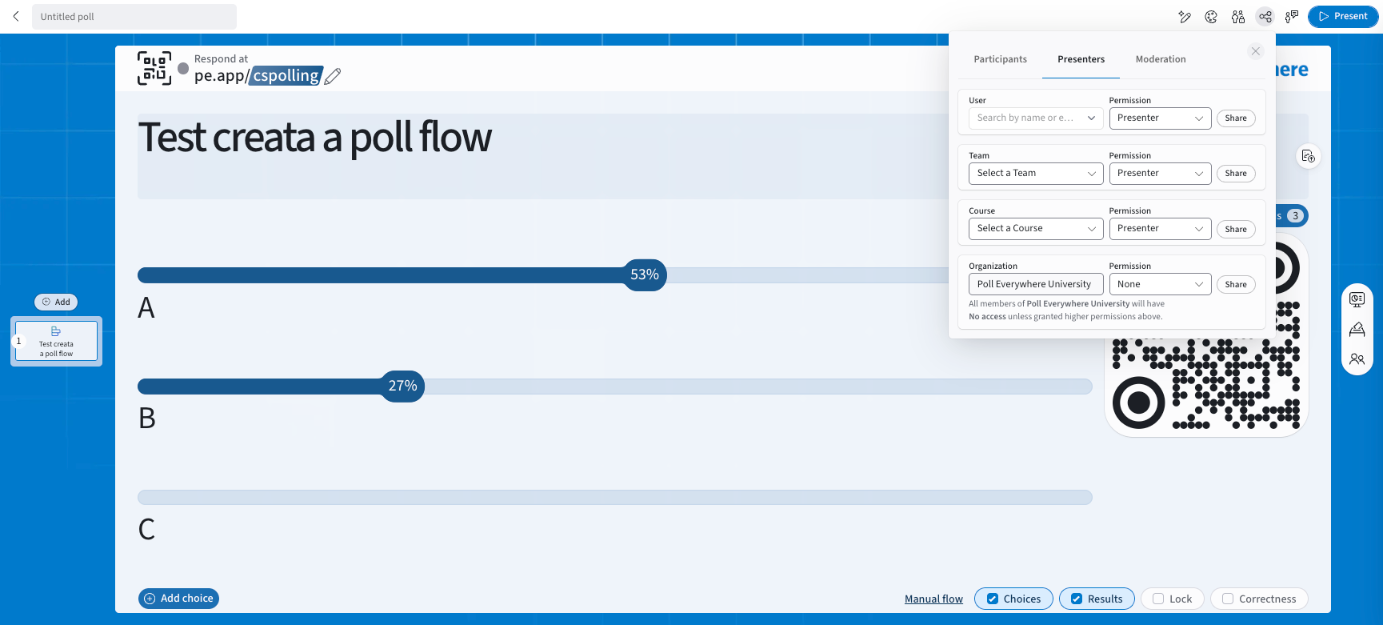
| Share | Participants: turn on a response link. Presenters: share with a user, team, course or organization as Presenter, Editor or Owner. Moderation: copy or open the moderation queue. |
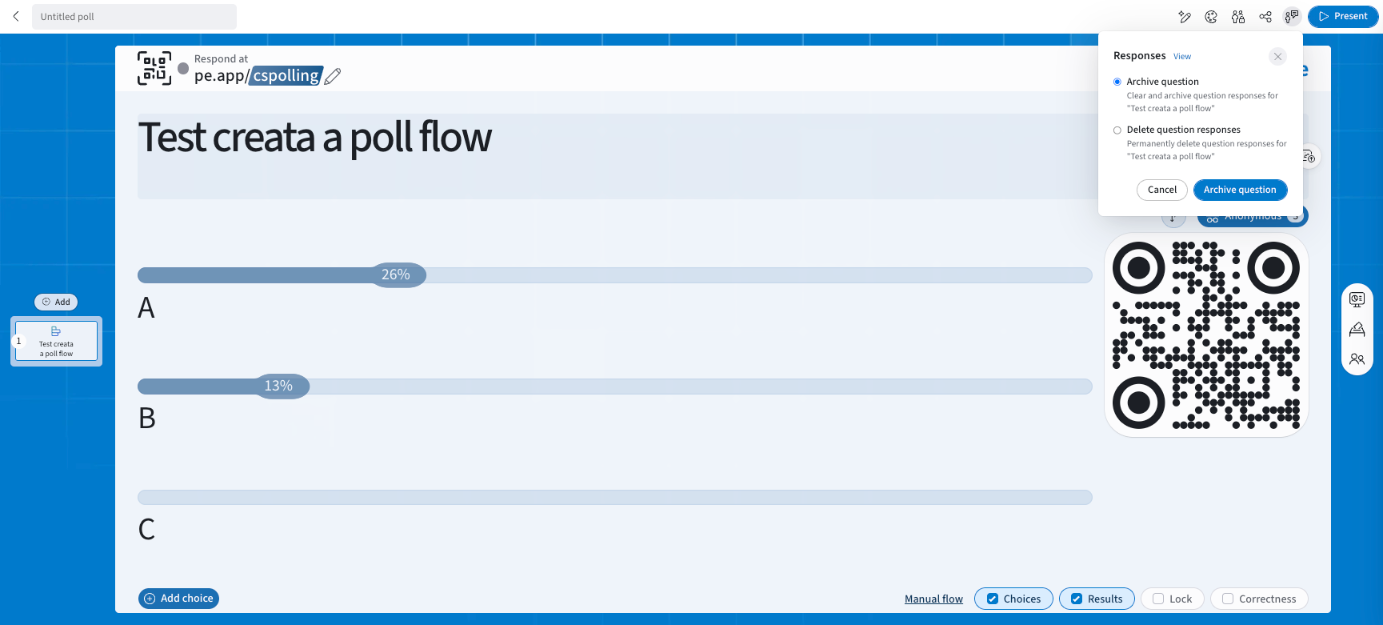
| Responses | Archive question (clear and keep) or Delete question responses (permanent). View opens the report. |
| Present | Enters present mode and activates the slide. |
Share permission levels
- Presenter: can present, copy and view responses.
- Editor: Presenter rights plus editing.
- Owner: Editor rights plus share, move and delete.
Right rail
| Icon | Panel | Available on |
|---|---|---|
| Visualization | Switch chart type (Bar, Donut, Likert, Radar, Ranking, Word cloud, Q&A, Clickable image) | All question types |
| Response settings | Single/Multi select, Cumulative voting, Randomize choices, Allow changing answers (open-ended: submission limits) | All question types |
| Moderation | Require approval, moderation queue, AI Moderator | Q&A |
| Audience reactions | Reaction emoji set | Q&A |
| Audience | Anonymity, Name tags (Q&A), Correct responses in response history | All question types |
Bottom bar
| Control | What it does |
|---|---|
| + Add choice | Adds an answer choice (multiple choice). |
| Manual flow (or the flow name) | Opens the Question Flow settings: flow type and timer. |
| Choices | Show or hide answer choices. |
| Results | Show or hide live results. |
| Lock | Stop accepting new responses. |
| Correctness | Reveal the correct answer(s). |
Present mode
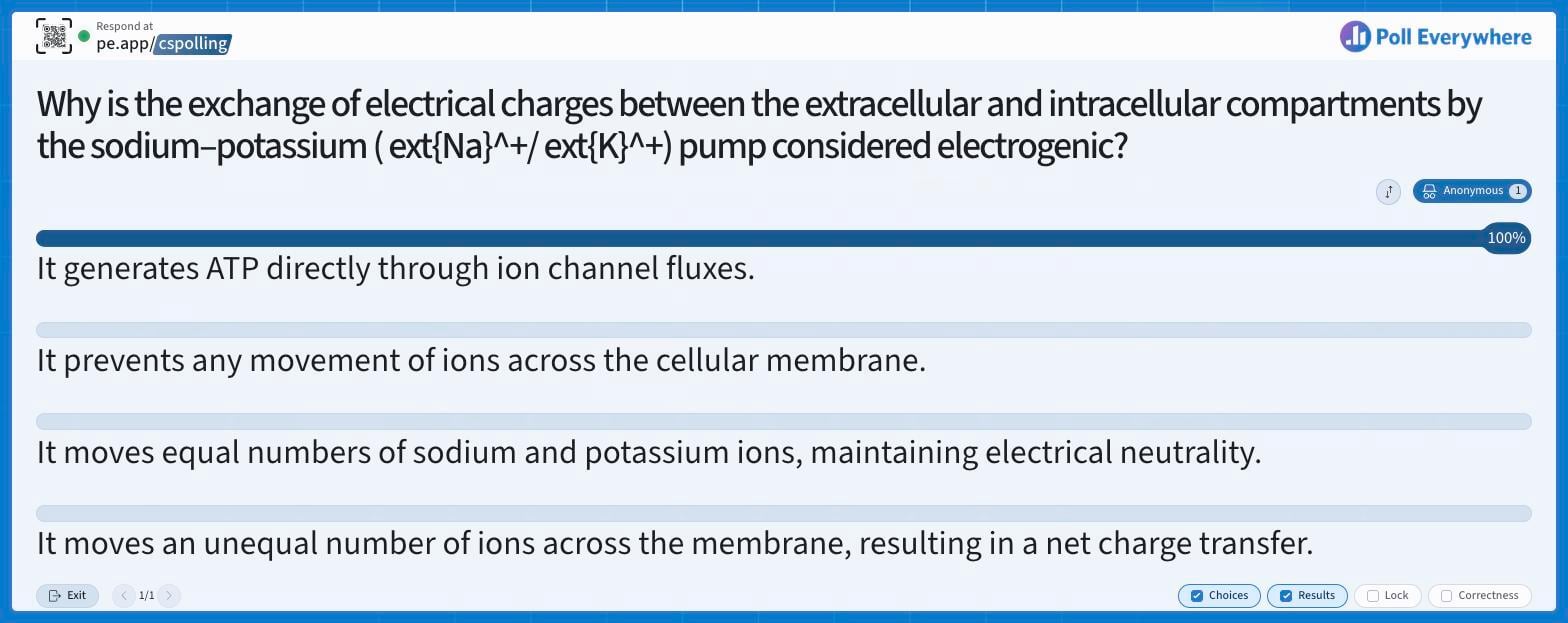
Select Present to go live. The slide expands and the bottom bar shows:
- Exit: leave present mode and deactivate the slide.
- ‹ 1/1 ›: move between slides.
- Choices / Results / Lock / Correctness: the same toggles as the editor.
Keyboard shortcuts: when enabled in My settings → Defaults → Keyboard shortcuts, the R, L, H, A and S keys control the presentation.
If you have any questions or run into issues, please contact the Technical Support team.