
Use participation restrictions when responses must come from known people, for example for grading, attendance or internal-only sessions. Restricted participants must sign in before they can respond.
Set restrictions on a poll
- Open the poll in the editor.
- Select Participation restrictions in the top bar.
- Turn on one or more groups: - Your organization: anyone in your Poll Everywhere organization. - Teams: members of the selected team(s). - Courses: students enrolled in the selected LMS course(s). - Participant groups: pick from Add a participant group….
- Close the panel. The restriction applies to every question in the poll straight away.
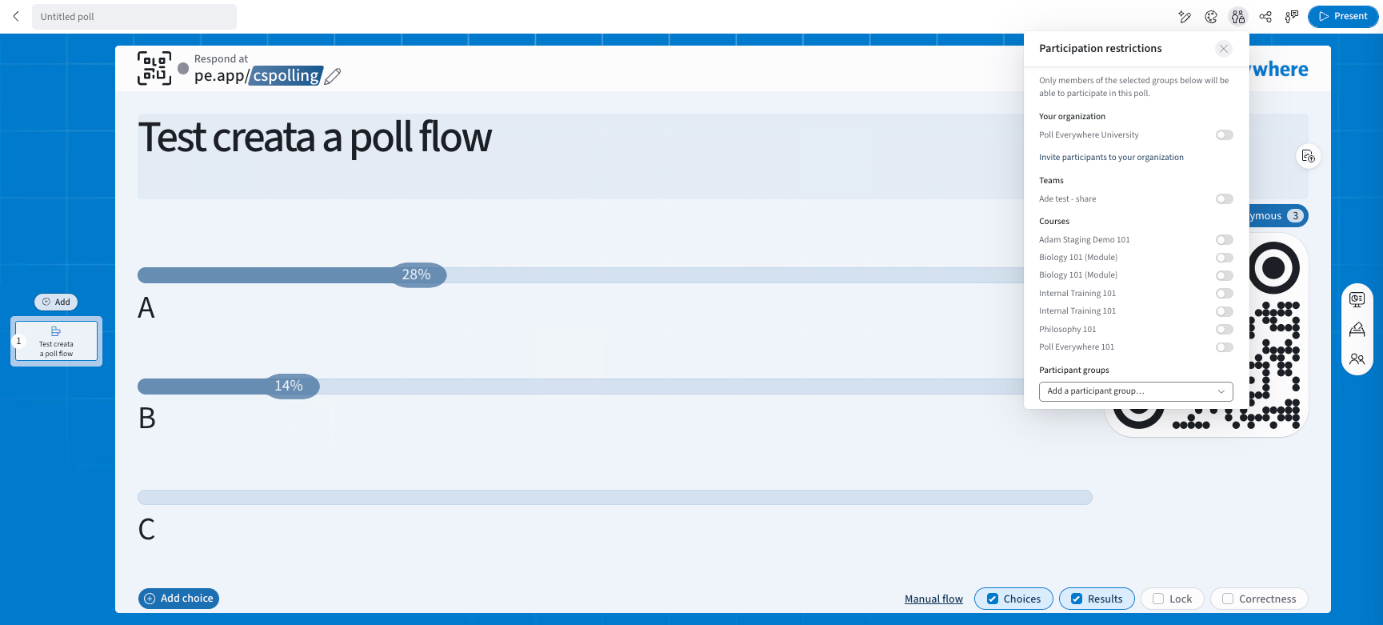
How multiple selections work: anyone who belongs to at least one selected group can respond.
No restrictions selected = anyone with your join link can respond.
What restricted participants see
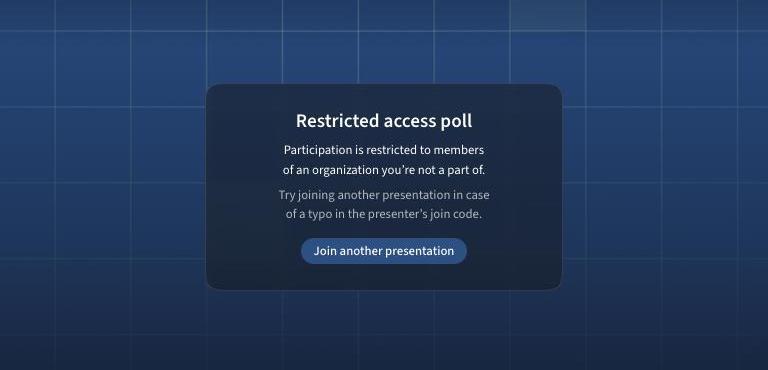
People who aren't signed in, or aren't in a selected group, see Restricted access poll with an option to join another presentation.
Set a default
- You: My settings → Defaults → Participation restriction.
- Admins: Organization settings → Defaults → Participation restriction (can be locked).
When to use restrictions
- Attendance and graded activities
- Keeping out non-students
- Compliance or internal-only sessions
For anonymity, see Managing Anonymity.
If you have any questions or run into issues, please contact the Technical Support team.