
Poll defaults are the settings every new question starts with. Set them once and each new poll picks them up automatically. You can still change settings on individual questions, unless an administrator has locked them.
In this article
- Your personal defaults
- What you can set
- Organization defaults (admins)
- Locking a default and exempting users
Your personal defaults
- Select the My settings icon (person icon, bottom left).
- Open the Defaults tab.
- Change any setting. Select Reset to Default (or Reset to organization default) to undo.
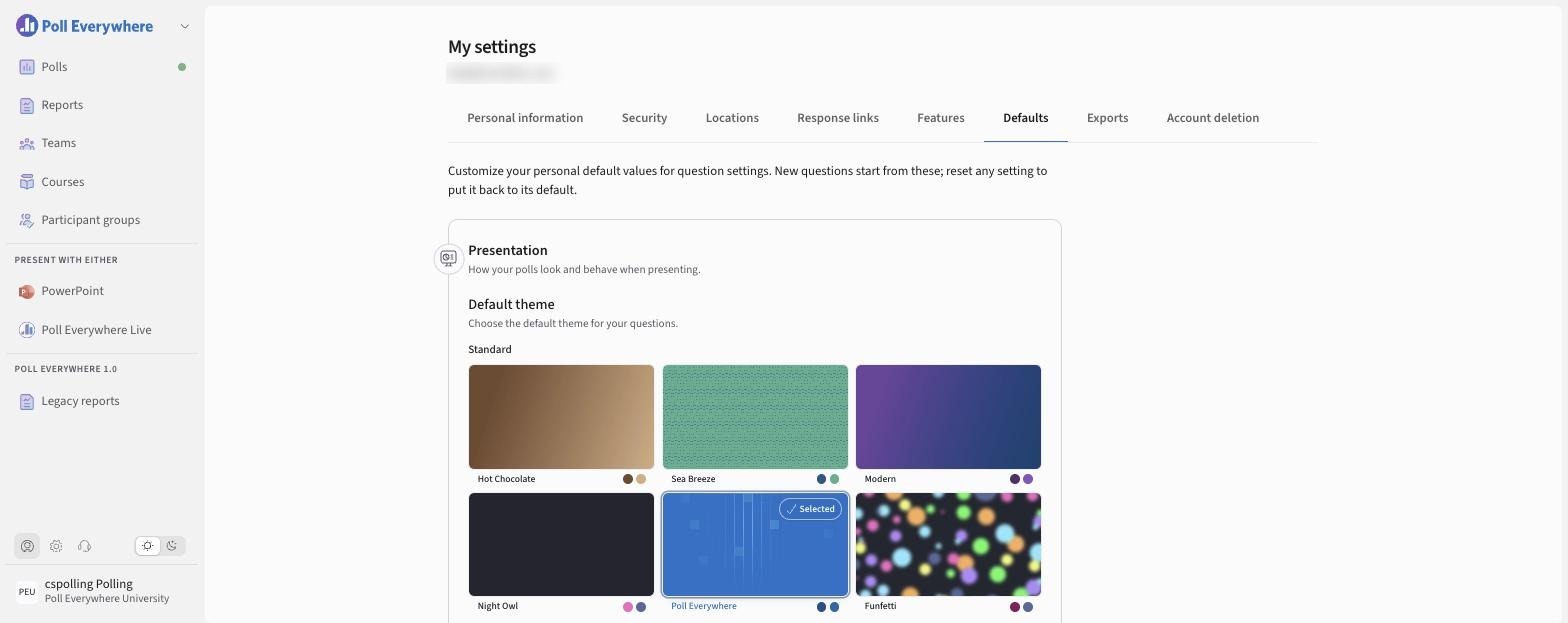
What you can set
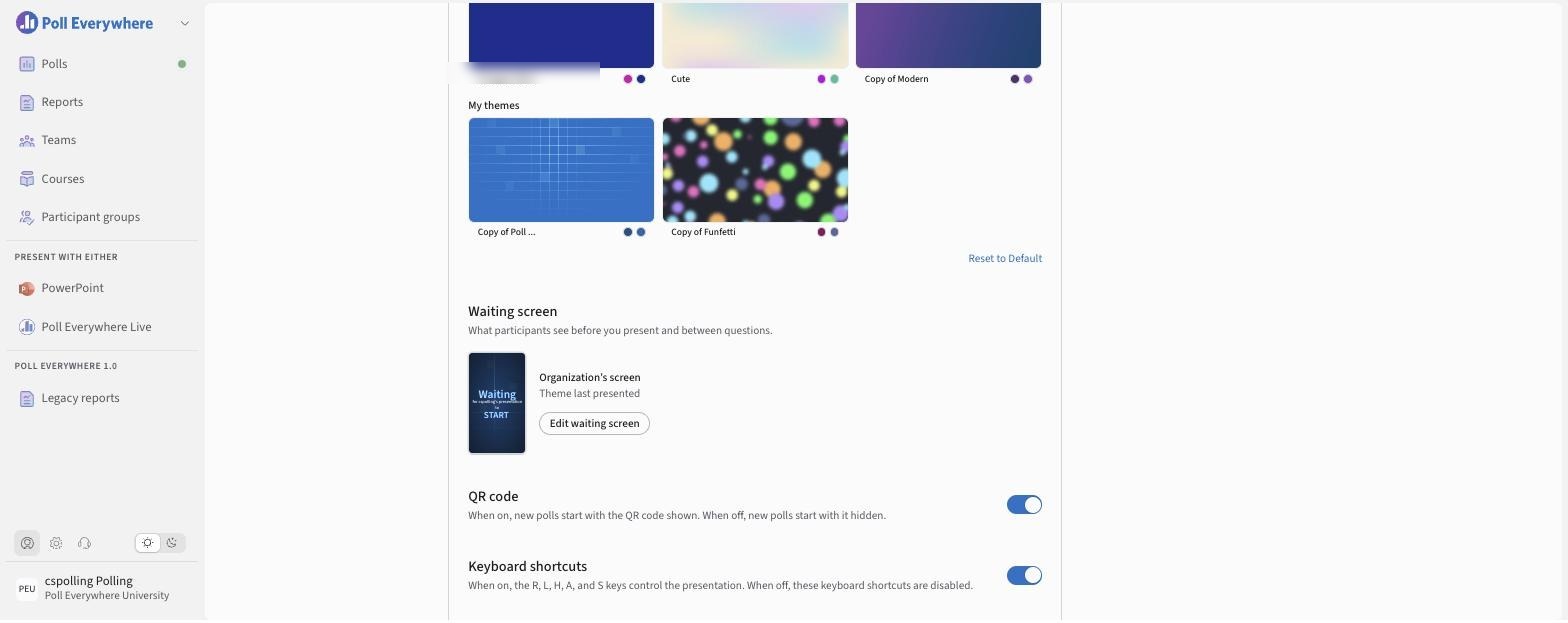
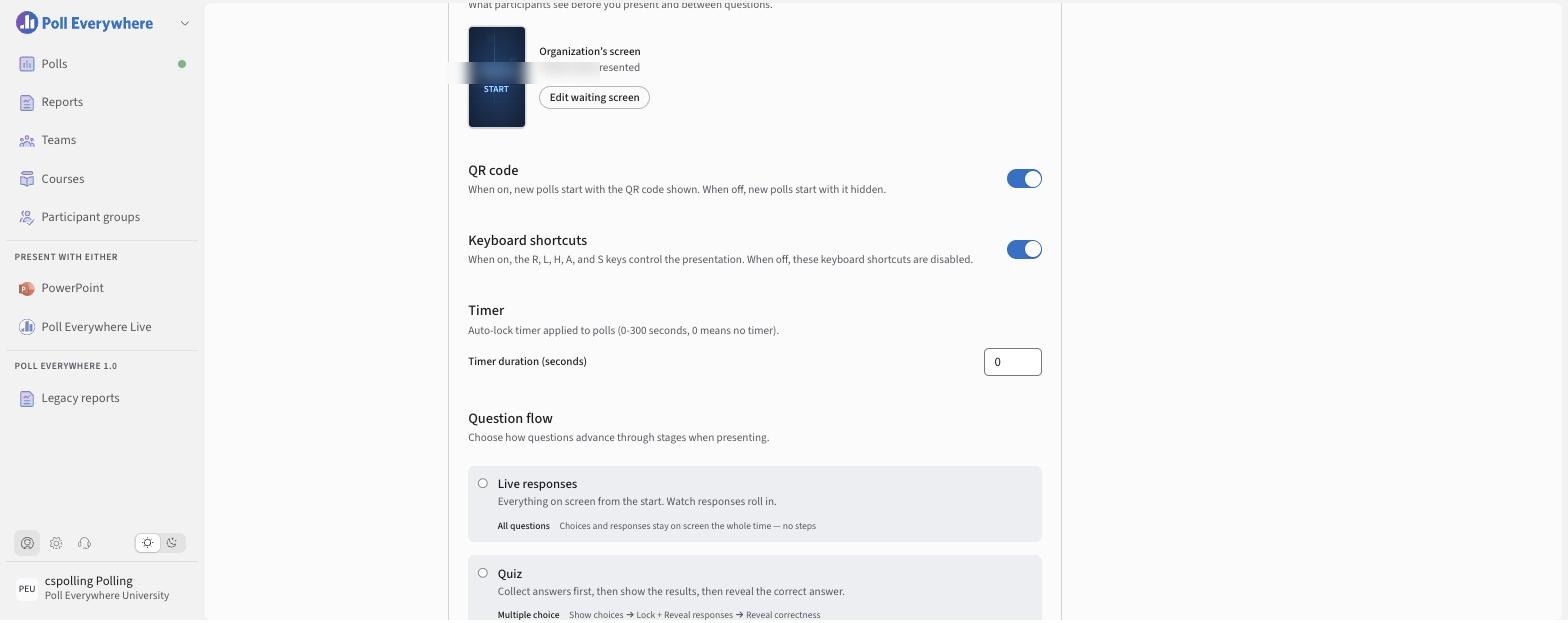
Presentation
| Setting | Options |
|---|---|
| Default theme | Standard, Organization or My themes |
| Waiting screen | What participants see before you present and between questions. Select Edit waiting screen. Step-by-step guide: Customize the Waiting Screen. |
| QR code | New polls start with the QR code shown or hidden |
| Keyboard shortcuts | Turn the R, L, H, A and S presentation shortcuts on or off |
| Timer | Auto-lock timer, 0–300 seconds (0 = no timer) |
| Question flow | Live responses · Quiz · Question first · Manual |
| Results label | Percentage or Count |
| Allow changing answers | On / Off |
Participation
| Setting | Options |
|---|---|
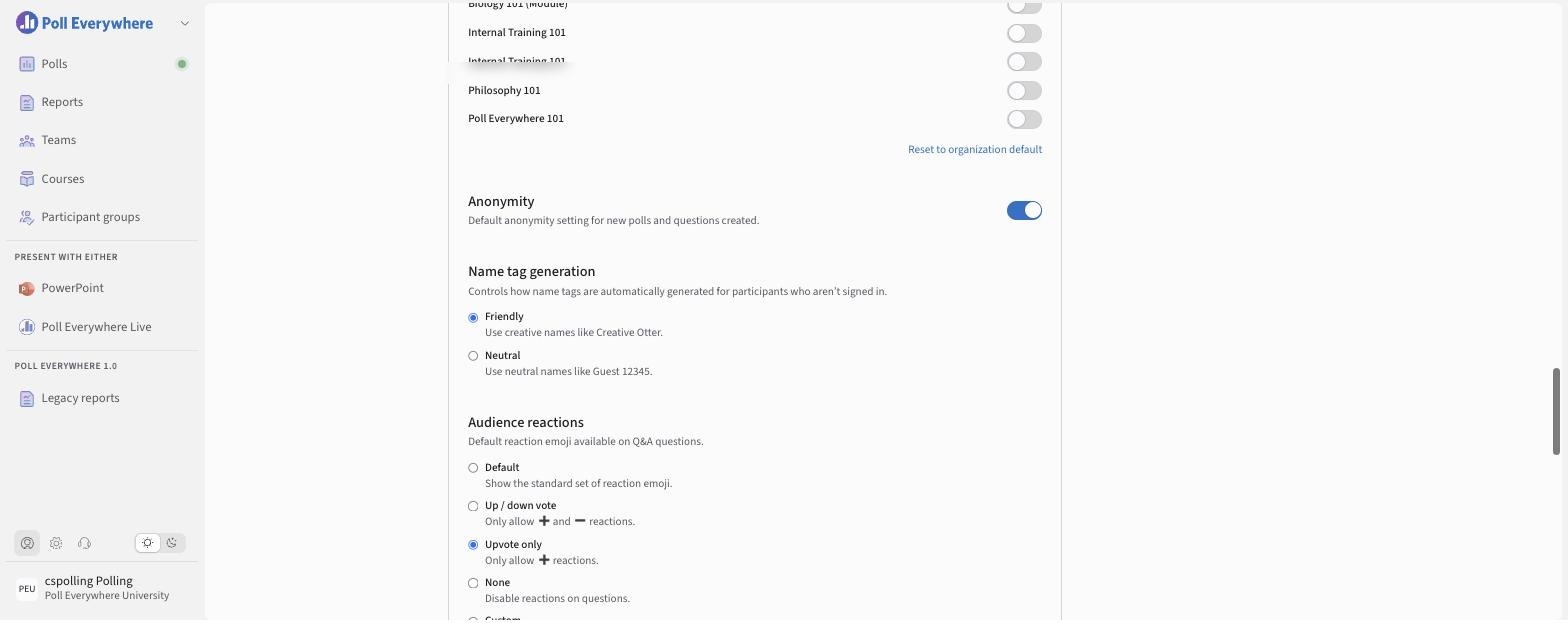
| Participation restriction | Your organization, Teams, Courses |
| Anonymity | On / Off for new polls |
| Name tag generation | Friendly (e.g. Creative Otter) or Neutral (e.g. Guest 12345) for participants who aren't signed in |
| Audience reactions | Default · Up / down vote · Upvote only · None · Custom |
| Correct responses in response history | Immediately · After 3 hours · After 1 day · After 1 week · After 30 days · Never |
Response settings
| Question type | Options |
|---|---|
| Multiple choice | Single select / Multi select |
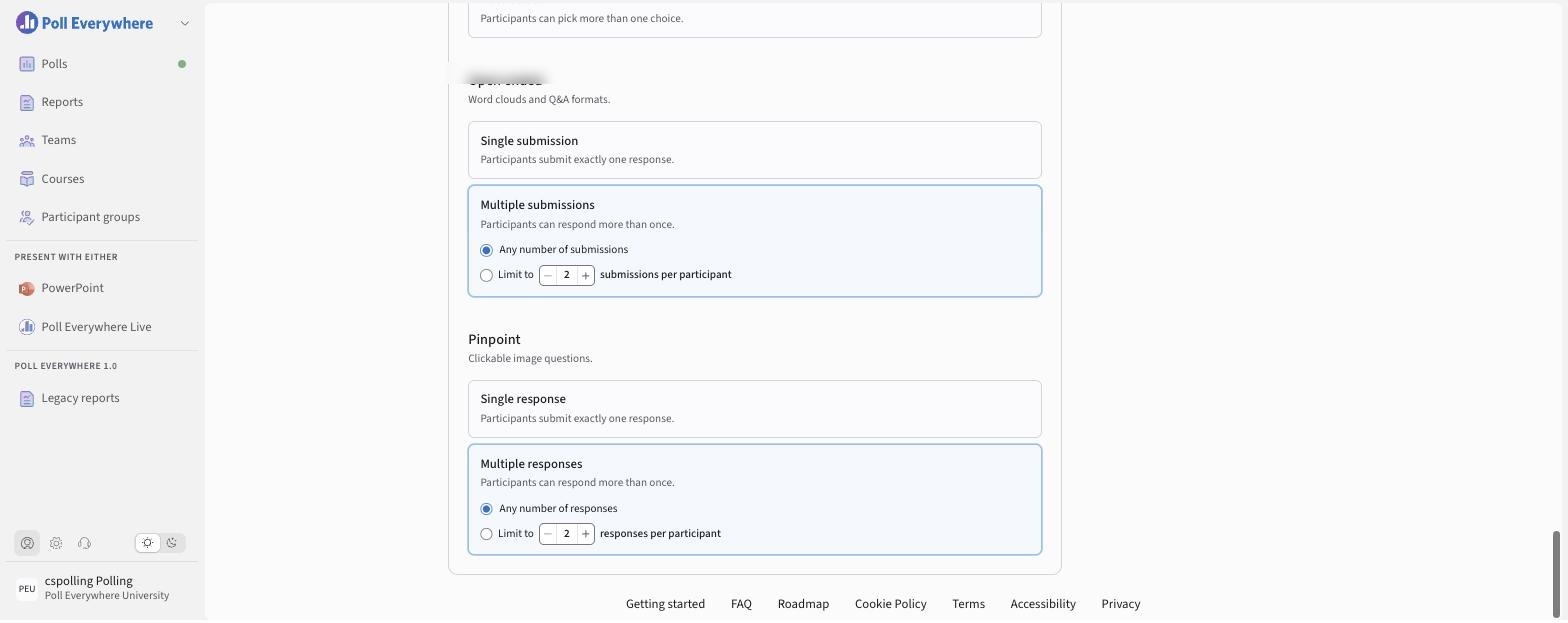
| Open ended | Single submission / Multiple submissions (any number or limit to N) |
| Pinpoint (Clickable image) | Single response / Multiple responses (any number or limit to N) |
Organization defaults (admins)
- Select the Organization settings icon (gear, bottom left).
- Open the Defaults tab.
- Set the organization-wide starting point for Presentation, Questions and Participation settings.
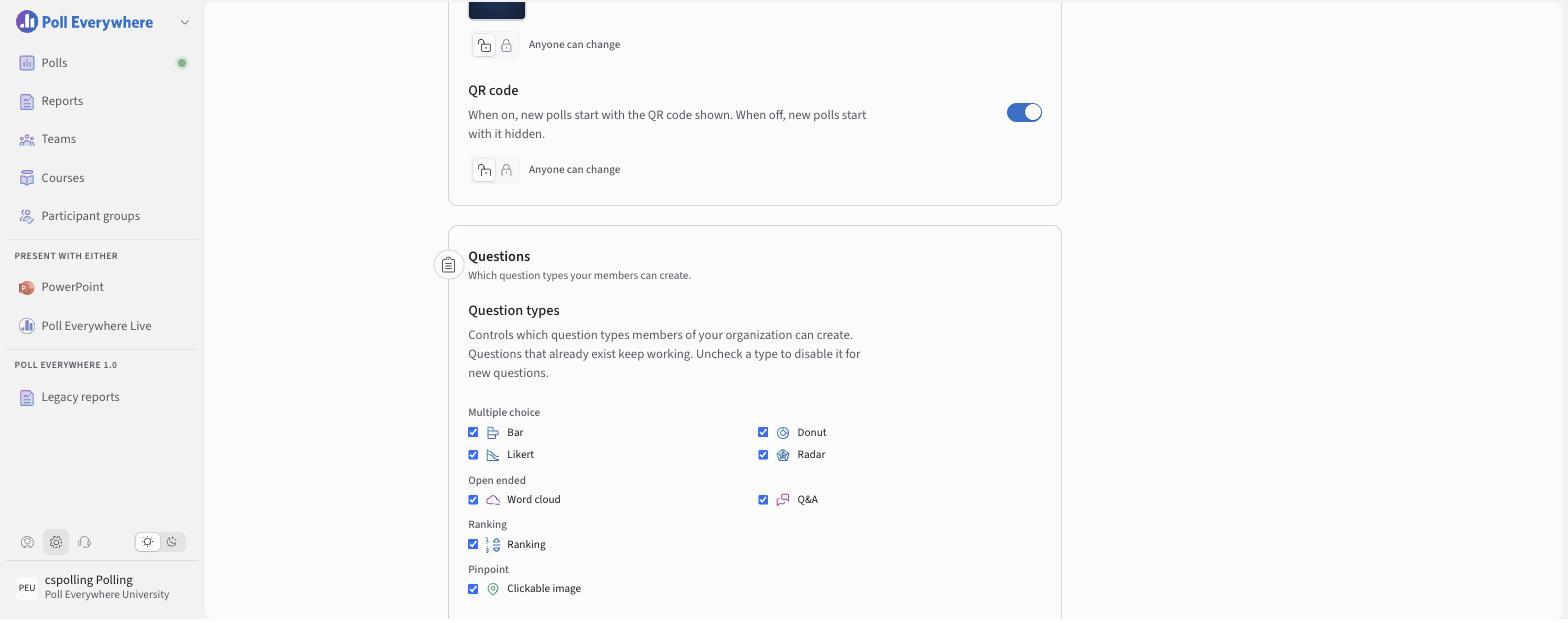
Under Questions → Question types, admins can untick question types to stop members creating them. Existing questions keep working.
Locking a default and exempting users
Under each organization default there's a lock control:
- Anyone can change (unlocked): members can override it.
- Locked: members see the setting greyed out, in their defaults and on questions.
- N exempt users: select this to choose people who can still change the setting.
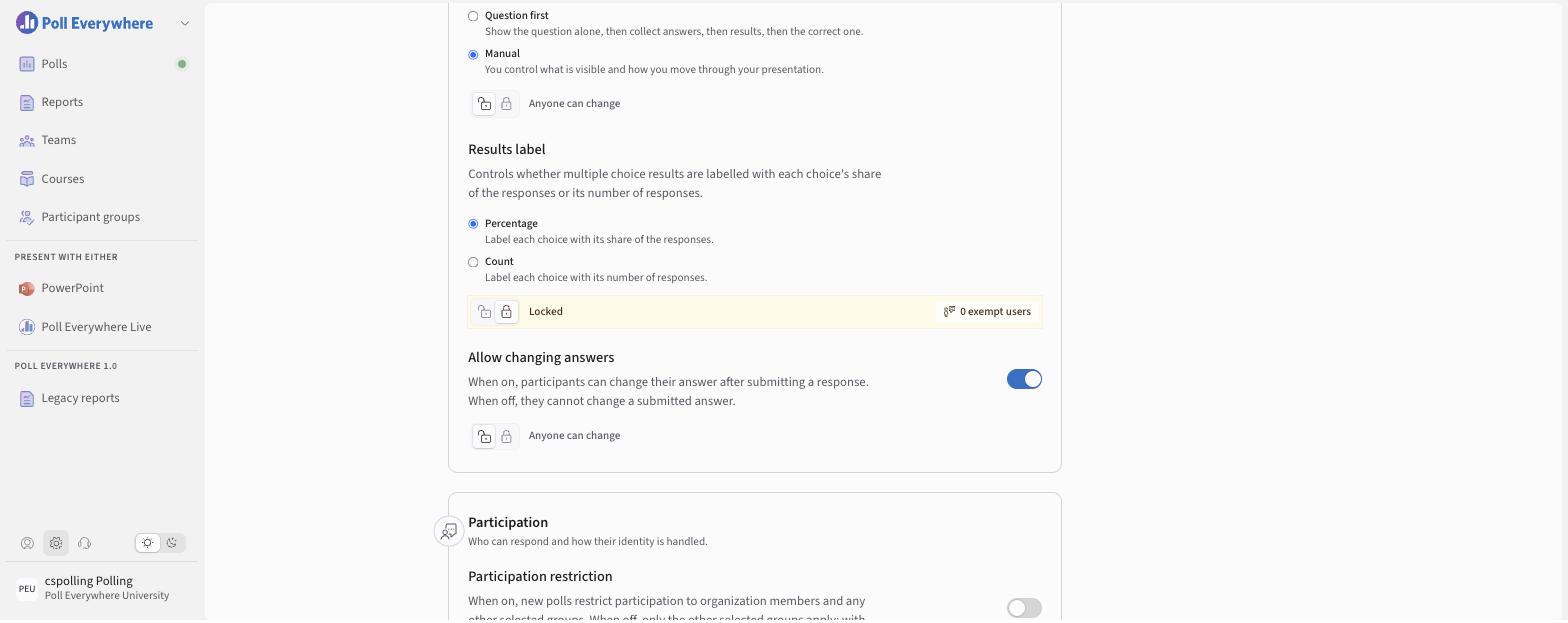
For Results label and Allow changing answers, changing the organization default offers Apply to all existing polls. See 2.0 Response Counts and Percentages and Requiring Participants to Submit their Final Answer.
If you have any questions or run into issues, please contact the Technical Support team.