
Administrators use User management to invite people, assign roles and manage access for the whole organization.
Open User management
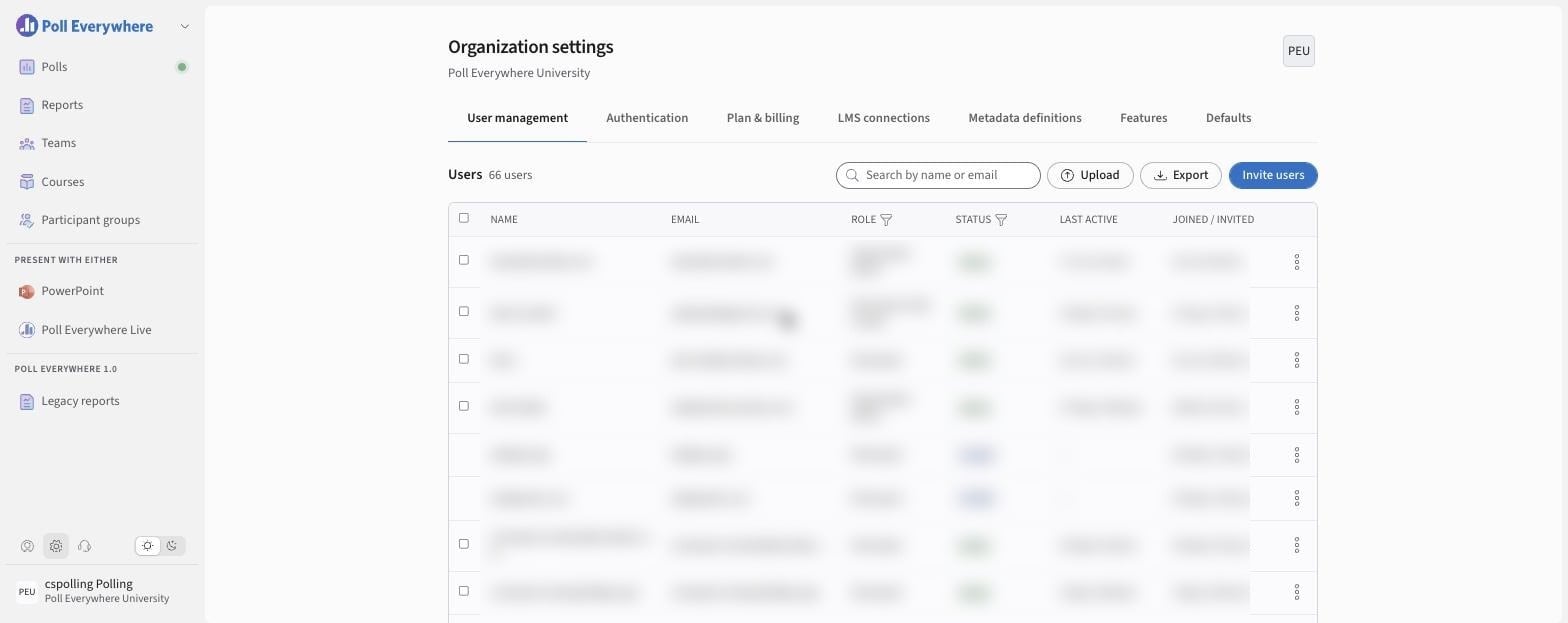
Select the Organization settings icon (gear, bottom left). User management opens first.
User roles
| Role | Summary |
|---|---|
| Organization Admin | Full control of the organization: users, billing, integrations, settings and content. |
| Polls Admin | Full access to polls, including managing organization defaults and features. Includes the ability to invite users. |
| Polls Creator | Creates, presents and reports on their own polls. |
| Polls Presenter only | User who is able to present polls which have been created by others |
| Surveys Admin | Full access to the Poll Everywhere Survey Everywhere Platform, including managing organization defaults and features. Includes the ability to invite users. |
| Surveys Creator | Allows users to create and manage their own surveys |
| Team Creator (Add on) | Can create teams, and manage and delete the teams they administer. This is an add-on role and doesn't provide access to polls or surveys by itself. |
| Participant | User who is only allowed to participate, not present polls. Free, and doesn't count toward licences. |
| Organization default | Assigns the organization's default role. |
People can hold more than one role (for example Participant, Polls Creator).
Invite users
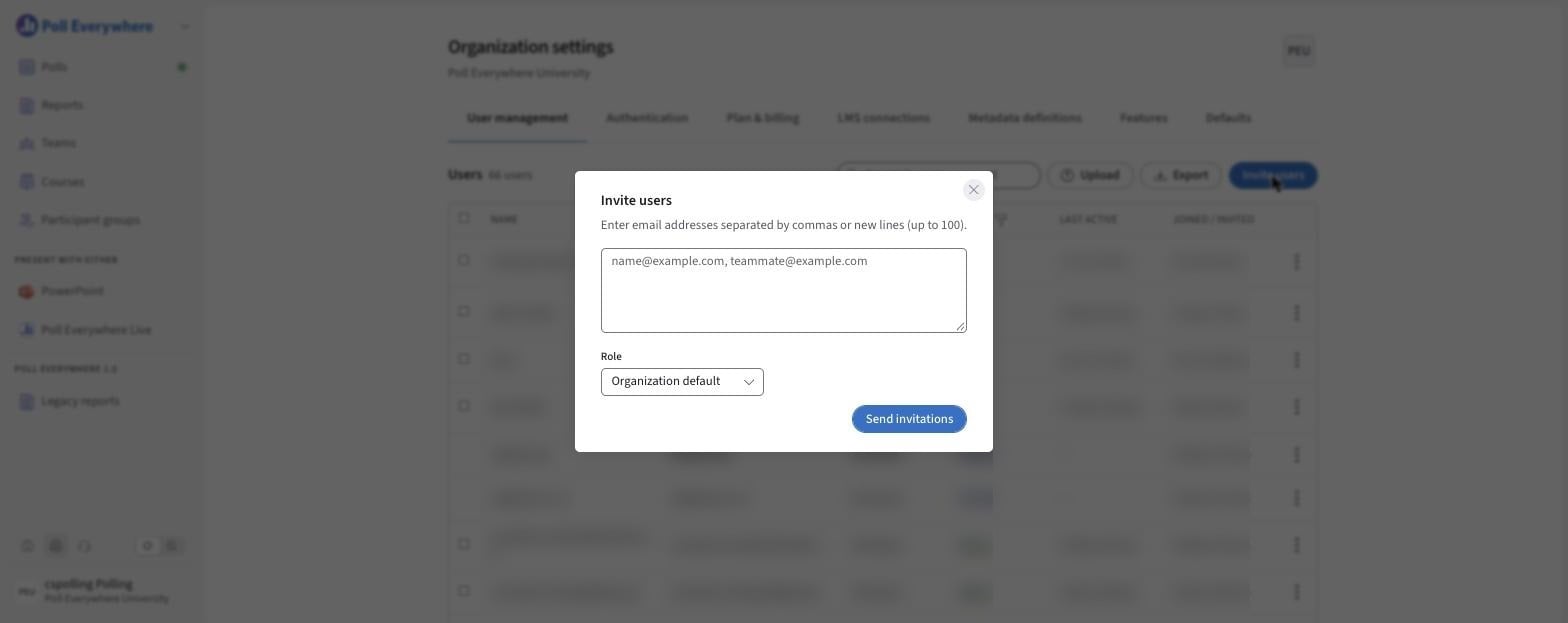
- Select Invite users.
- Enter email addresses separated by commas or new lines (up to 100 at a time).
- Choose a Role.
- Select Send invitations.
To add many people at once, select Upload and use a CSV file. Select Export to download the user list.
Manage existing users
- Search by name or email. Filter by Role or Status.
- Select ⋯ on a row:
- Change roles
- Remove user
- For invited users:
- Resend invitation
- Revoke invitation (the link stops working)
Things to keep in mind
- Participants are free.
- Creator, presenter and admin roles count toward your plan.
- Removing a user revokes their access to shared content and assignments.
If you have any questions or run into issues, please contact the Technical Support team.