
A response link lets participants answer a poll in their own time, with no live presentation needed. It's useful for homework, pre-reads, feedback and self-paced checks.
Turn on a response link
- Open the poll in the editor (or select ⋯ → Response link on the Polls page).
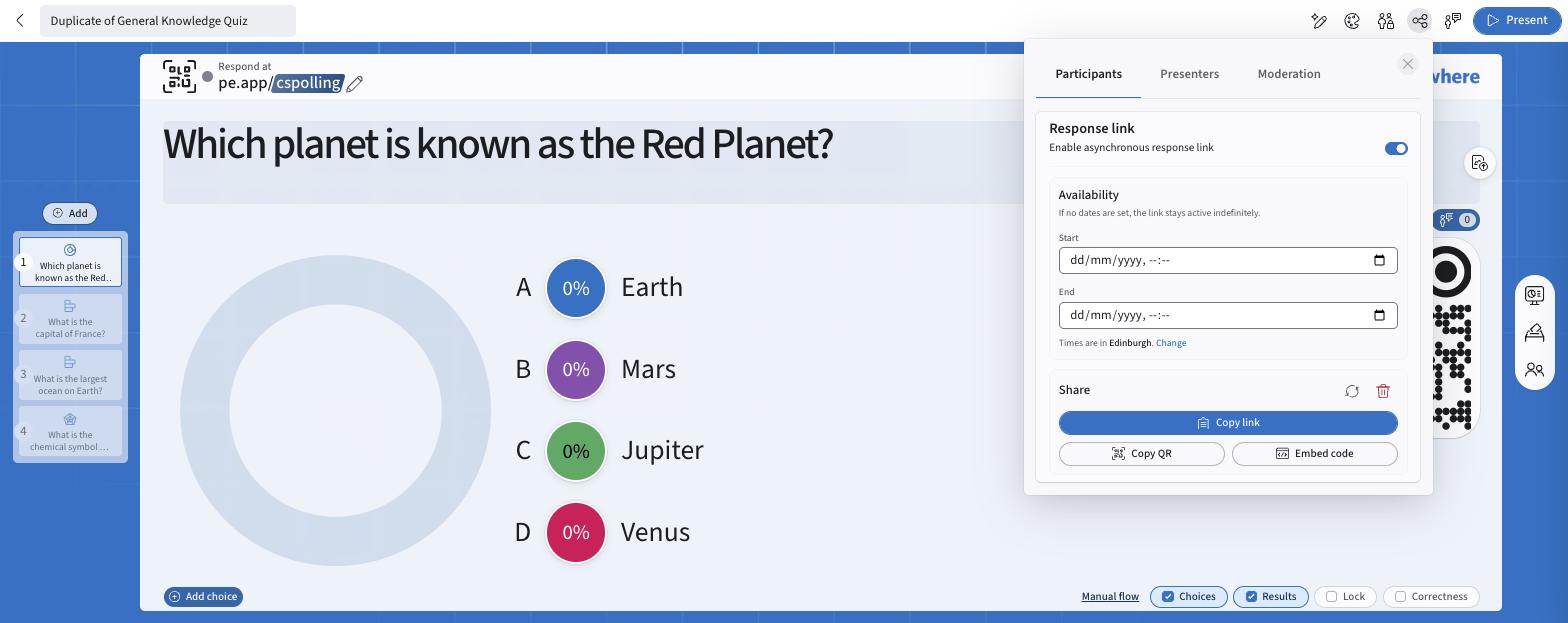
- Select Share in the top bar.
- On the Participants tab, turn on Response link.
- Optional: set Availability. Choose a Start and End date/time. With no dates, the link stays active indefinitely. Times use your time zone; select Change to update it.
- Share it: - Copy link: paste into email, chat or your LMS. - Copy QR: paste a QR code into slides or handouts. - Embed code: embed the poll in Canvas, Notion or any site that accepts HTML (see Embedding Response Links).
What participants see
Participants move through the questions one at a time with Next, then select Finish and see a confirmation. Correct answers, anonymity and grading settings apply as they would live.
Note: Attendance questions and leaderboards aren't available through response links.
Manage a link
- Pause: turn the Response link toggle off. The URL stays the same and resumes when you turn it back on.
- Rotate (↻): issues a new URL and disables the old one. Other settings are kept.
- Delete (🗑): removes the link permanently.
- See all your links: My settings → Response links (see Viewing and Managing Response Links).
Owners can view, activate, deactivate or delete any response link on their polls, including links created by collaborators. Responses through a collaborator's link are attributed to that collaborator.
If you move a poll or survey to the trash, its response links stop working. After you restore it, turn the links back on (Share > Participants); they stay off until you do.
FAQ
Do I need to present the poll for the link to work? No. Response links work whether or not the poll is live.
Can I pause the link without losing it? Yes. Toggle it off, then on again. The same link resumes unless you rotated or deleted it.
What happens after the end time? Participants see a message that the poll is no longer accepting responses.
Do responses show in reports? Yes. Response-link answers appear in Reports just like live responses.
Is there an audience limit? Yes. Response links count unique responders against your plan's audience size. See Audience Size Limits.
If you have any questions or run into issues, please contact the Technical Support team.