
My settings → Response links lists every response link on your polls, including links collaborators created on polls you own.
Open your response links
- Select the My settings icon (person icon, bottom left).
- Open the Response links tab.
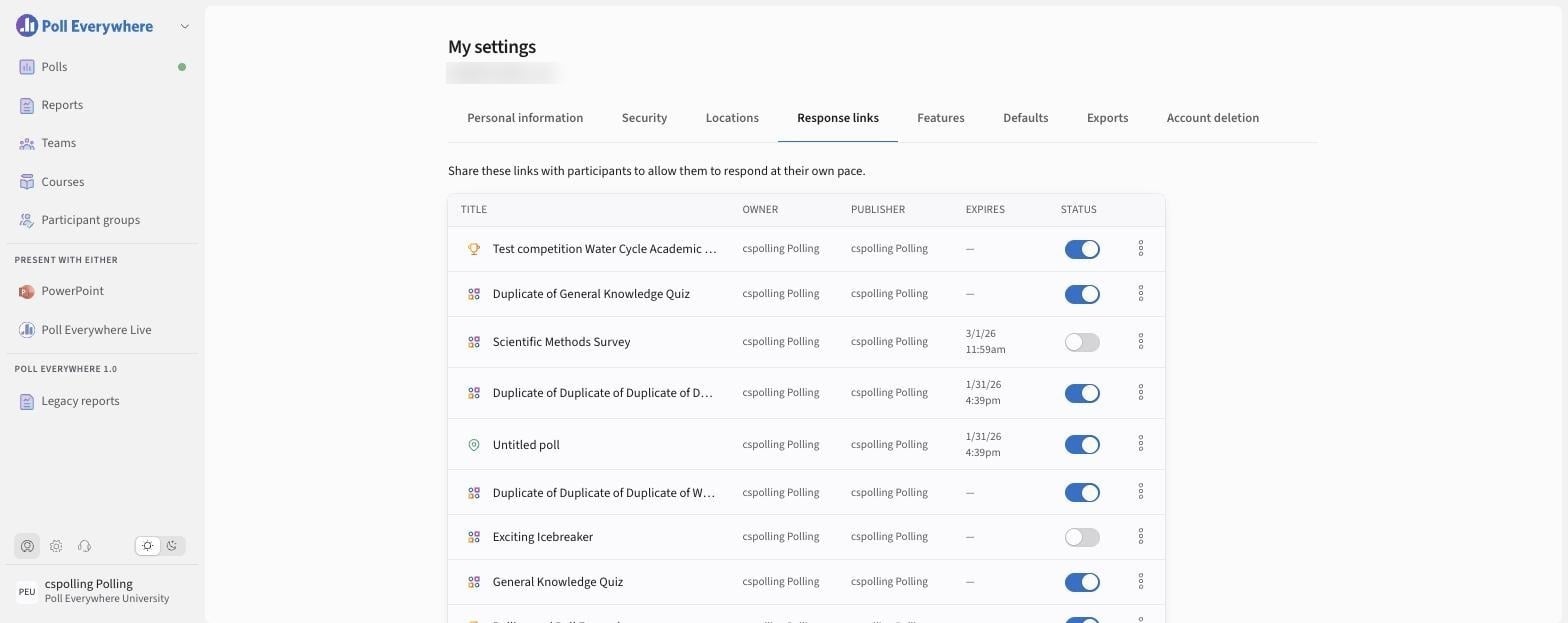
What you can see
| Column | Meaning |
|---|---|
| Title | The poll (the icon shows its type) |
| Owner | Who owns the poll |
| Publisher | Who created the link |
| Expires | End date/time, or — if none |
| Status | Toggle the link on or off without deleting it |
Actions
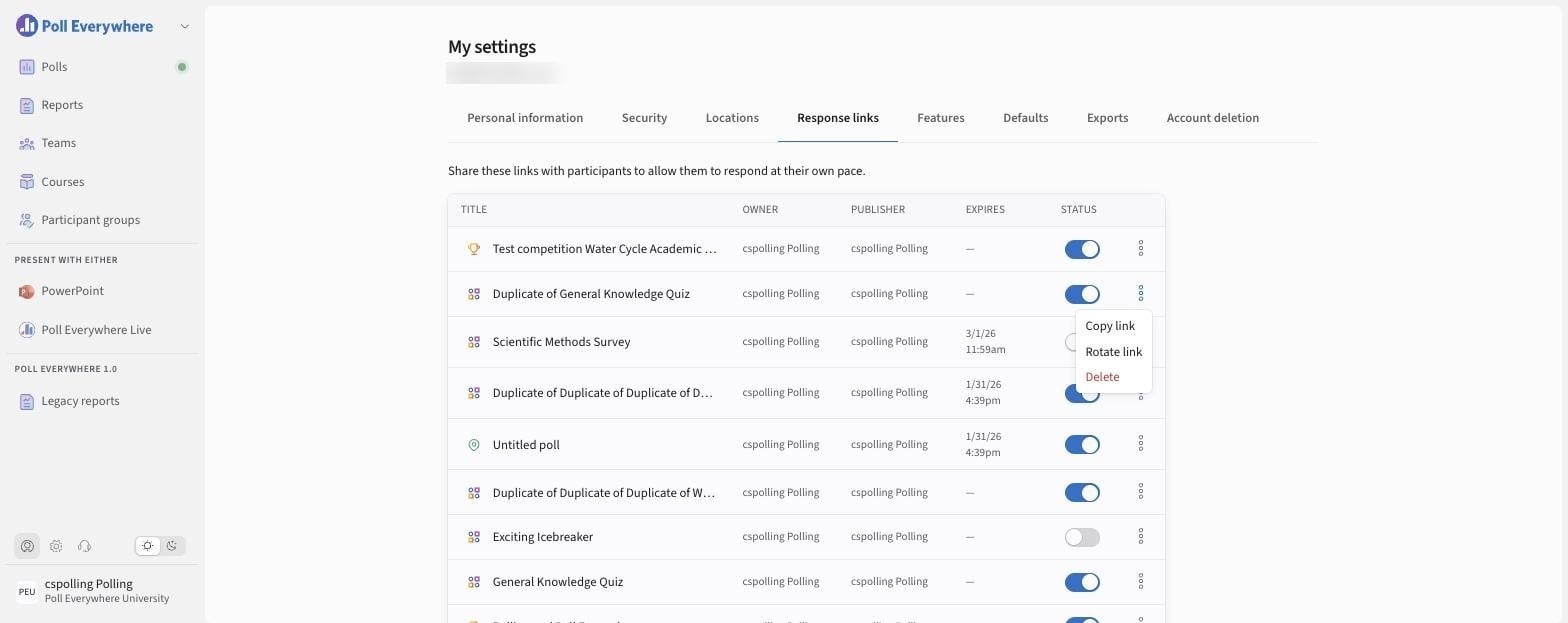
Select the ⋯ menu on a row:
- Copy link
- Rotate link: creates a new URL and disables the old one.
- Delete: removes the link permanently.
To change a link's availability dates or get an embed code, open the poll and select Share → Participants. See Using Response Links.
If you have any questions or run into issues, please contact the Technical Support team.