
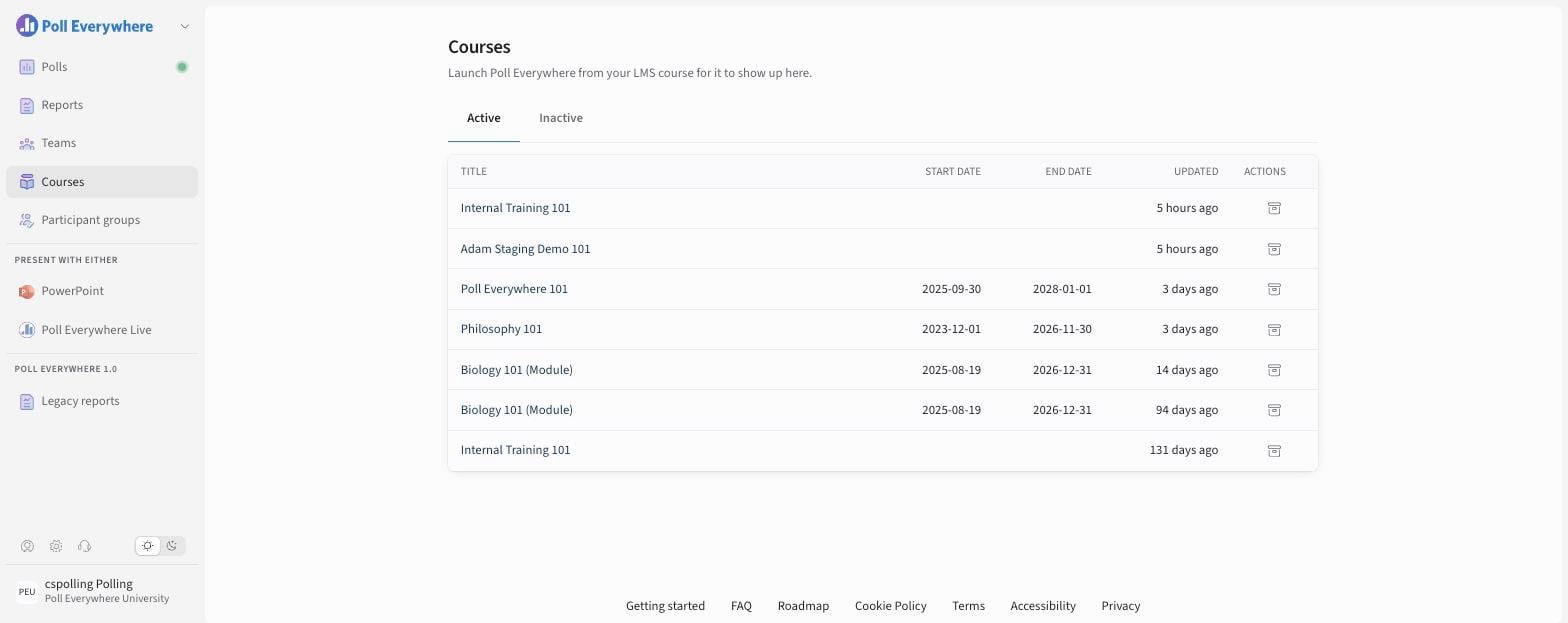
When you launch Poll Everywhere from your LMS course (Canvas, D2L Brightspace, Blackboard or Moodle), the course appears under Courses. Each course has six tabs.
| Tab | What it's for |
|---|---|
| Content | Polls and surveys linked to the course. Create polls, Create survey or Add existing content. |
| Overview | Instructors, default grading configuration, department/college and sync history. |
| Responses | Questions students answered, by session. |
| Attendance | Attendance sessions and check-in results (review exemptions here). |
| Assignments | Graded assignments. Select New assignment, then Sync grades to your LMS gradebook. |
| Roster | Students synced from your LMS. |
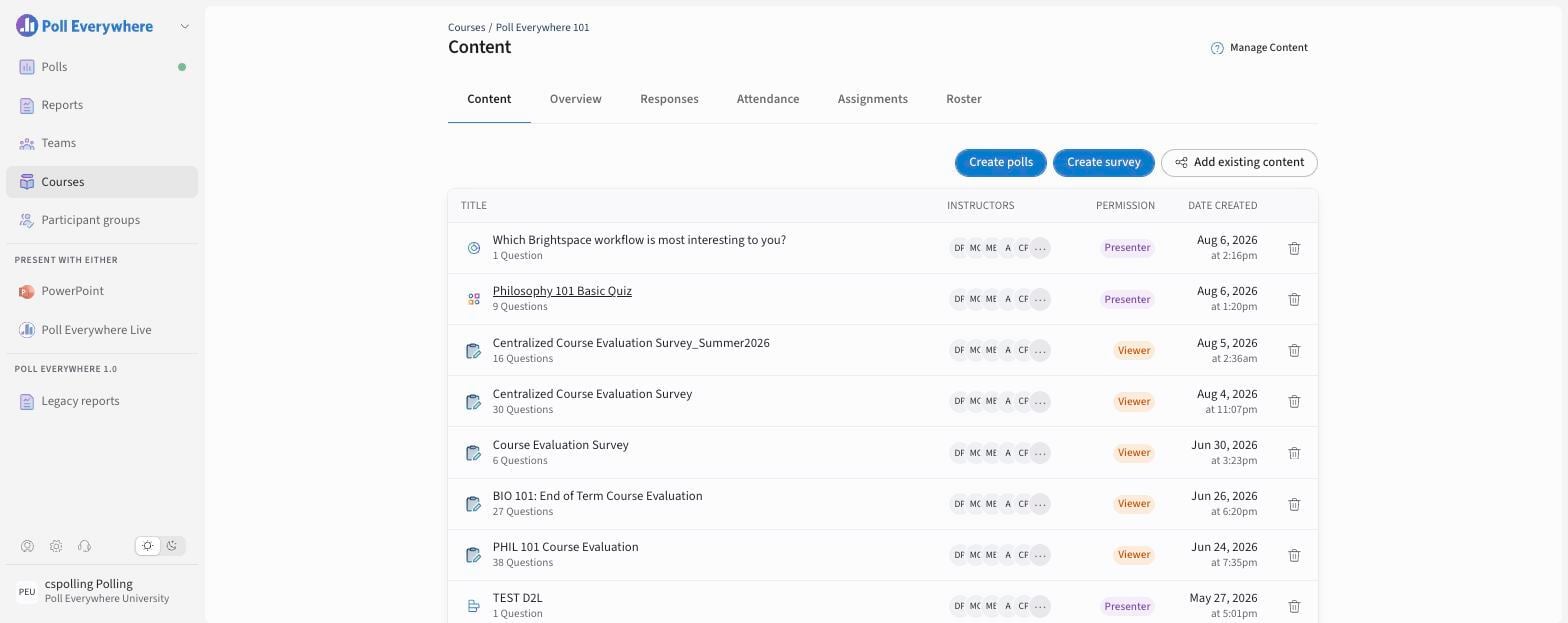
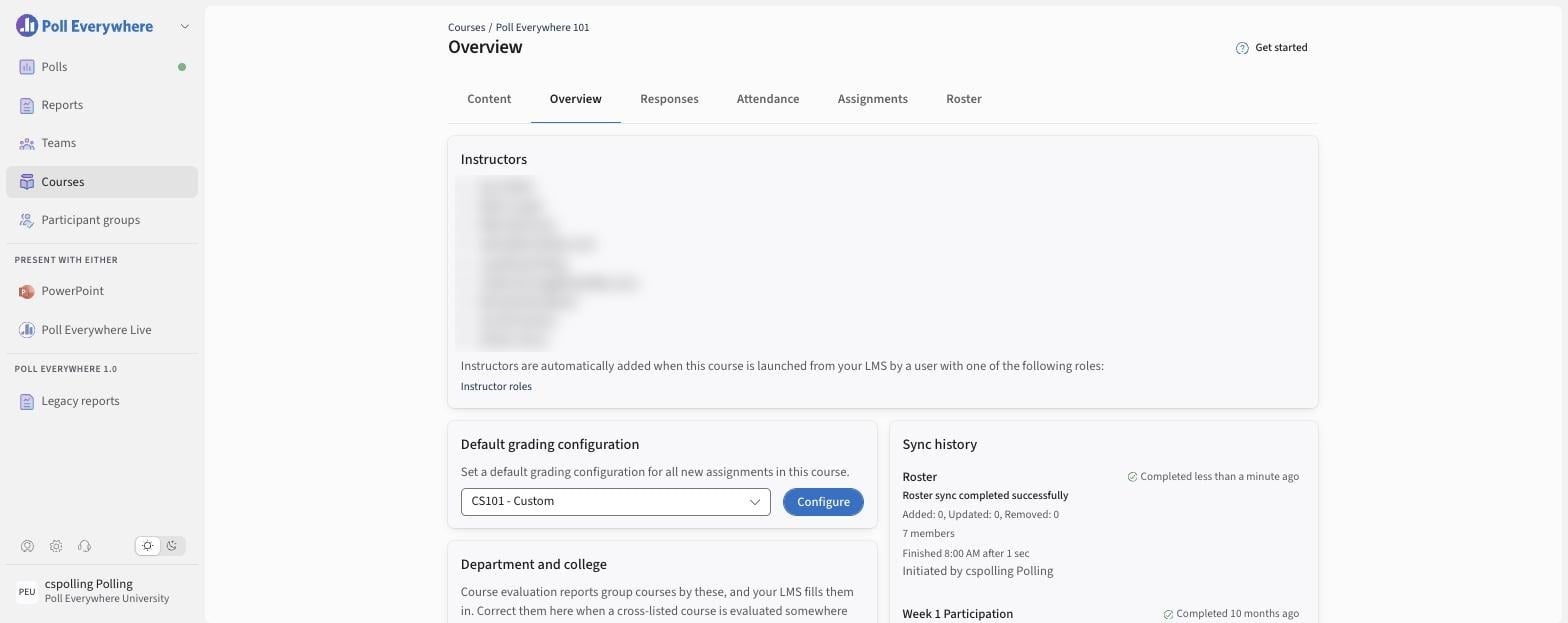
Instructors are added automatically when they launch the course from the LMS with an instructor role. Content linked to the course is shared with them automatically.
For step-by-step Canvas instructions, see Poll Everywhere 2.0 Canvas LTI Advantage Usage Guide for Educators.
If you have any questions or run into issues, please contact the Technical Support team.