
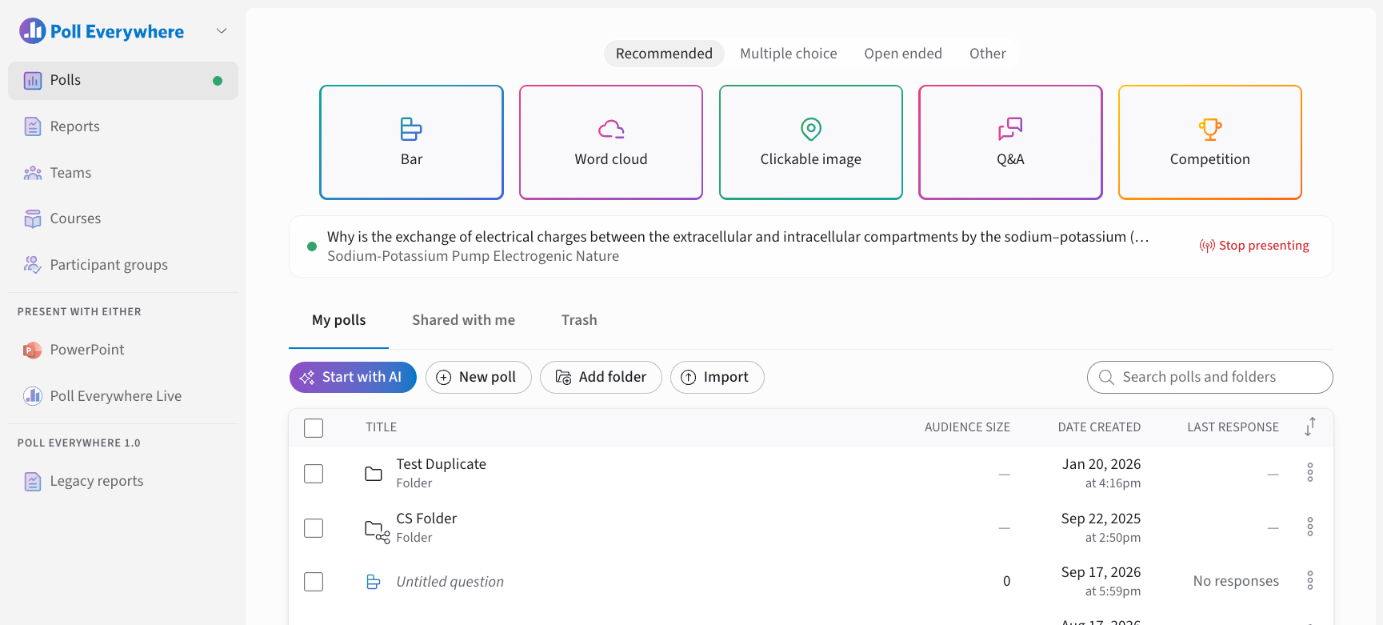
When you sign in to Poll Everywhere 2.0 you land on the Polls page. Everything you need is in the left-hand navigation, with your settings tucked into the icons at the bottom left.
In this article
- Polls
- Reports
- Teams
- Courses
- Participant groups
- Present with either
- Poll Everywhere 1.0: Legacy reports
- Settings, support and your account menu
Polls
Polls is your home base. From here you can:
- Create a poll by choosing a poll type card. Use the category tabs above the cards (Recommended, Multiple choice, Open ended, Other) to see every type.
- Start with AI to describe what you want and let AI build the poll for you.
- New poll, Add folder or Import (upload questions from a CSV file).
- See what's live right now. If a poll is being presented, a banner shows its title and a Stop presenting button.
- Browse your content in three tabs:
- My polls: everything you own, including folders.
- Shared with me: polls and folders colleagues have shared with you.
- Trash: deleted items you can restore.

Each row has a ⋯ menu with Present, Response link, Archive responses, Move, Duplicate, Share and Trash. Tick one or more rows to use the selection bar (Archive responses, Duplicate, Trash, Move).
Reports
Reports turns responses into insight. The Responses tab shows recent activity and your saved reports. Use New report to build one, and Report snapshots to download large reports. Administrators also see an Admin reporting tab with Presenters, Participants, Courses and Teams reports.
Teams
Teams groups colleagues so you can share polls with them in one step, or restrict participation to them. Select New team to create one.
Courses
Courses lists the LMS courses (Canvas, D2L Brightspace, Blackboard or Moodle) you have launched Poll Everywhere from. A course appears here after it has been launched from your LMS. Open a course to manage its content, responses, attendance, assignments and roster.
Not using an LMS? Use Participant groups to manage a roster, run graded assignments and track attendance without an LMS connection.
Participant groups
Participant groups lets you organize your audience into named groups. You can use them to restrict who can respond, create graded assignments and track attendance.
Present with either
- PowerPoint: get the Poll Everywhere add-in for Microsoft 365 PowerPoint.
- Poll Everywhere Live: download the desktop app that lets you present polls over any slideware (Google Slides, Keynote, Canva and more).
Poll Everywhere 1.0: Legacy reports
If your organization moved from Poll Everywhere 1.0, Legacy reports opens your historical 1.0 reports.
Settings, support and your account menu
At the bottom left of the screen:
| Control | What it does |
|---|---|
| Person icon | Opens My settings (join code, name, security, locations, response links, features, defaults, exports, account deletion). |
| Gear icon | Opens Organization settings (admins only). |
| Headset icon | Opens Customer support (hours, phone and email). |
| Sun / moon toggle | Switches between light and dark mode. |
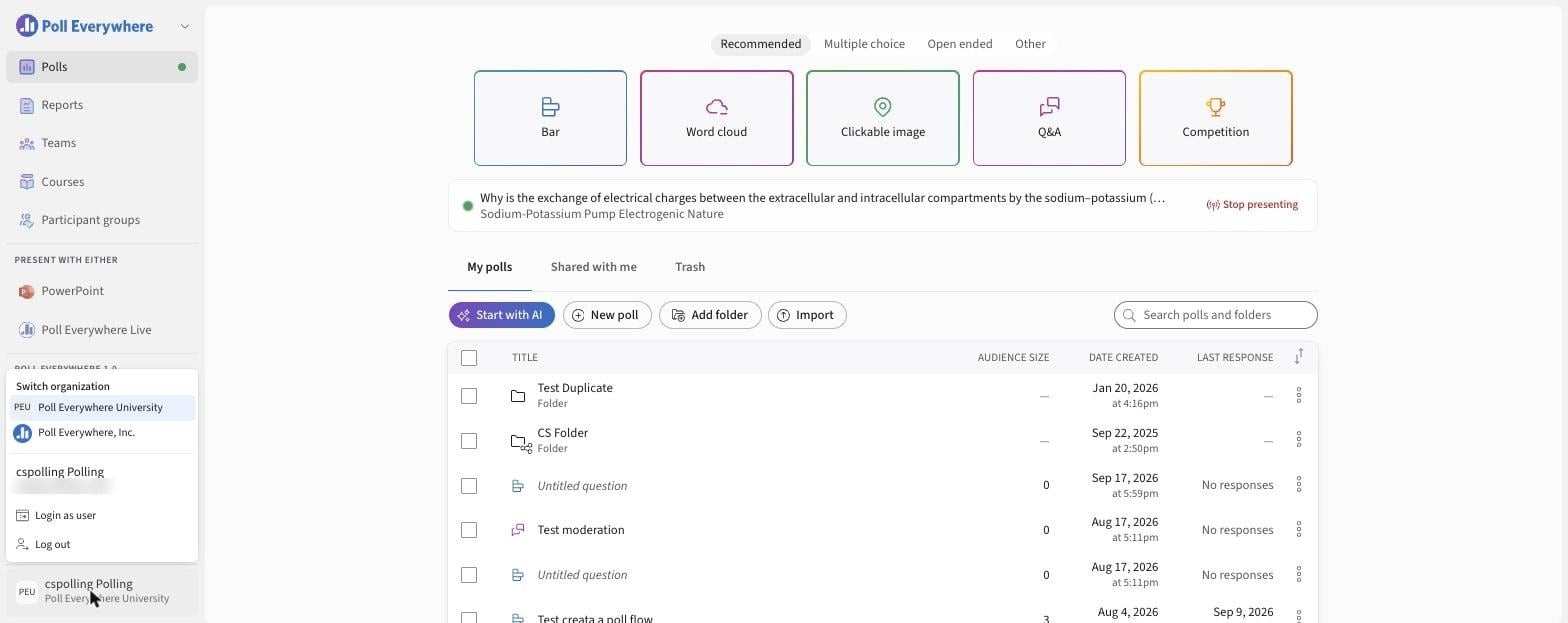
| Your name | Opens the account menu: Switch organization, Login as user (admins) and Log out. |
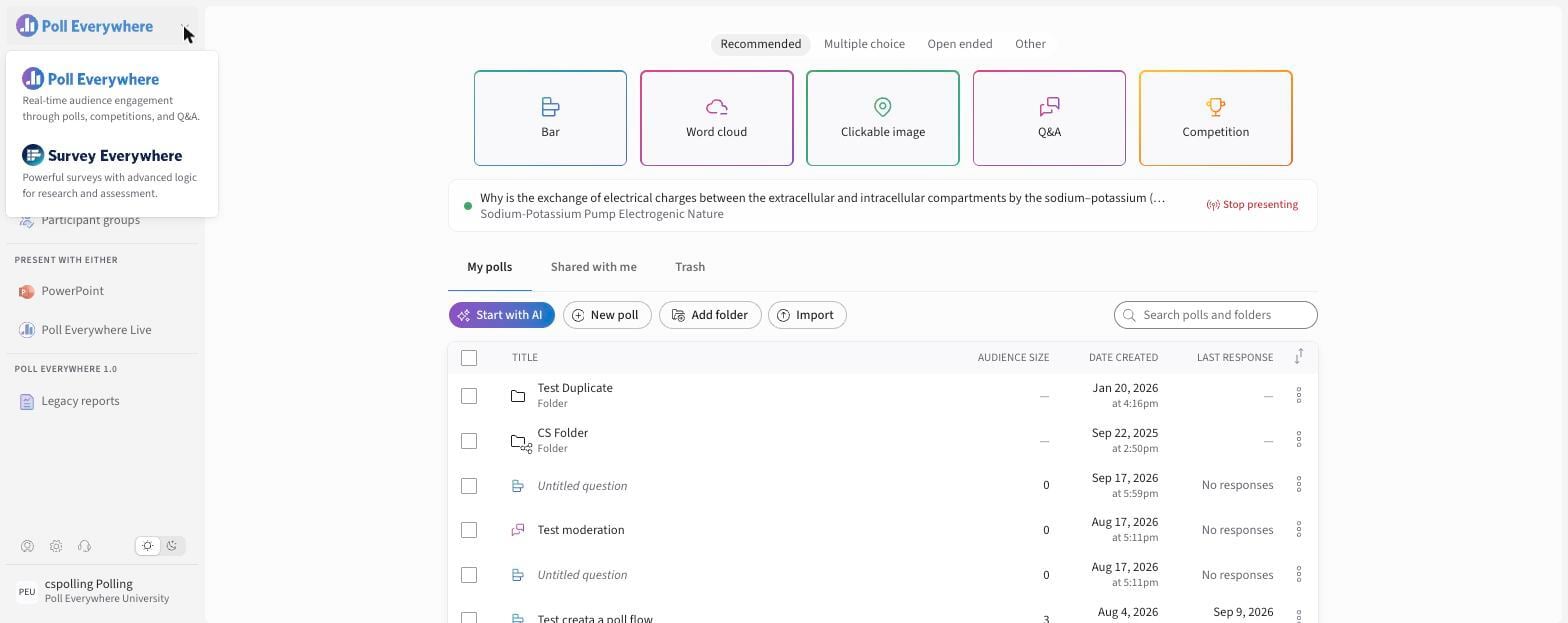
Switching products: select the Poll Everywhere logo at the top left to switch between Poll Everywhere (live polls, competitions and Q&A) and Survey Everywhere (surveys with advanced logic).
If you have any questions or run into issues, please contact the Technical Support team.