
Poll Everywhere 2.0 has built-in generative AI that can draft a whole poll for you (questions, answer choices and correct answers) from a short prompt or from text you paste in.
In this article
- Create a poll with AI
- Generate questions from your own text
- Example prompts
- Review and edit what AI creates
- If you don't see Start with AI
Create a poll with AI
- Go to Polls.
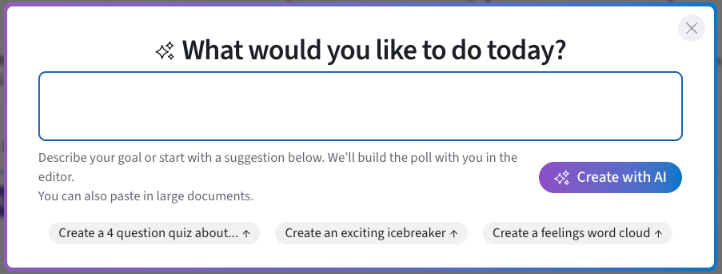
- Select Start with AI.
- In What would you like to do today?, describe your goal, or pick a suggestion: - Create a 4 question quiz about… - Create an exciting icebreaker - Create a feelings word cloud
- Select Create with AI.
- The poll opens in the editor, ready to review.
Helpful tip: say how many questions and which types you want, e.g. "Generate 3 quiz questions about the solar system, then a word cloud asking what surprised them."
Generate questions from your own text
You can paste in large documents, such as a reading, a syllabus excerpt, lecture notes or an article. Add an instruction above the text, for example:
Create ten polls (include one word cloud and one Likert) that check understanding of the following reading: [paste text]
AI generates the questions and, for quiz-style questions, marks the correct answers.
Note: pasted text may look unformatted in the box, but the output is formatted correctly.
Example prompts
- Engagement: "Create five icebreakers for a team offsite."
- Curriculum-aligned: "Create questions based on this learning outcome: Students will be able to identify and explain the causes of the French Revolution."
- Quick check: "Build a 4-question check for understanding on photosynthesis for first-year students."
Review and edit what AI creates
Everything AI generates is editable inline. Click any title or choice to change it, use the ✓ icon to change the correct answer, and drag slides in the slide pane to reorder them. To make further changes with AI, open the AI Assistant (see Improve Polls with the AI Assistant).
Always check AI output for accuracy, especially for graded or high-stakes activities. Don't include personal or sensitive information in prompts.
If you don't see Start with AI
AI may be turned off for your account or your organization:
- My settings → Features → Artificial intelligence
- Administrators: Organization settings → Features → Artificial intelligence
Learn more: AI in Poll Everywhere and How Poll Everywhere Uses Generative AI (Technical Information).
If you have any questions or run into issues, please contact the Technical Support team.