
Your poll's design sets how it looks on the presentation screen and on participants' phones: the font, the background and accent colors, a logo and a background image. Pick a ready-made theme or create your own design, then save it as a theme to reuse in other polls.
Note: Custom themes are a paid feature. On the free plan you can apply any of the built-in themes. Customizing fonts, colors, logos and background images, and saving or using saved themes, need a paid plan. See 2.0 Upgrade or Downgrade Plan.
In this article
- Open the poll design
- Customize your poll
- Use a saved theme
- Save a design as a theme
- Edit or delete a saved theme
- Set a default theme
- What participants see
Open the poll design
- Open a poll.
- Select the Design icon (palette) in the top bar.
The Poll design window opens. Design controls are on the left, a live preview of the presentation and a participant's phone is in the middle, and your saved themes are on the right.
Customize your poll
- Choose a Font.
- Under Colors, set the Background and Accent colors. Use the color picker or type a hex code.
- Under Brand assets, upload a Logo and a Background image (up to 15 MB), or select Remove to take one away.
- Check the preview, then select Apply to poll.
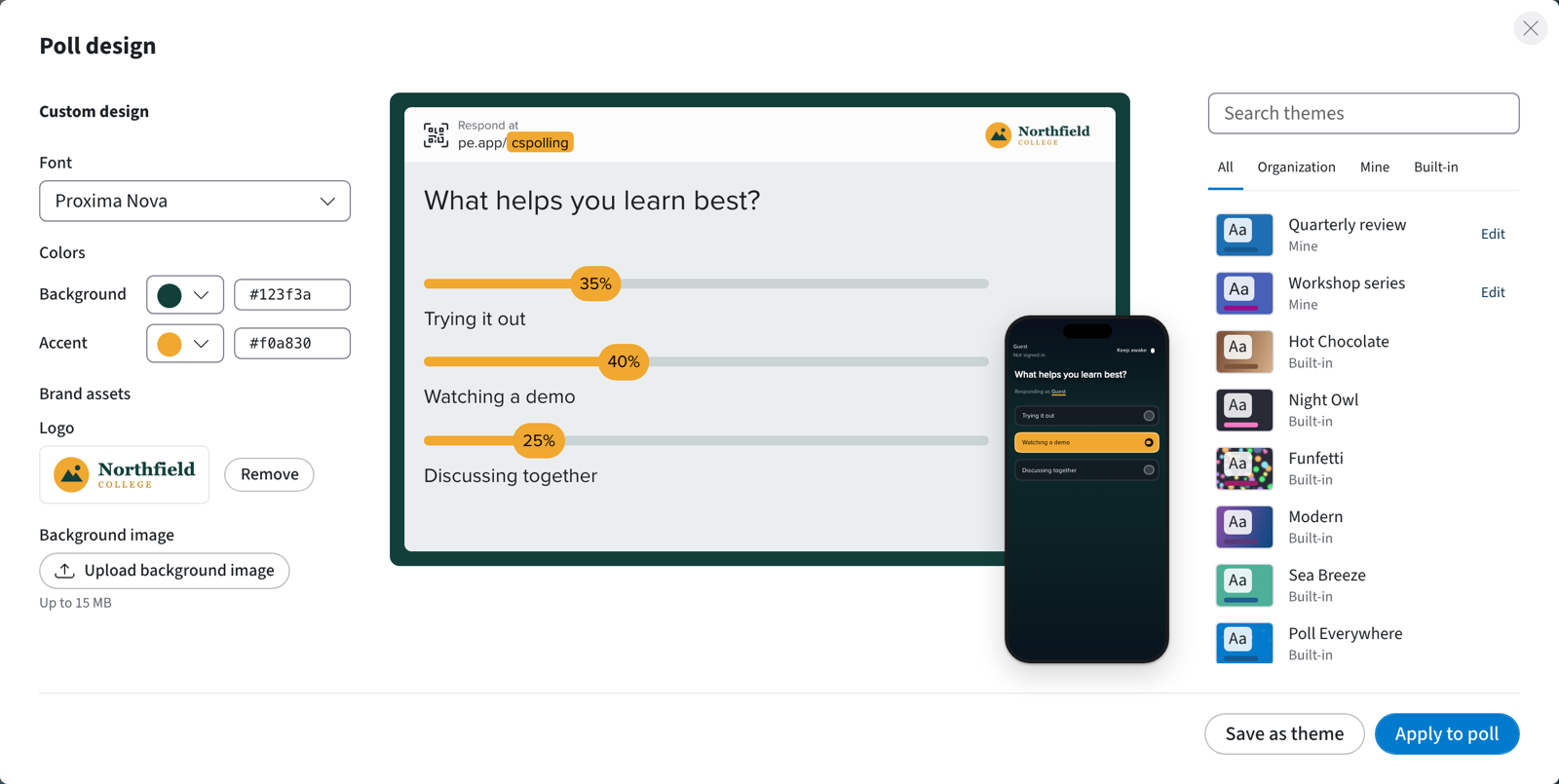
The design applies to every question in the poll. It belongs to this poll only: if the poll was using a saved theme, that theme and the other polls using it stay the same.
If a color would make text hard to read, a warning icon appears beside it. Hover over the icon for a tip. You can still apply the color.
Use a saved theme
The list on the right of Poll design shows every theme you can use. Type in Search themes, or filter the list with Organization, Mine or Built-in.
- Select a theme. The preview updates.
- Select Apply to poll.
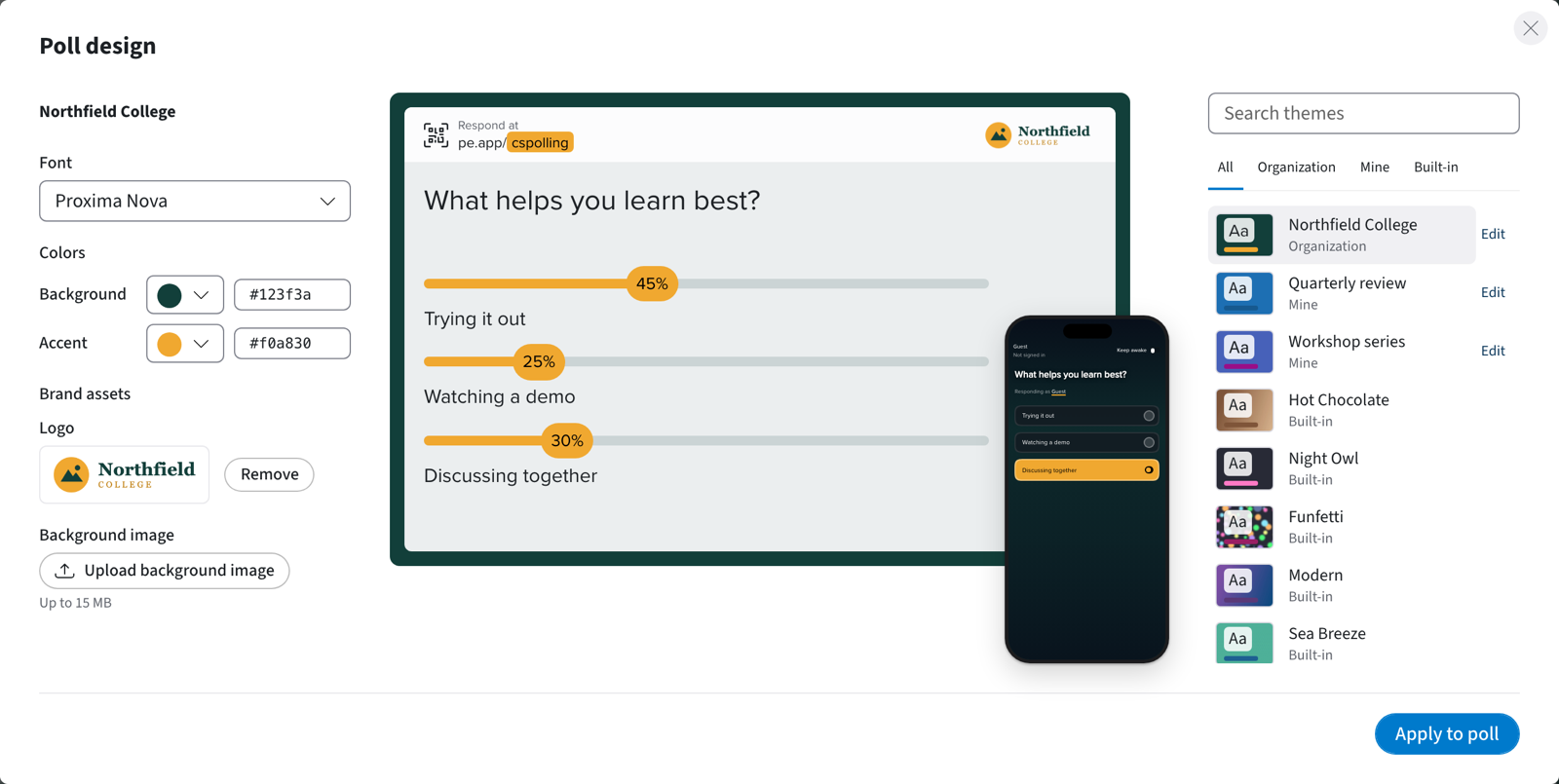
Changing the font, colors or images after picking a saved theme gives this poll its own design. The saved theme itself doesn't change.
Save a design as a theme
- Customize the design as described above.
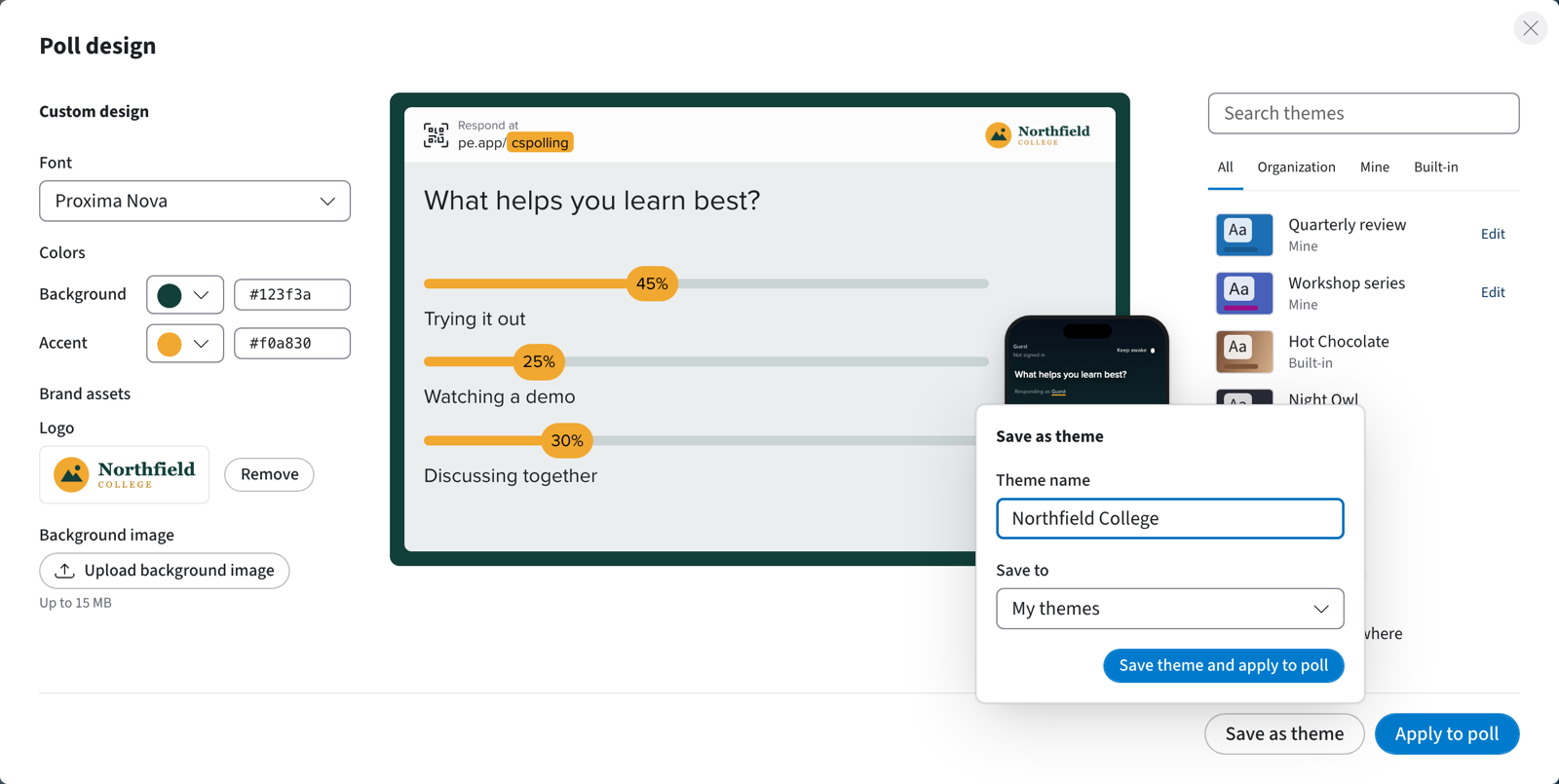
- Select Save as theme.
- Enter a Theme name.
- Organization administrators choose where to save it under Save to: My themes (only you) or Organization themes (everyone in your organization). Everyone else saves to My themes.
- Select Save theme and apply to poll.
Edit or delete a saved theme
You can edit your own themes. Organization administrators can also edit organization themes. Open a theme in either of these places:
- In Poll design, select Edit next to the theme.
- In My settings > Defaults > Appearance, hover over the theme under Default theme and select the pencil icon.
Change the name, font, colors or images, then select Save changes.
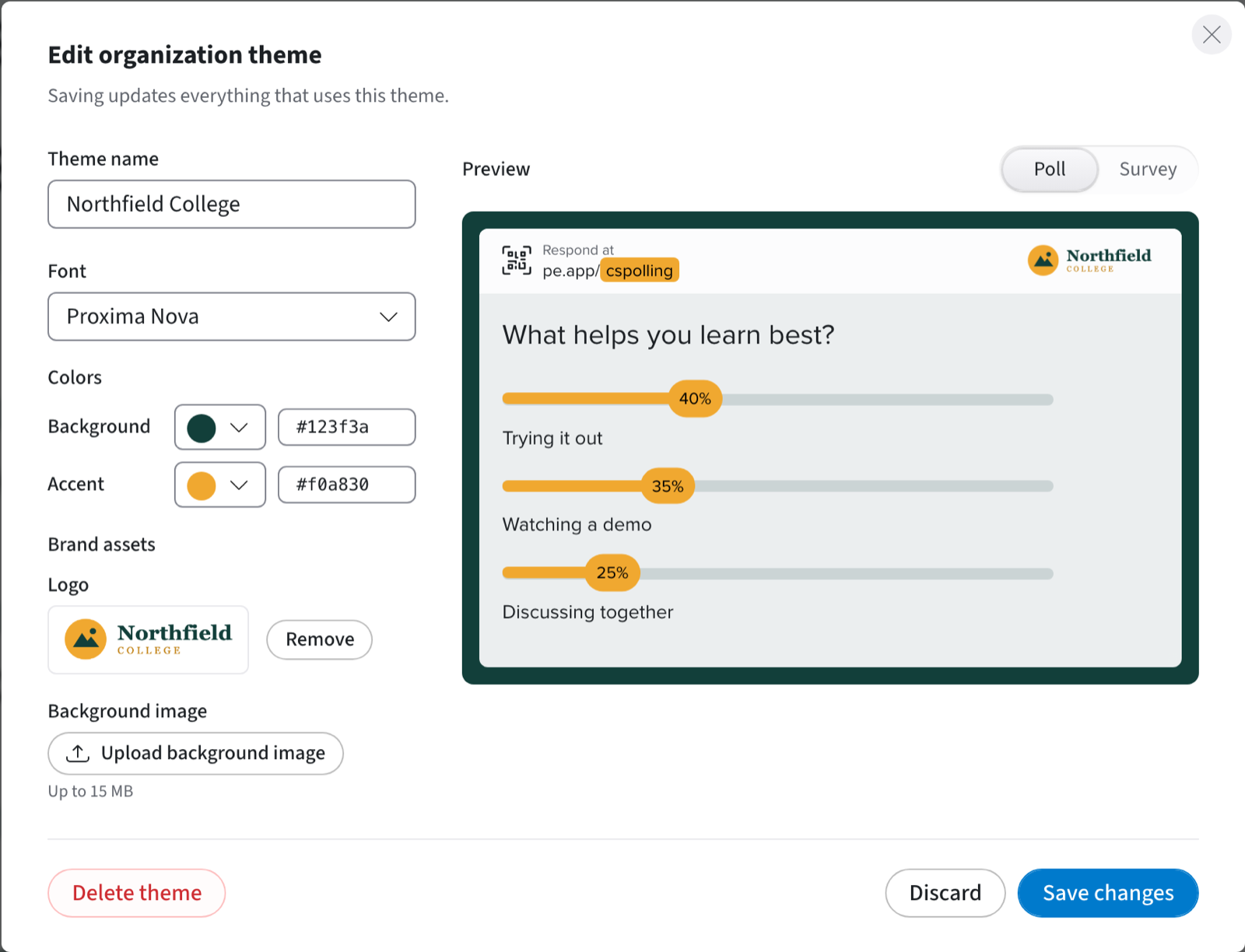
Saving updates everything that uses the theme, including polls you've already shared. Polls with their own customized design don't change.
To delete a theme, select Delete theme and confirm. Polls that use it, and any default set to it, switch back to the built-in theme. Organization locks stay in place.
Set a default theme
New polls start with your default theme.
- Select the My settings icon (person icon, bottom left).
- Open the Defaults tab.
- Expand Appearance and select a theme under Default theme. Choose from Standard, Organization or My themes.
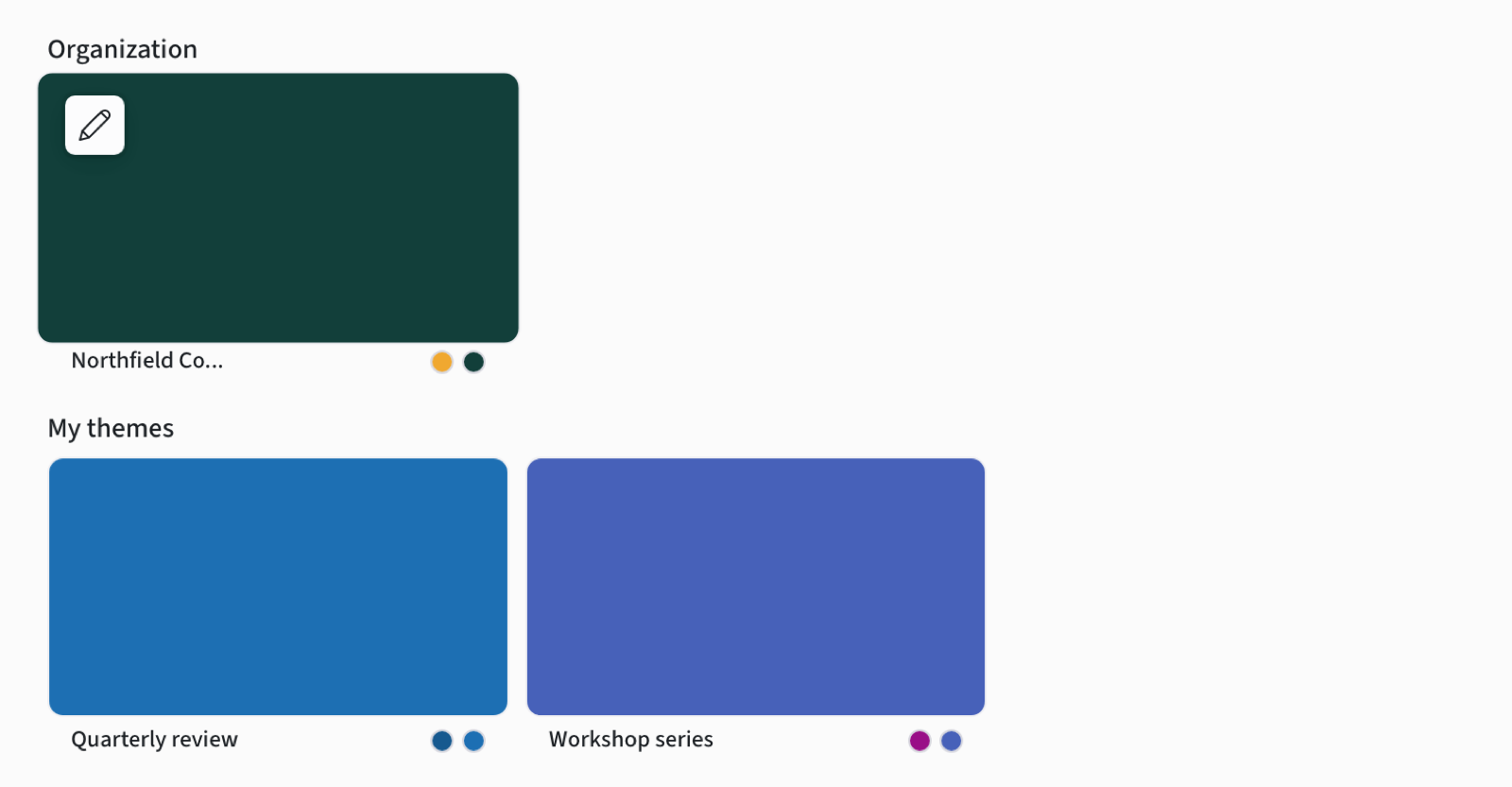
Organization default (admins): select the Organization settings icon (gear, bottom left), open Defaults, expand Appearance and choose the Default theme. To stop members from changing their theme, set the lock control under the setting to Locked. While it's locked, Poll design shows that theme customization is locked by your organization. See Setting Poll Defaults.
What participants see
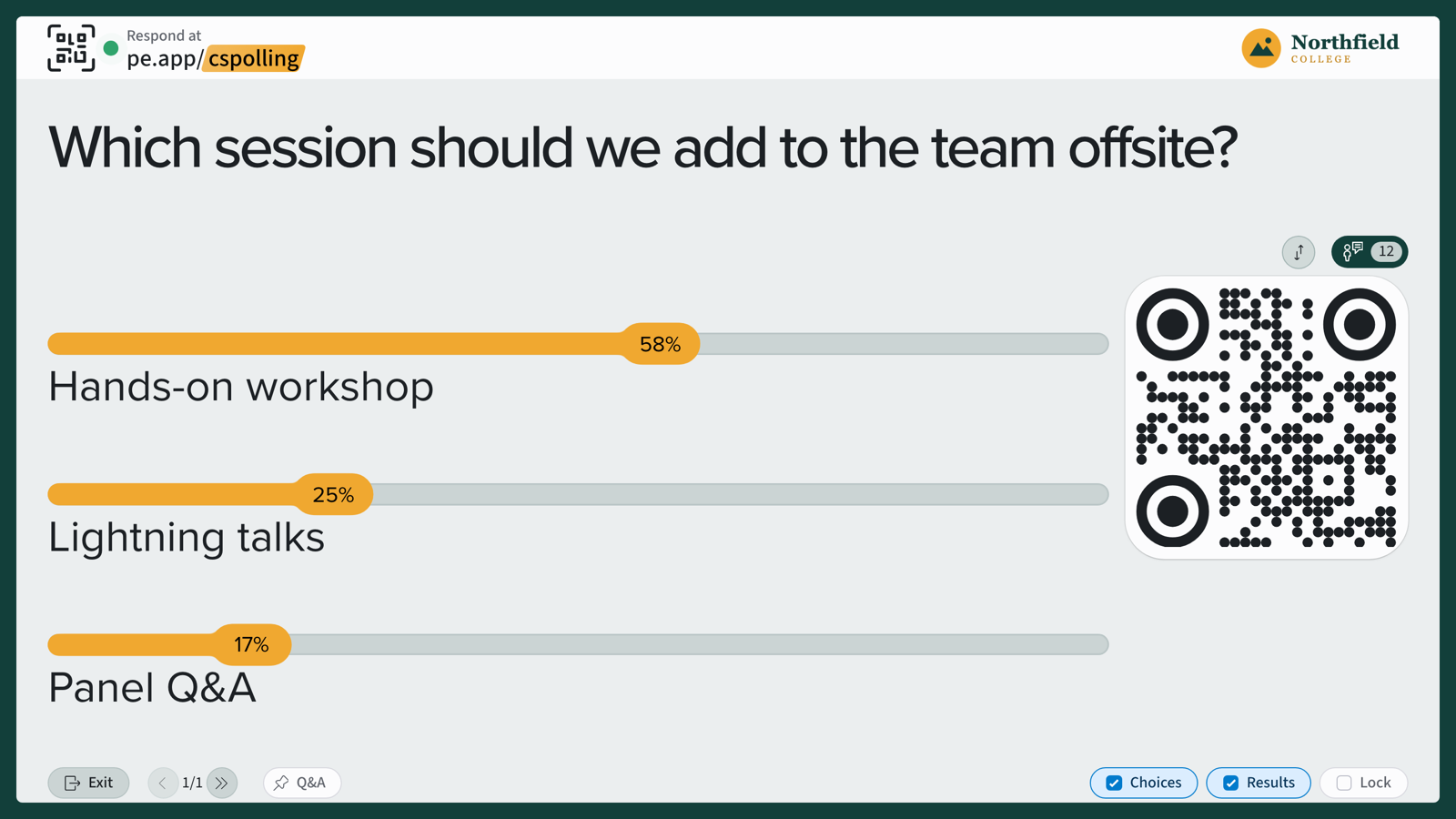
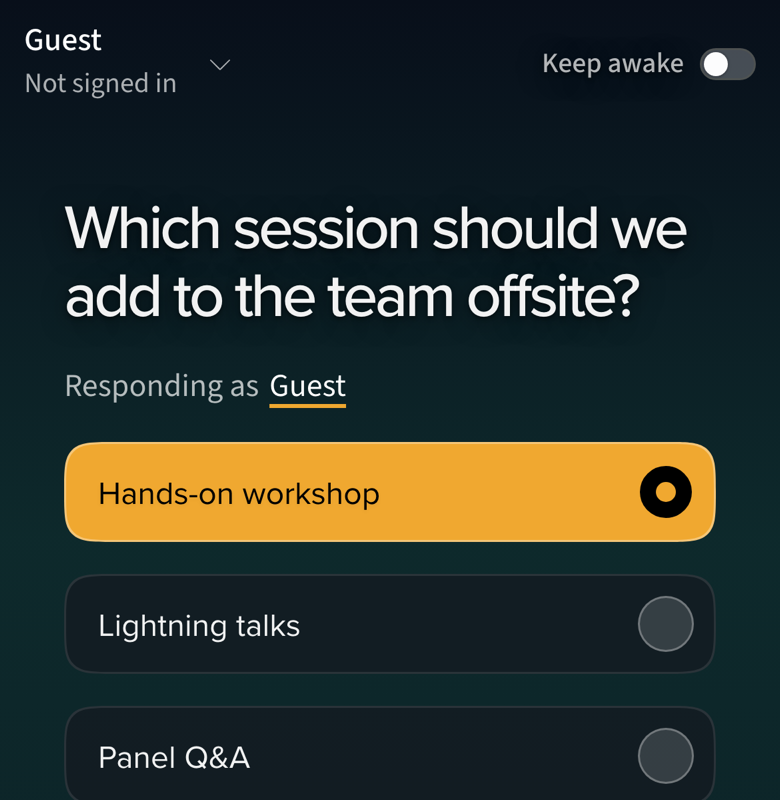
Participants who join at pe.app/[your join code] see your colors and font on their phones. The presentation screen shows your logo, colors, font and background.
Note: If your plan changes and no longer includes custom themes, a poll that uses a custom design or saved theme switches to the built-in theme the next time you open it.
If you have any questions or run into issues, please contact the Technical Support team.