
The waiting screen is the first thing your audience sees when they join, and what they return to between questions. By default it says Waiting for [your name]'s presentation to START… on the theme you last presented with. You can replace it with your own message, an image, or both.
In this article
Edit your waiting screen
- Select the My settings icon (person icon, bottom left).
- Open the Defaults tab.
- Under Presentation → Waiting screen, select Edit waiting screen.
- Choose a Theme: Theme last presented (the default), or any standard, organization or personal theme.
- Type your Message, and add an image if you like. The phone preview on the right shows what participants will see.
- Select Save.
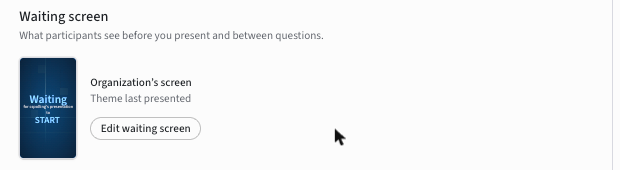
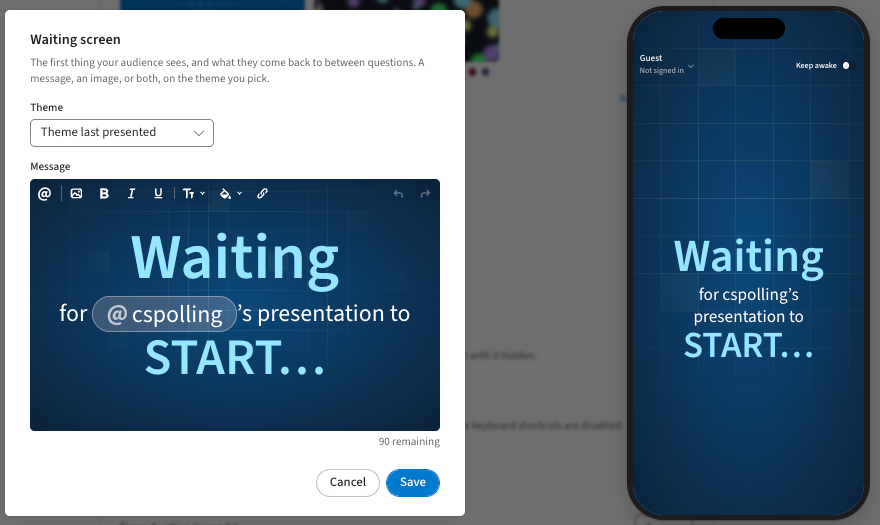
Your waiting screen is used for every poll you present. It appears on participants' devices at pe.app/[your join code] before you start presenting and between questions.
What you can add
| Toolbar option | Use it to |
|---|---|
| Insert piped text (@) | Insert the presenter's name, which fills in automatically |
| Add images and video / Upload files | Add an image, such as a logo or a welcome graphic |
| Bold, Italic, Underline | Format text |
| Text formatting | Normal, Large Heading, Medium Heading, Small Heading, or Clear formatting |
| Color highlight | Highlight text in a color |
| Link | Add a link |
Messages are short. A counter under the editor shows how many characters you have left.
Organization waiting screen (admins)
Organization administrators can set a waiting screen for everyone in the organization:
- Select the Organization settings icon (gear, bottom left).
- Open the Defaults tab.
- Under Presentation → Waiting screen, select Edit waiting screen, make your changes and select Save.
Members see it in their own defaults as Organization's screen. To stop members from changing it, set the lock control under the setting to Locked. You can also exempt specific users. See Setting Poll Defaults.
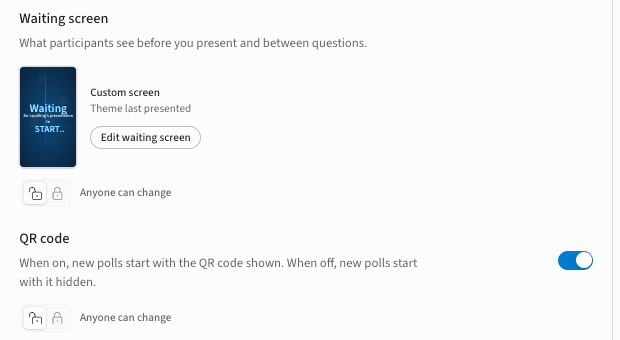
Note: If you don't see Waiting screen in your Defaults, your plan may not include it. Contact your organization administrator or our support team.
If you have any questions or run into issues, please contact the Technical Support team.