
My settings is where you manage your join code, profile, security, attendance locations, response links, feature preferences, defaults and data.
Open My settings
Select the person icon at the bottom left corner of the screen.
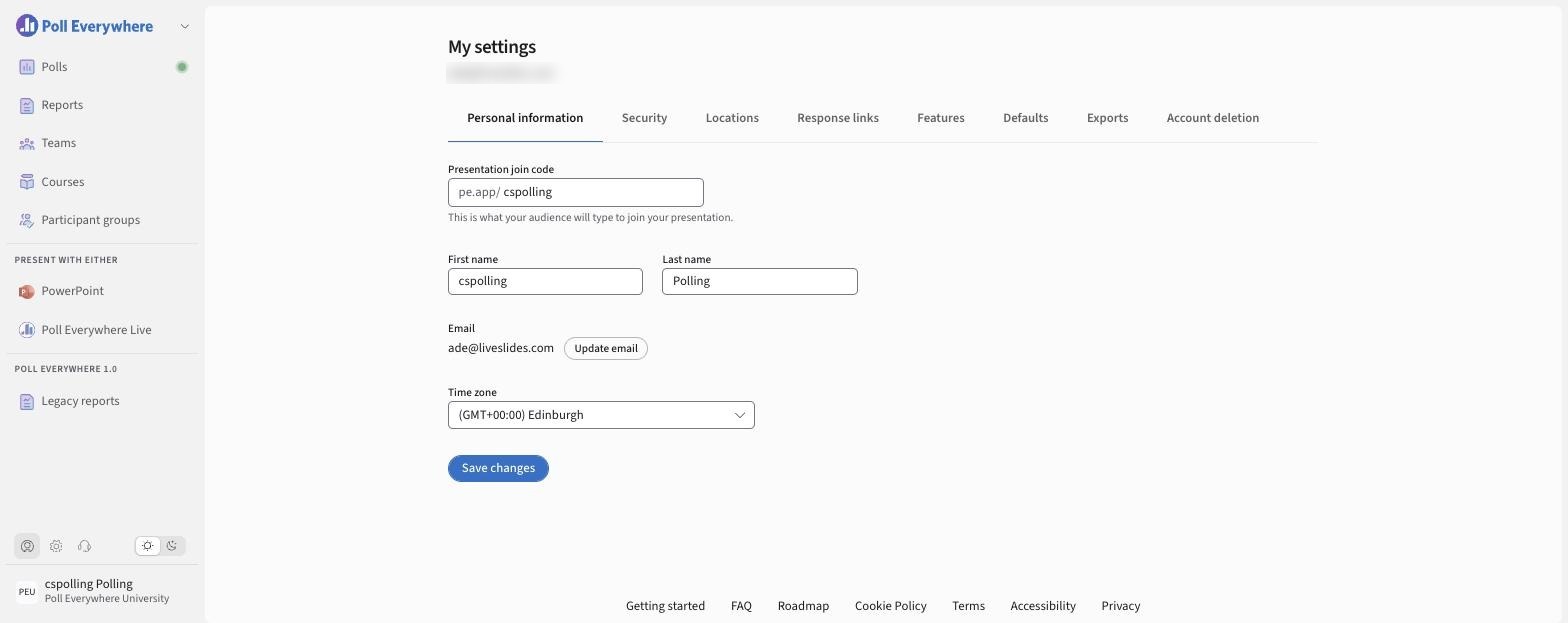
Personal information
- Presentation join code: what your audience types to join (pe.app/yourcode).
- First name / Last name: shown on polls and reports. If your organization signs you in with SSO or syncs your account from a directory, your first and last name are greyed out and can only be changed by your IT administrator in your identity provider. The change appears in Poll Everywhere 2.0 the next time you log in. Your other settings can still be saved.
- Email: select Update email. You'll need to verify the new address.
- Time zone: used for reports, schedules and response link times.
Select Save changes.
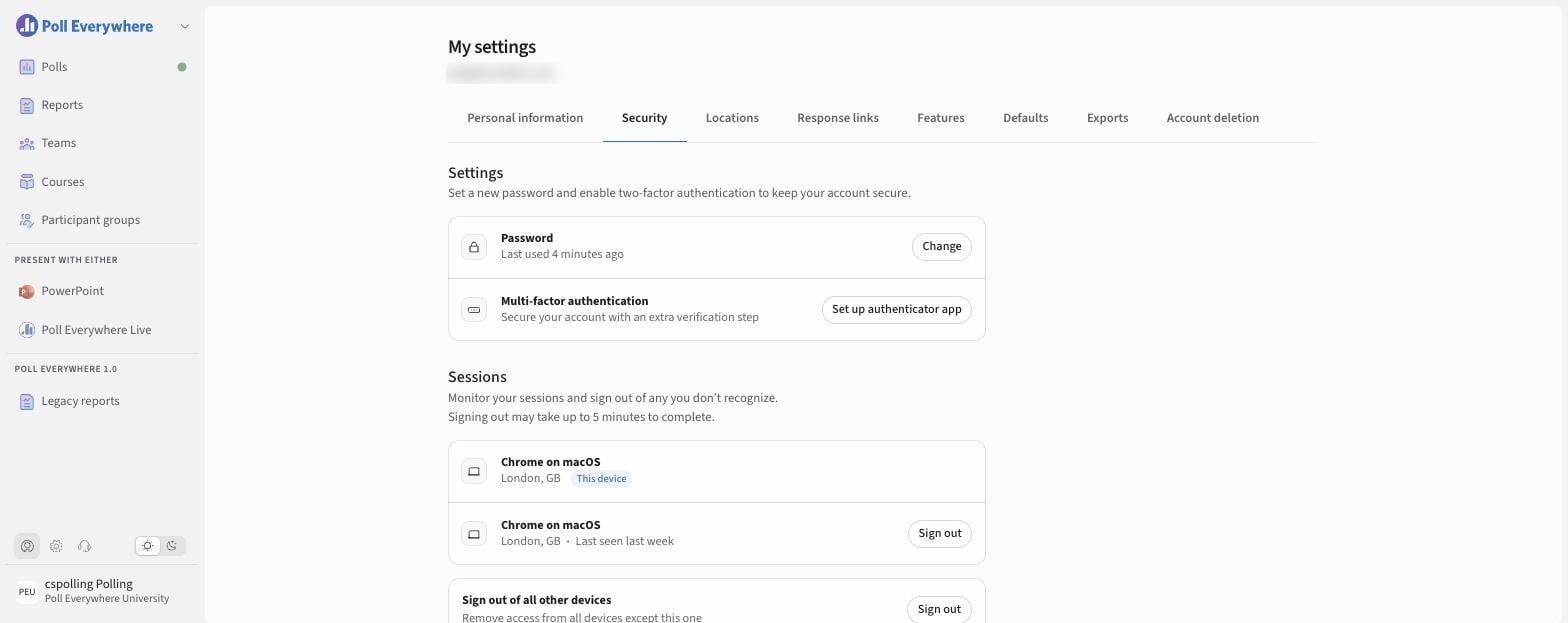
Security
- Password: select Change.
- Multi-factor authentication: select Set up authenticator app and follow the prompts.
- Sessions: see where you're signed in. Select Sign out next to a device, or Sign out of all other devices. Sign-out can take up to 5 minutes.
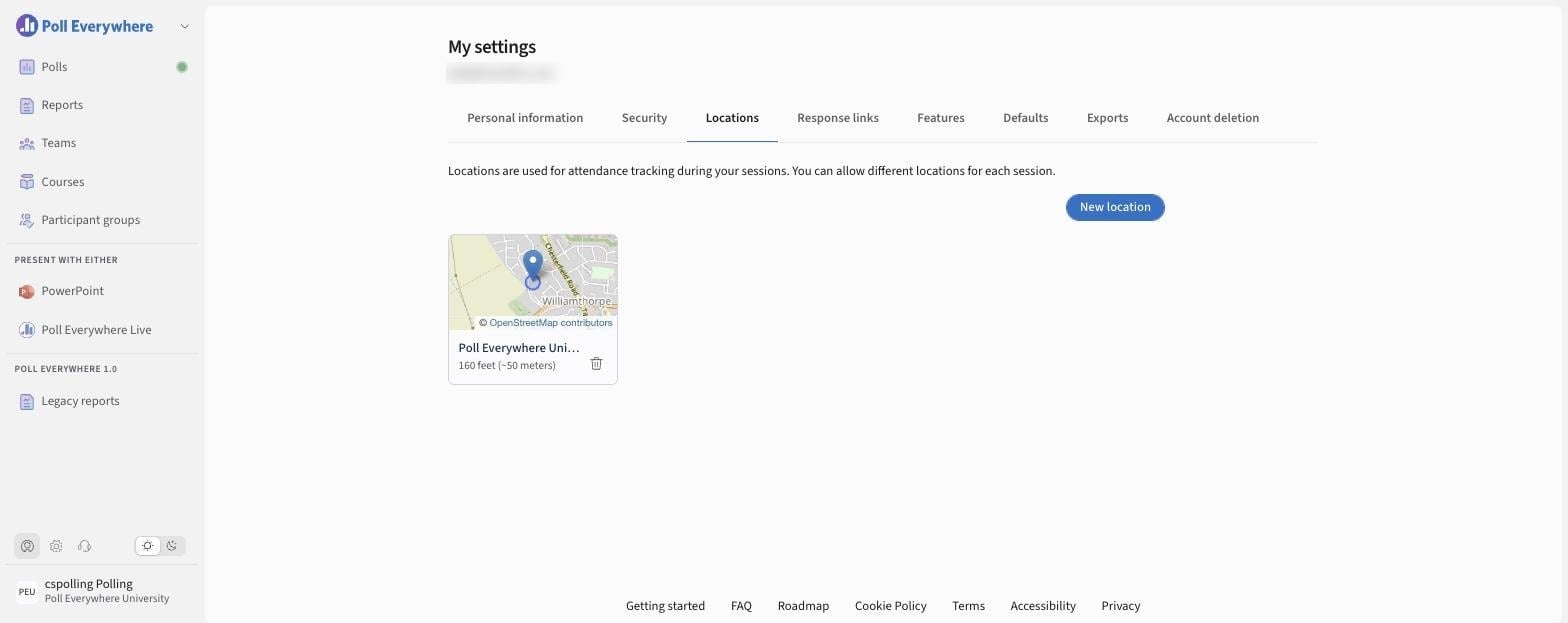
Locations
Create the locations used for location-based attendance. Select New location. See Attendance Locations and Attendance Questions.
Response links
Every response link on your polls, with status toggles and Copy / Rotate / Delete actions. See Viewing and Managing Response Links.
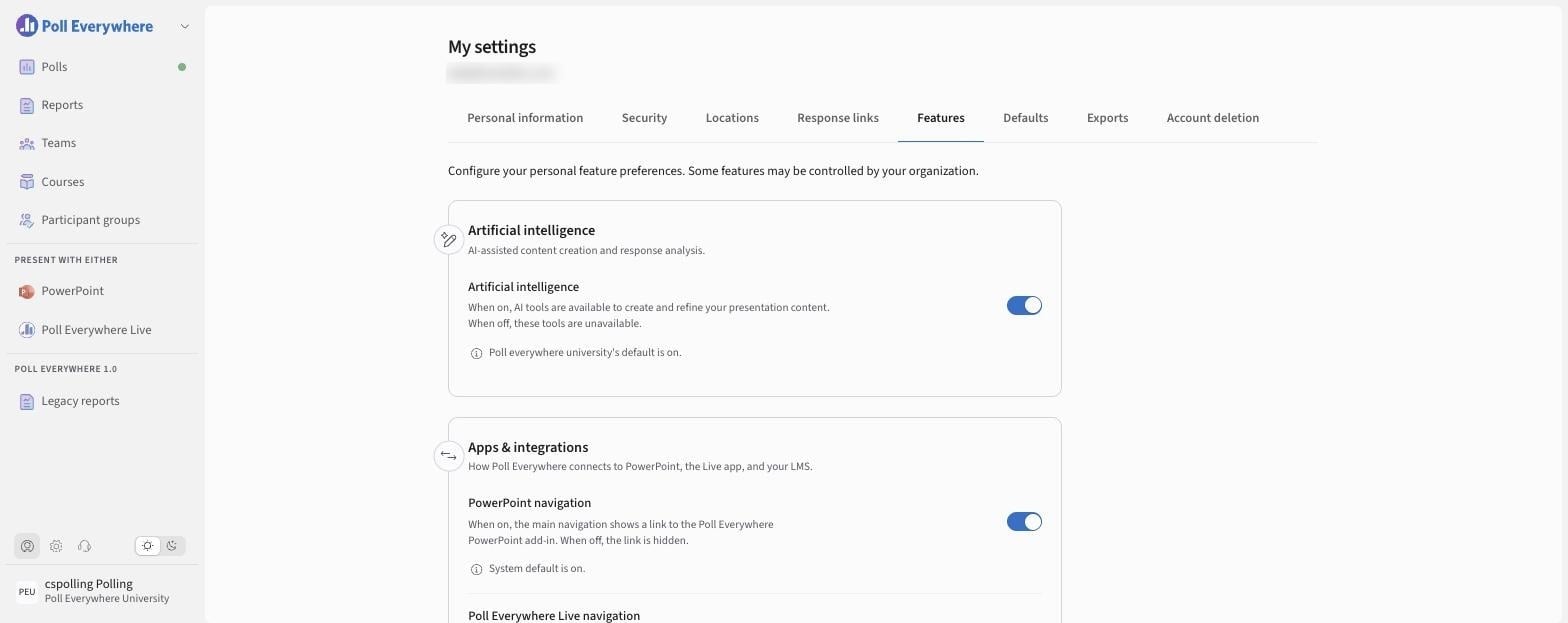
Features
Turn features on or off for your own account. Some may be controlled by your organization.
| Feature | What it controls |
|---|---|
| Artificial intelligence | Start with AI and the AI Assistant |
| PowerPoint navigation | Shows/hides the PowerPoint link in the left navigation |
| Poll Everywhere Live navigation | Shows/hides the Live link in the left navigation |
| Attendance management | Allows location-based attendance checks |
Defaults
The settings every new question starts with. See Setting Poll Defaults.
Exports
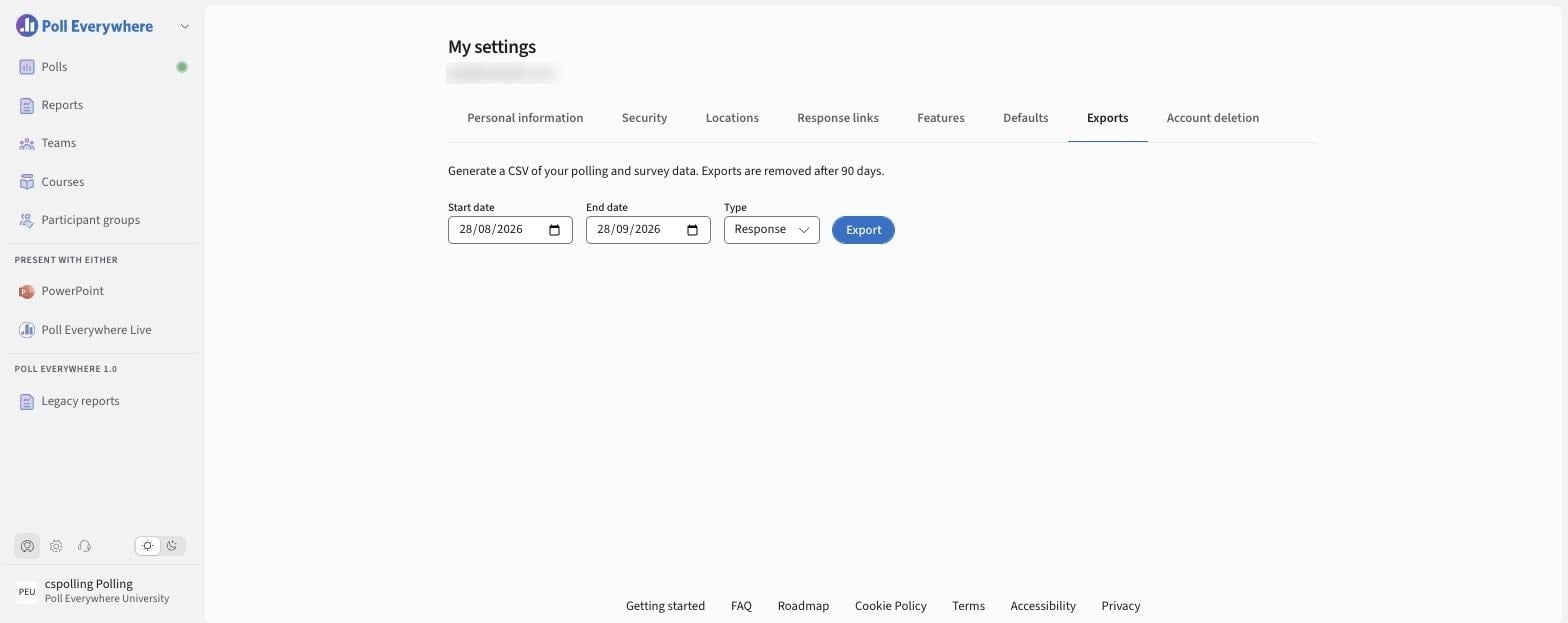
Download a CSV of your polling and survey data.
- Choose a Start date and End date.
- Choose a Type: Question, Response or Survey.
- Select Export. Exports are removed after 90 days.
Account deletion
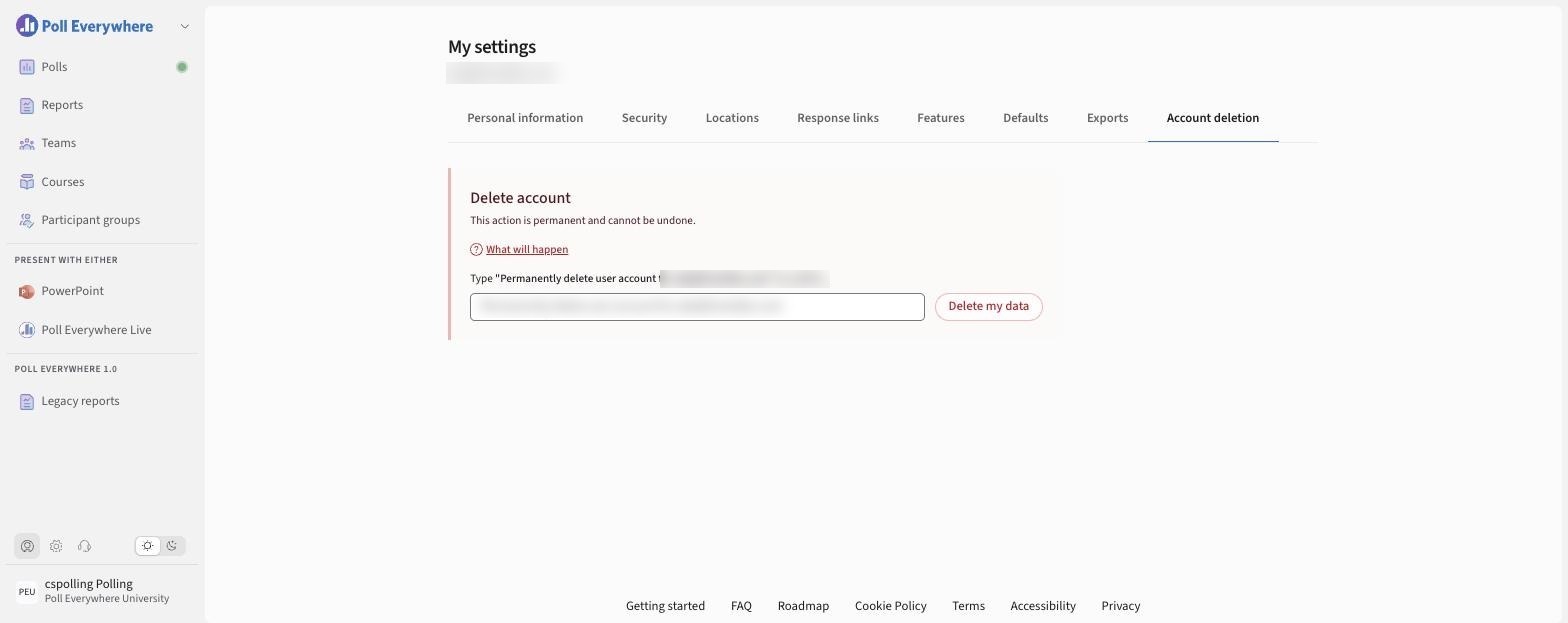
Permanently deletes your account and data. This can't be undone.
- Open Account deletion and select What will happen to review the consequences.
- Type Permanently delete user account for followed by your email, exactly as shown.
- Select Delete my data.
We recommend exporting your data and transferring ownership of shared content first.
Organization-managed accounts
If your organization manages your account (for example with SSO), some fields may be locked. Contact your administrator.
If you have any questions or run into issues, please contact the Technical Support team.