
In this article:
Folders are the primary way to organize your polls and content in Poll Everywhere 2.0. Whether you're managing multiple courses, topics, or types of activities, folders help streamline your workspace and make it easier to find what you need.
Accessing Your Content
To get started:
- Click the Polls tab in the left-hand navigation panel.
- This takes you to your full content library, where all your polls and folders are displayed.
Creating a Folder
Creating folders helps keep your content organized by course, topic, or purpose. Here are a few examples:
- Course-based folder: Create a folder named "Biology 101" to store all content related to that class.
- Purpose-based folder: Use folders like "Quiz Prep" or "Lecture Activities" to group related polls together.
To create a folder:
- Go to Polls.
- Select Add folder.
- Enter a Folder name and select Create folder.
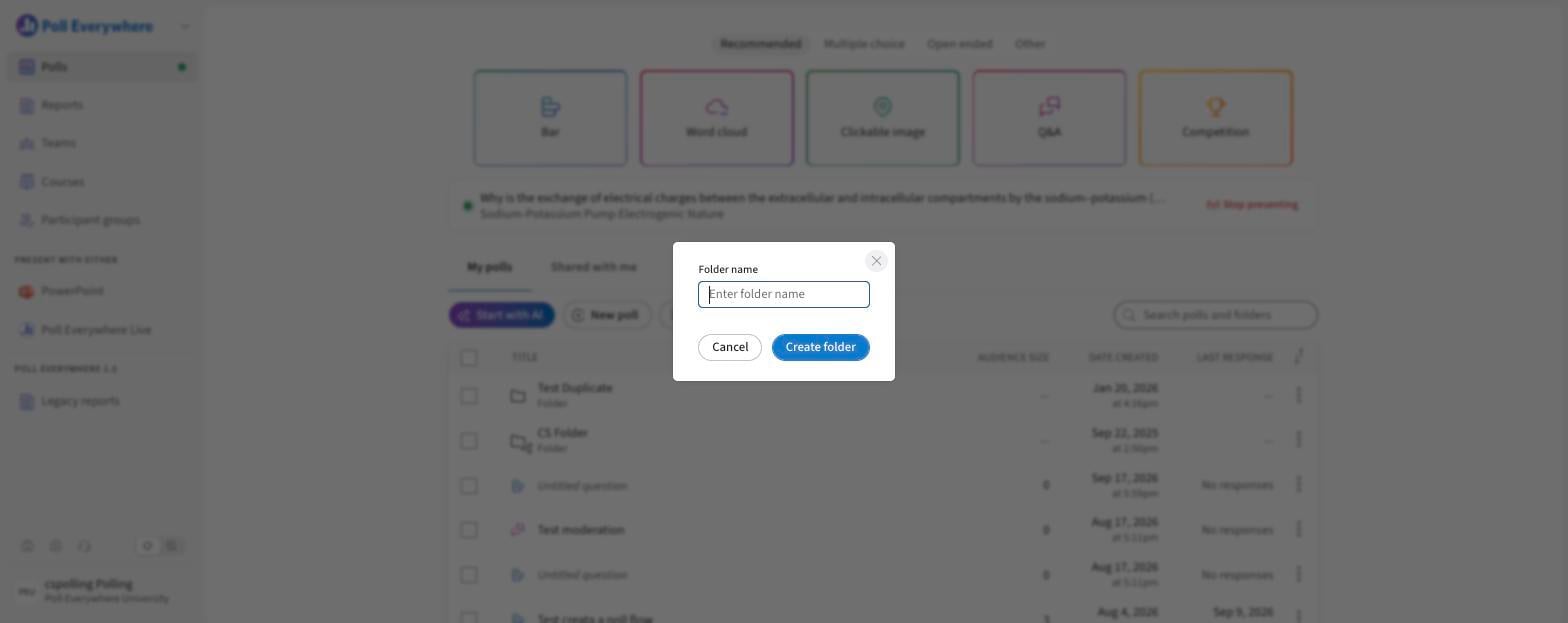
Your new folder will now appear in your list of folders, ready to be filled with polls.
Moving Polls Into Folders
You can move existing content into folders to stay organized:
- Either select the ⋯ menu on a poll and choose Move, or tick several polls and select Move in the selection bar.
- In the drawer, browse My polls or Shared with me (or search) and select Select next to the destination folder.
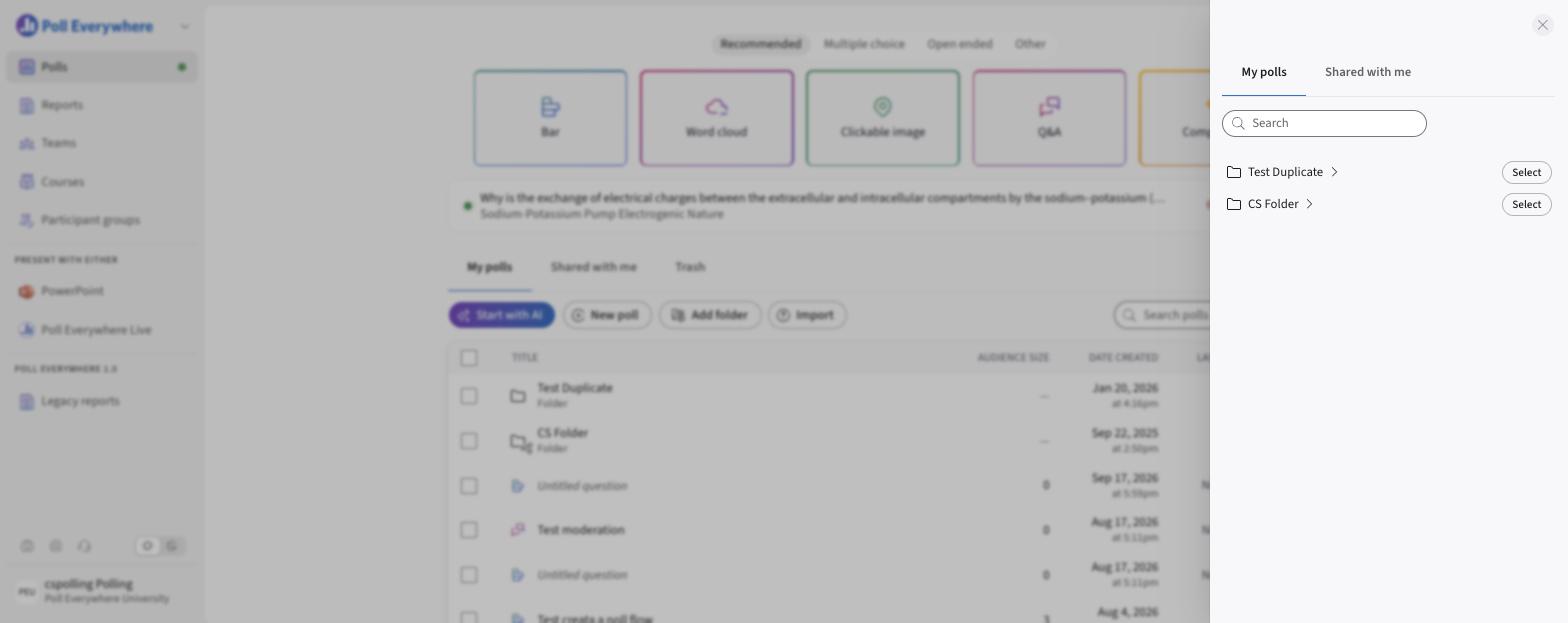
This helps reduce clutter and makes it easier to find what you need during presentations or when sharing content.
Best Practices
- Keep your folder names simple and clear (e.g., "Week 3 Activities" or "Midterm Review").
- Organize by course, module, or activity type depending on your teaching or presentation style.
- Regularly archive old or unused content into separate folders to reduce visual clutter.