
In this article:
- Method 1: MS 365 PowerPoint Add-in
- Method 2: Poll Everywhere Live App
- Which method should I use?
- Screen sharing tips
Poll Everywhere 2.0 supports two tools for presenting polls during online meetings. Which one you use depends on your slideware. Both work seamlessly when screen sharing in Zoom, Microsoft Teams, or Google Meet.
Method 1: MS 365 PowerPoint Add-in
Best for: PowerPoint users on Windows or Mac
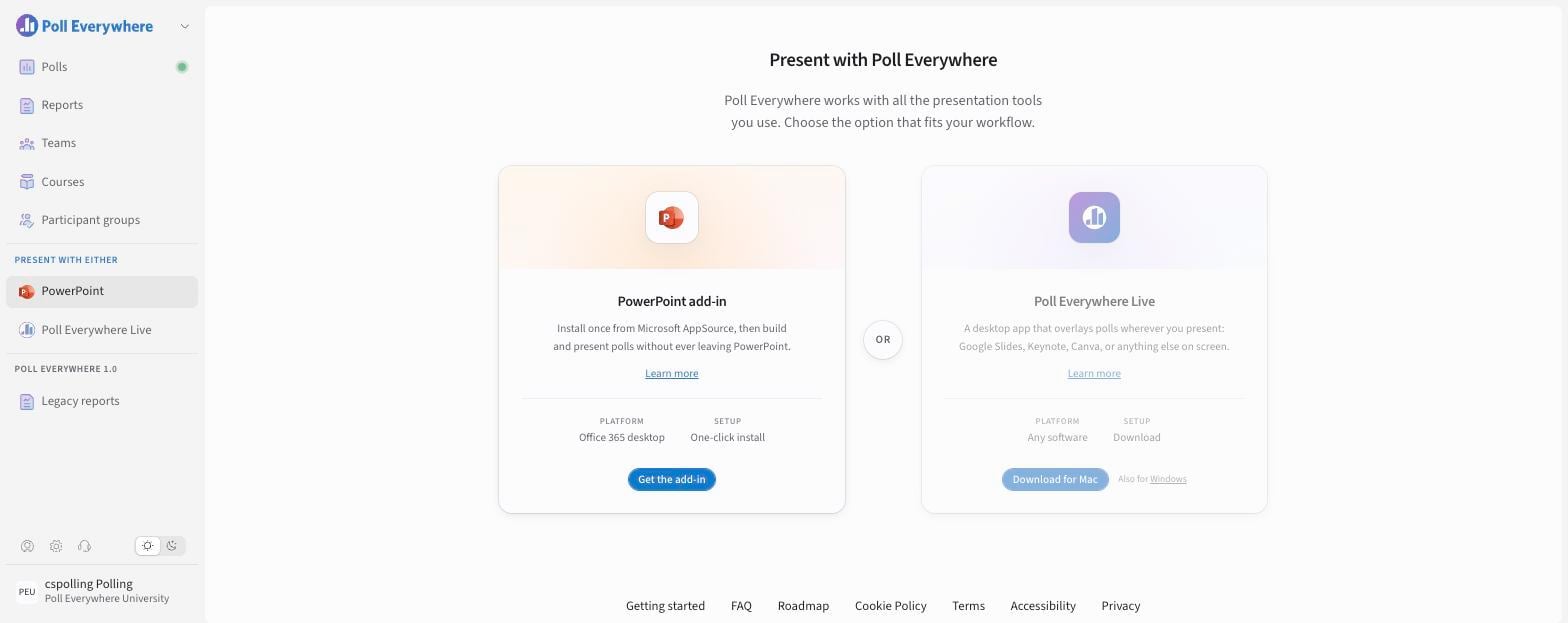
The Poll Everywhere 2.0 PowerPoint Add-in integrates directly with Microsoft 365. No separate download is required — install it once from the Office Add-ins Store and a Poll Everywhere tab appears in your PowerPoint ribbon.
Set up the add-in
- Open PowerPoint and go to the Home tab.
- Open the Office Add-ins Store.
- Search for Poll Everywhere 2.0 and click Add.
- Sign in with your Poll Everywhere account to complete setup.
Or start from Poll Everywhere: select PowerPoint under Present with either in the left navigation, then Get the add-in.
Present in an online meeting
- Open your PowerPoint presentation with polls inserted from the Poll Everywhere tab.
- Start your video conference (Zoom, Teams, or Google Meet) and begin screen sharing — share your entire desktop, not just the PowerPoint window.
- Start your slideshow. Polls and questions activate automatically as you advance to each slide.
- Participants go to pe.app/yourjoincode (shown at the top of each slide) or scan the QR code.
For full setup instructions, see Using Poll Everywhere 2.0 with the PowerPoint Add-in (Windows & Mac).
Method 2: Poll Everywhere Live App
Best for: Google Slides, Keynote, Canva, or any slideware other than PowerPoint
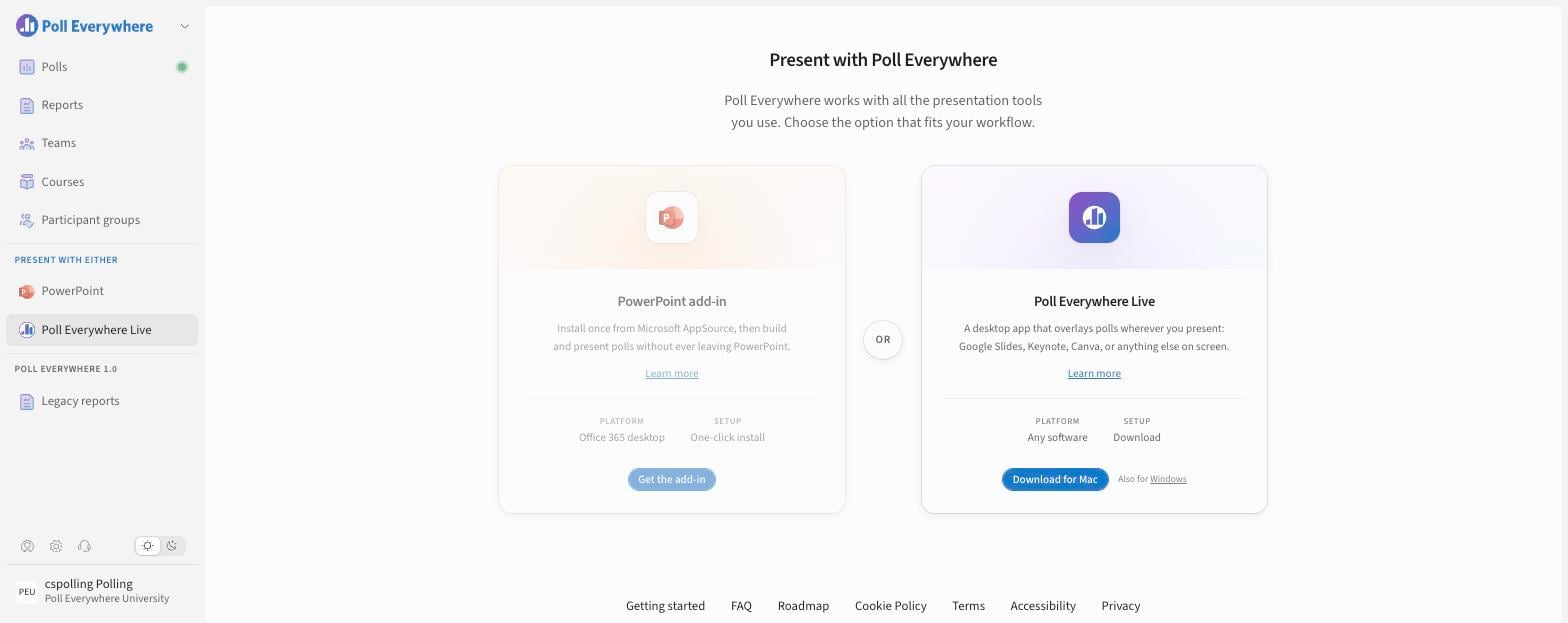
The Poll Everywhere Live App is a desktop companion app (Mac and Windows) that detects Poll Everywhere Live QR codes on your screen and gives you a floating control to activate and deactivate polls and questions — without switching windows or clicking back to a browser.
Note: For Google Slides, Keynote, and Canva users, the Live App is the only way to present polls in an online meeting. The PowerPoint Add-in does not work with these tools.
Set up the Live App
- Download and install the Poll Everywhere Live App for Mac or Windows.
- Sign in with your Poll Everywhere account.
In Poll Everywhere, select Poll Everywhere Live under Present with either to download it.
Insert a poll into your slides
- In the Live App, click Insert Poll and select a poll or question.
- The PE Live slide with QR code is automatically copied to your clipboard — paste it directly into your slide (Google Slides, Keynote, Canva, PowerPoint, etc.).
Present in an online meeting
- Open your presentation and make sure the Poll Everywhere Live App is running.
- Start your video conference (Zoom, Teams, or Google Meet) and share your entire desktop.
- Start your slideshow. When the PE Live slide appears on screen, the app detects the QR code and enters a Ready to activate state.
- Click the floating control to activate the poll or question. Participants see it launch in real time.
- Press →, ←, or ESC to deactivate and advance your presentation.
Tip: Enable Auto-activate in the Live App settings for a fully hands-free flow — polls and questions activate automatically as each PE Live slide appears on screen.
For full setup and presenting instructions, see Poll Everywhere Live App: Install & Setup and Poll Everywhere Live App: Presenting with Slides.
Which method should I use?
| Slideware | PowerPoint Add-in | Poll Everywhere Live |
|---|---|---|
| PowerPoint (Windows & Mac) | ✓ Supported | ✓ Supported |
| Google Slides | Not supported | ✓ Supported |
| Keynote | Not supported | ✓ Supported |
| Canva | Not supported | ✓ Supported |
| Any other slideware | Not supported | ✓ Supported |
Screen sharing tips
- Always share your entire desktop, not just a single application window. Sharing only the slideware window will hide the poll from your audience — even if it looks correct on your screen.
- Close unnecessary applications and silence notifications before your meeting.
- If using the Live App, ensure it is running and the correct display is selected before you start screen sharing.
- Share your join link pe.app/yourjoincode in the meeting chat before you start.