
In this article:
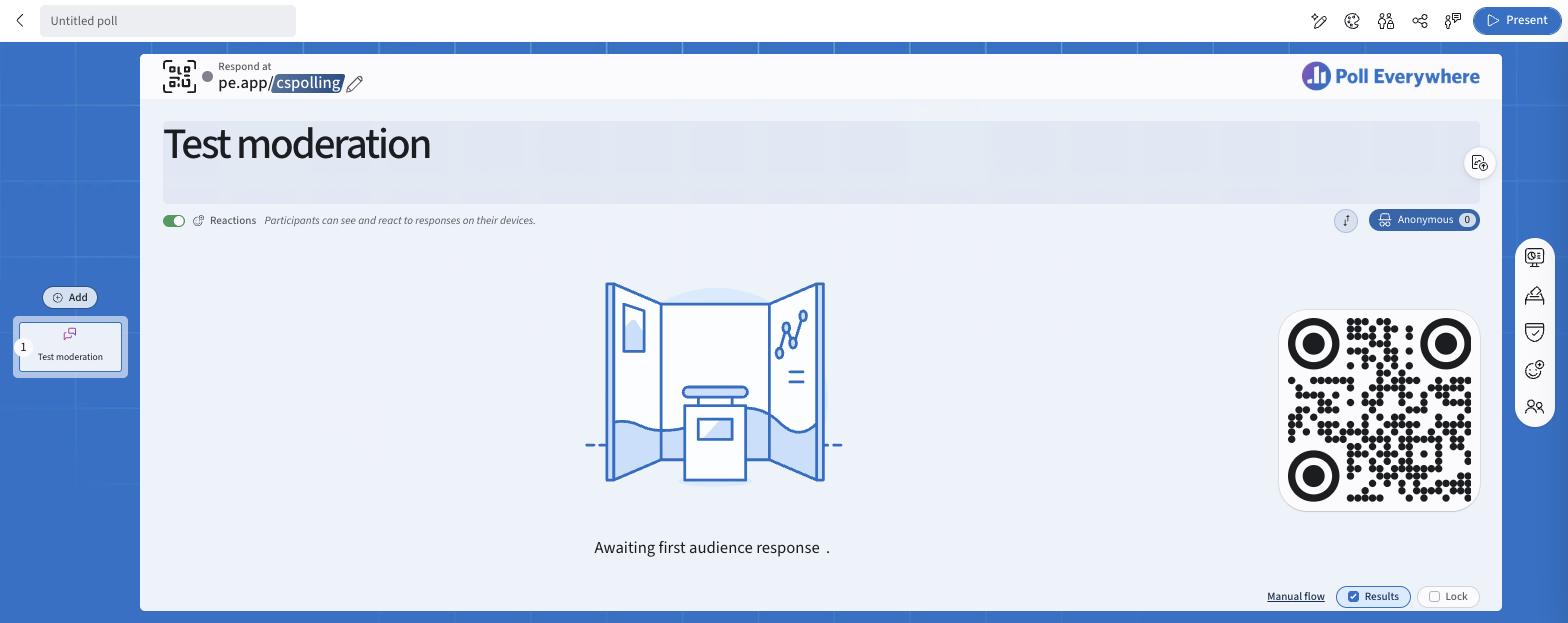
A Q&A poll lets your audience submit open-ended text responses in real time. There are no predefined answer options — participants type freely, and their responses appear live on screen as a scrollable feed. Participants can also react to each other's responses using emojis.
Q&A is suited for live audience questions, open feedback, icebreakers, and group discussion.
Creating a Q&A poll
- Go to Polls and select Q&A (Recommended or Open ended tab).
- Click the question title and type your prompt (e.g. "What questions do you have?").
- Participants join at pe.app/yourjoincode or by scanning the QR code.
How participants respond
Participants navigate to your join code or scan the QR code, type their response, and tap Send. Responses appear on the presenter's screen in real time.
Audience reactions
Participants can react to each other's responses on their devices. Reactions are tallied live on each response card.
- Use the Reactions toggle under the title to turn reactions on or off for this question.
- Open Audience reactions on the right rail to choose the reaction set:
| Option | Reactions allowed |
|---|---|
| Default | The standard set of reaction emoji |
| Up / down vote | ➕ and ➖ |
| Upvote only | ➕ only |
| Custom | Emoji you choose |
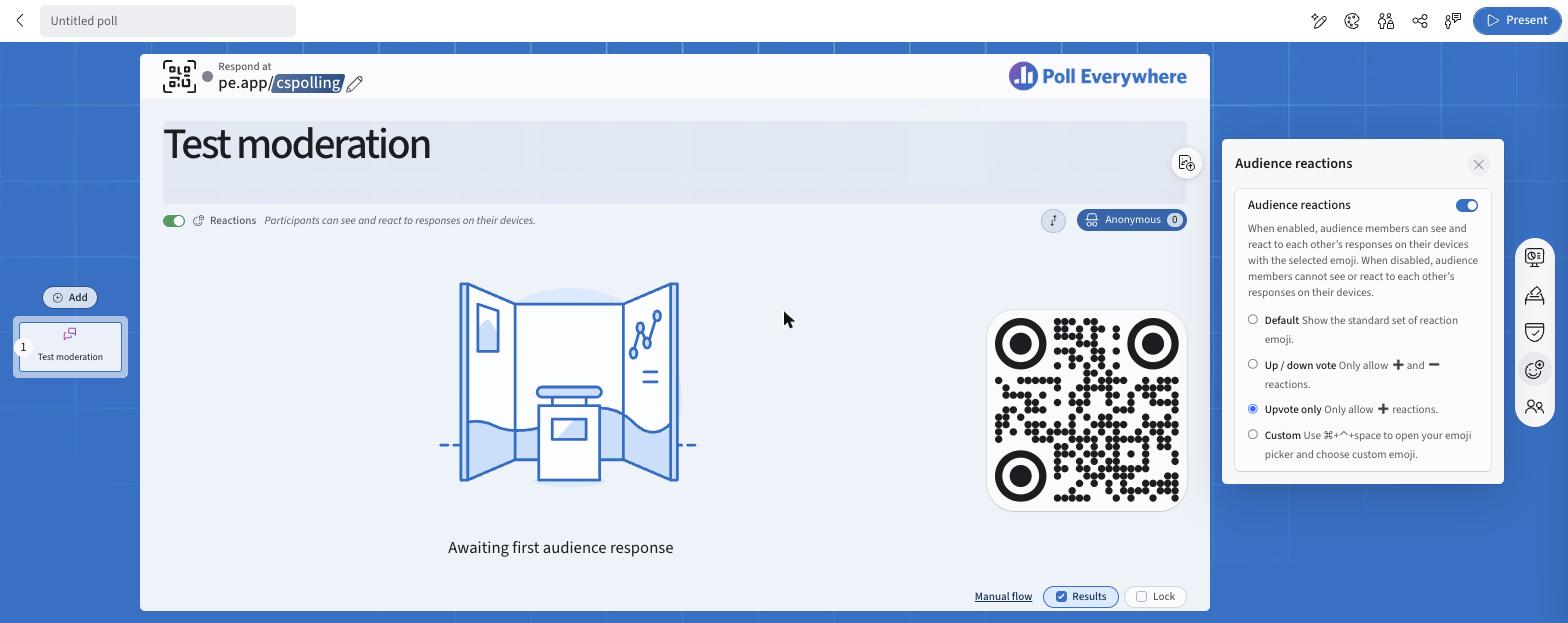
You can set your default reaction set in My settings → Defaults → Audience reactions.
Q&A Name Tags
Name Tags capture and display the name each participant used at the moment they submitted their response.
Note: Name Tags is available on Q&A polls only.
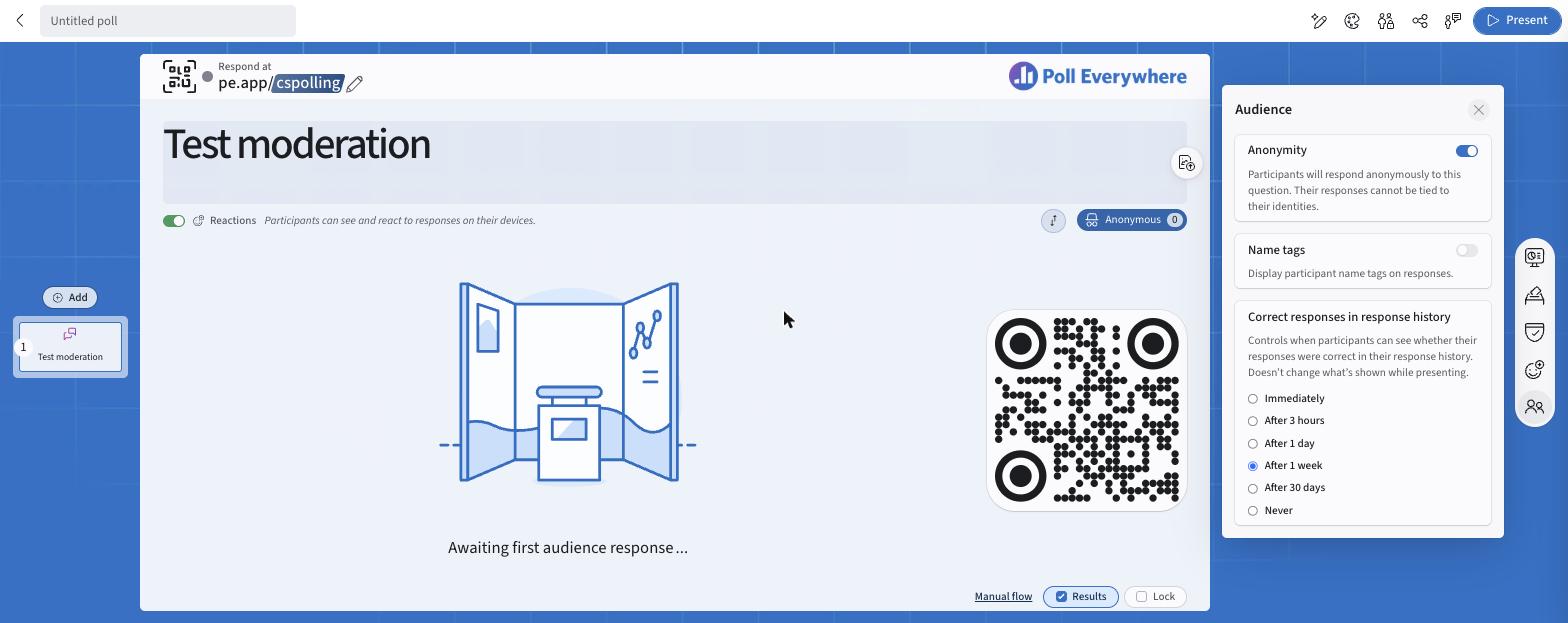
To enable: open Audience on the right rail and turn on Name tags.
When active, a Name Tag badge appears on each response card showing the respondent's name as it was at the time of submission. If a participant changes their display name after responding, the original captured name is retained on earlier responses.
Anonymity
When Anonymity is enabled, participant names are hidden from all responses. The participant name badge in the editor updates to show "Anonymously".
To enable: open Audience on the right rail and turn on Anonymity.
Anonymity and Name Tags cannot be active at the same time. Enabling Anonymity automatically disables Name Tags. Responses submitted while Anonymity was active remain anonymous even after Anonymity is turned off — the setting does not retroactively reveal those respondents.
Presenting a Q&A
- Click Present (top right) to open the live presentation view.
- Participants join via the join code or QR code on screen.
- Responses stream in live as participants submit them.
- Use Lock to close submissions when ready.
- Use Results to control whether responses are visible to participants.
Settings reference
| Setting | Location | What it does |
|---|---|---|
| Results | Bottom bar | Shows/hides responses on screen |
| Lock | Bottom bar | Stops new responses |
| Flow & Timer | Bottom bar → flow name | Flow type and countdown timer |
| Reactions | Under the title | Turns participant reactions on/off |
| Response settings | Right rail | Single/multiple submissions, allow changing answers |
| Moderation | Right rail | Require approval, moderation queue, AI Moderator |
| Audience reactions | Right rail | Reaction emoji set |
| Anonymity / Name tags | Right rail → Audience | Identity display |
| Participation restrictions | Top bar | Organization, teams, courses, participant groups |