
In this article:
- How Question Flows work
- Setting up Question Flows
- Running Question Flows during a presentation
- Live App (poll presentation window)
- PowerPoint
- How flows look by activity type
- Quick reference: flow setup vs. presentation
- Related articles
Question Flows give you precise control over how a question unfolds during a live presentation. Instead of revealing everything at once, Question Flows let you walk your audience through a question step by step — showing the question first, opening responses, revealing results, and (when applicable) showing the correct answer — all at your own pace.
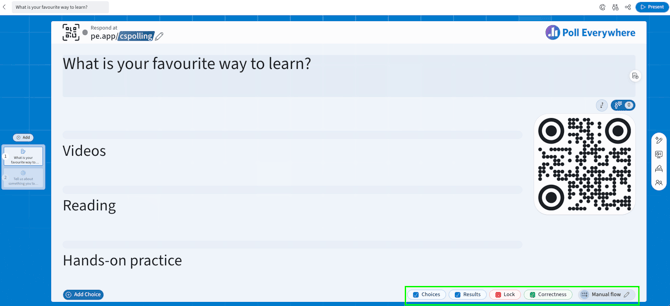
Every Poll Everywhere user now has access to the Manual Flow by default, with additional flow templates available to automate common presentation patterns.
Sample use cases:
Higher ed use cases: Walk students through a quiz question, hide responses until after everyone answers, then reveal the correct answer as a teaching moment.
Corporate use cases: Run a timed poll in a training or all-hands, reveal results after responses are locked to drive discussion, or use "question first" flow to build anticipation before showing answer options.
How Question Flows work
When you run a question with a flow, it progresses through a series of steps. The steps available depend on the question type and your settings. Common steps include:
- Show question — displays the question text before answer choices appear (used in "question first" flows)
- Live responses — opens the question and shows results as they come in
- Results — shows or locks results (depending on your settings)
- Correctness — reveals the correct answer (only available when a correct answer has been set)
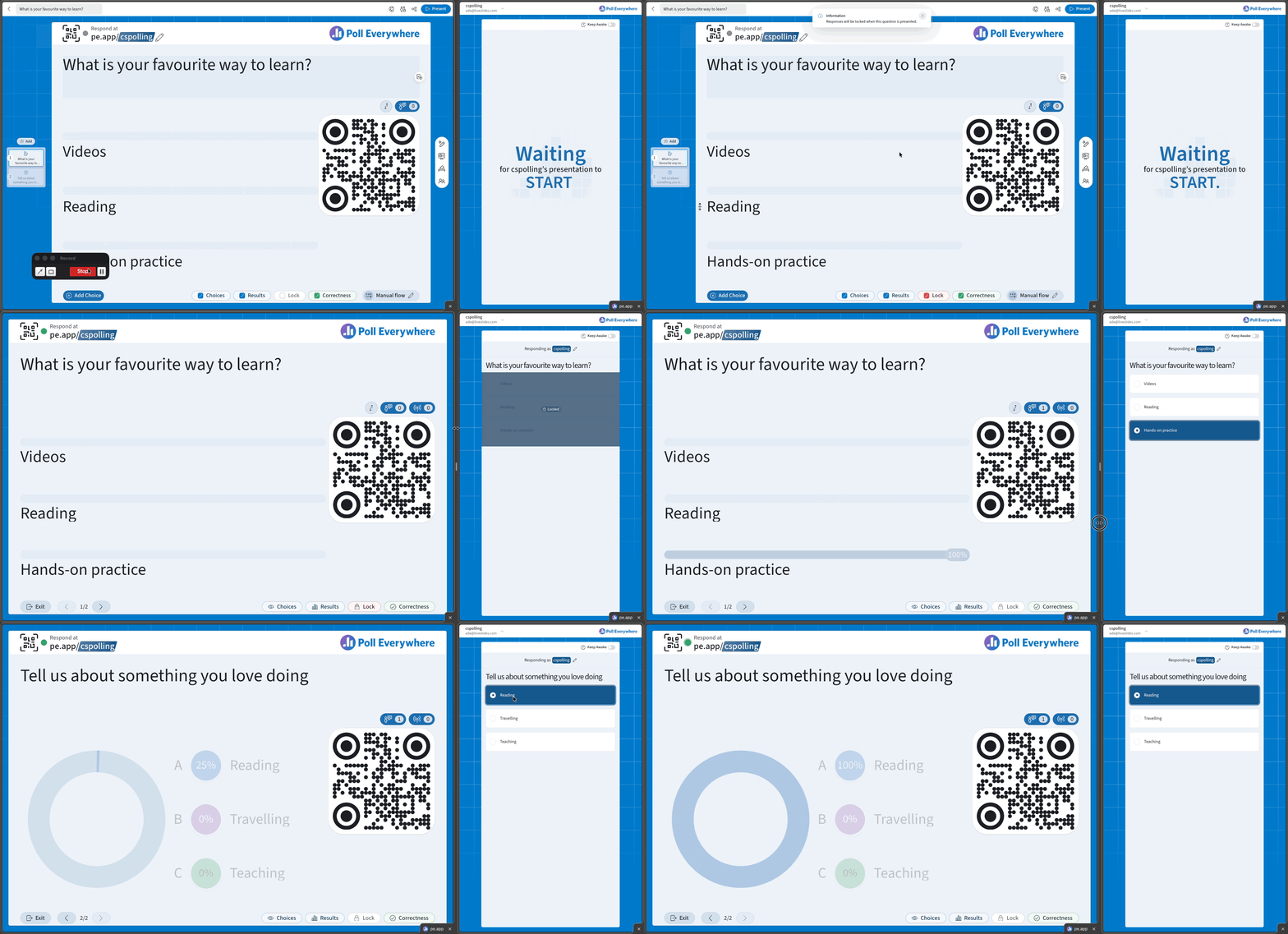
A step indicator bar at the bottom of your presentation view shows where you are in the flow and what comes next. You move forward with the right arrow key or your clicker, and can move backward with the left arrow.
Setting up Question Flows
- Open a question in the editor.
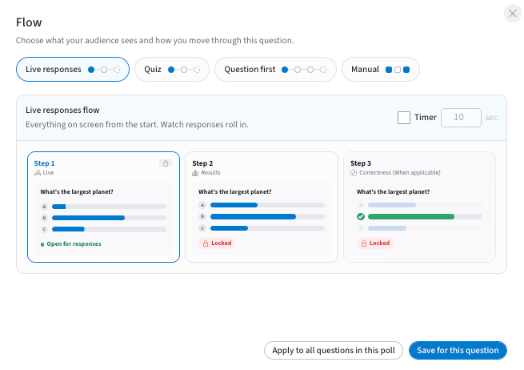
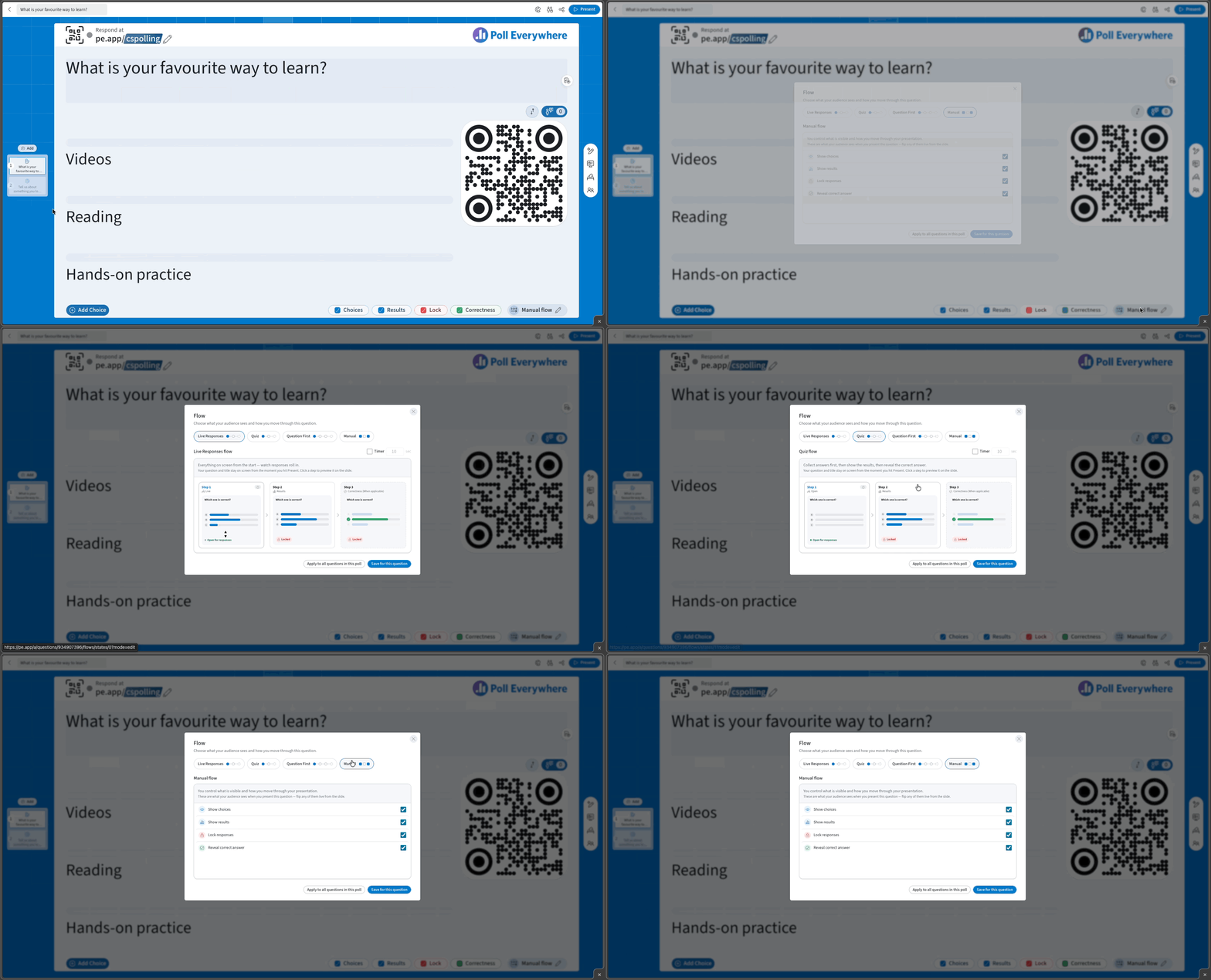
- Select the flow name on the bottom bar (e.g. Manual flow, tooltip Edit flow). The Flow window opens: "Choose what your audience sees and how you move through this question."
- Pick a flow type. The preview shows each step your audience will see.
- Optional: tick Timer and enter the seconds.
- Select Save for this question, or Apply to all questions in this poll.
Choosing a flow type
For clickable image question:
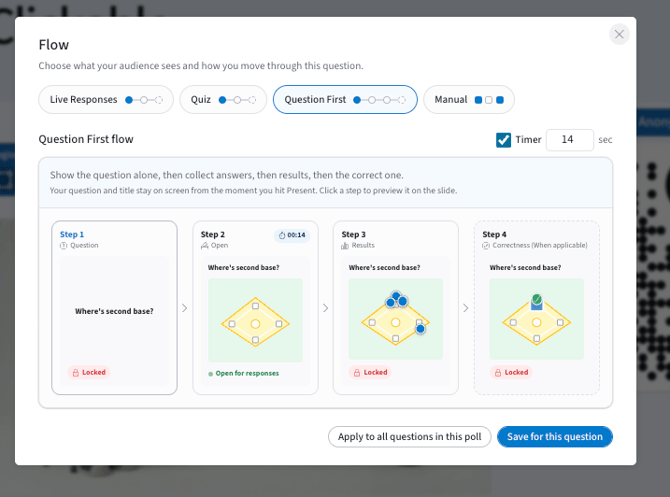
The flow modal shows a preview carousel — an animated walkthrough of exactly what your audience will see when you present. This updates live as you change settings.
| Flow | Steps | Best for |
|---|---|---|
| Live responses | Everything on screen from the start: Live → Results → Correctness (when applicable) | Energy and discussion |
| Quiz | Collect answers first (results hidden) → Results → Correctness | Knowledge checks |
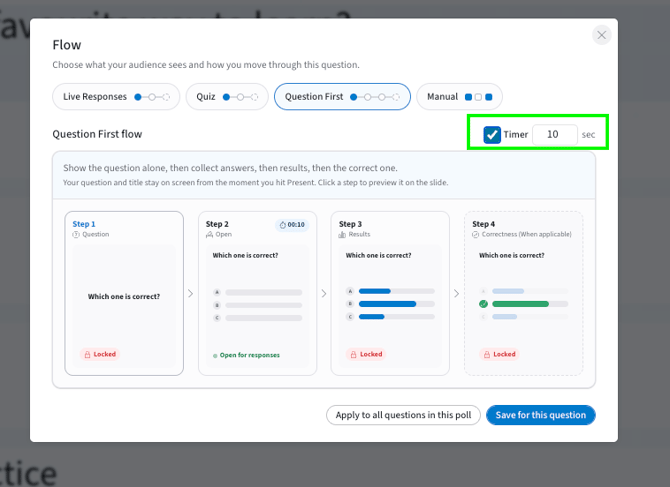
| Question first | Question only → Open → Results → Correctness | Getting people to think before they see options |
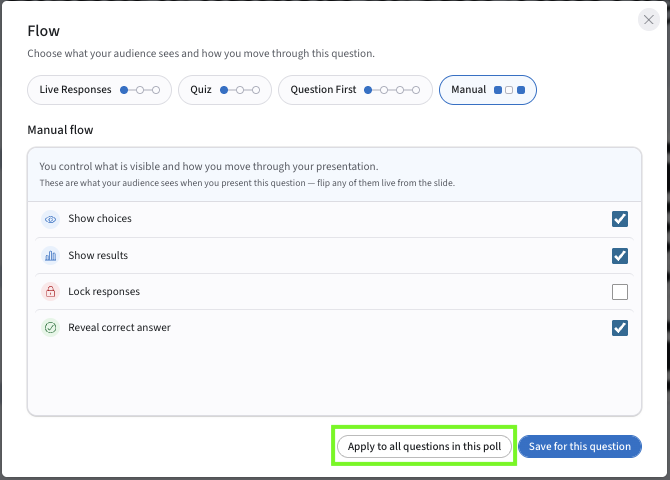
| Manual (default) | You control what is visible with checkboxes: Show choices, Show results, Lock responses, Reveal correct answer. Nothing happens automatically. | Full control |
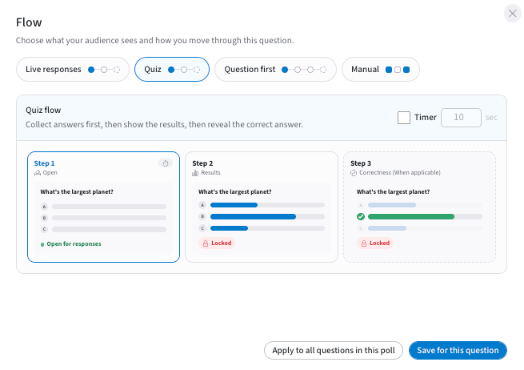
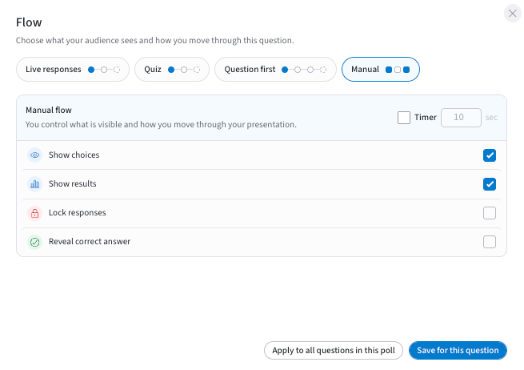
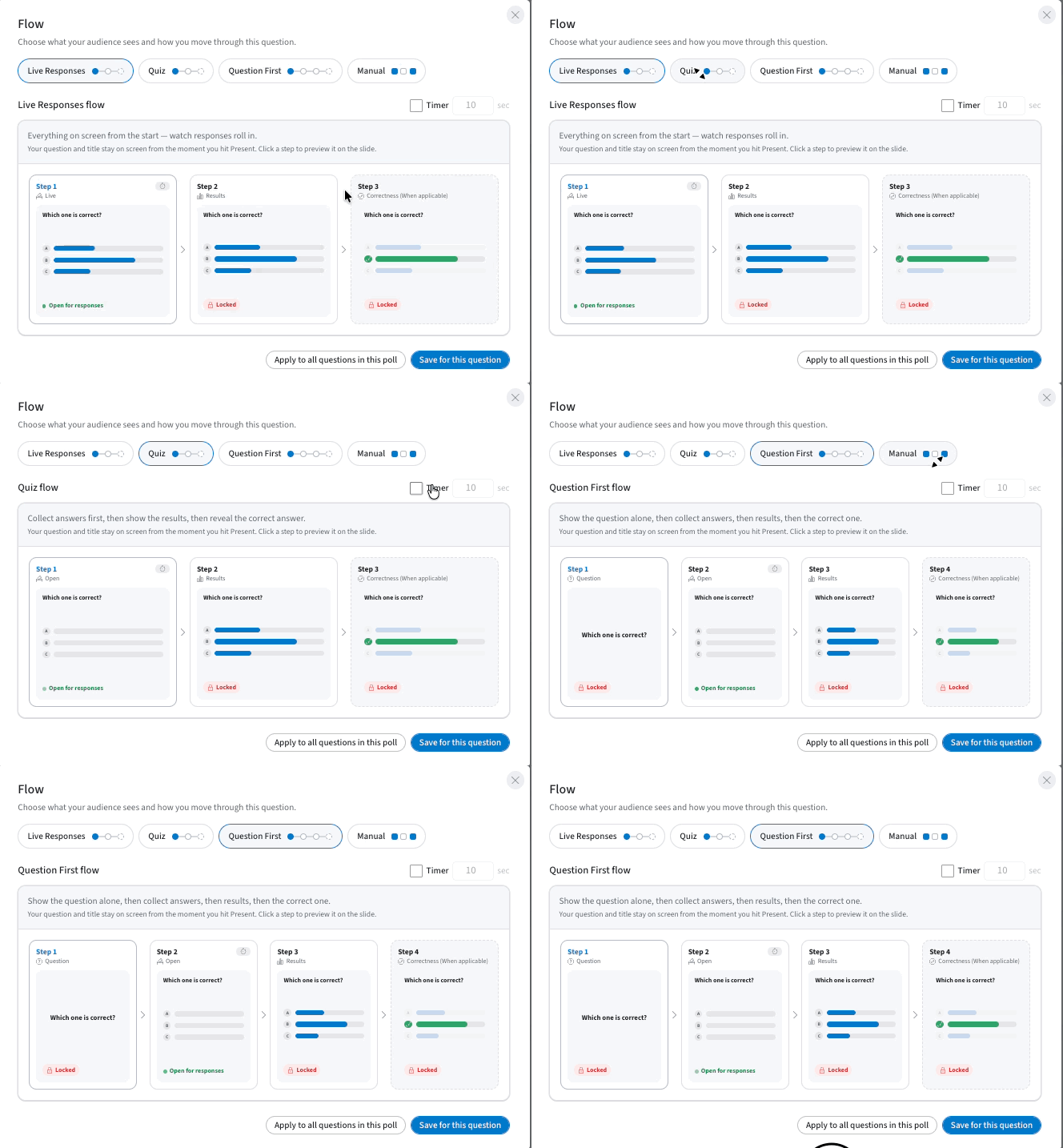
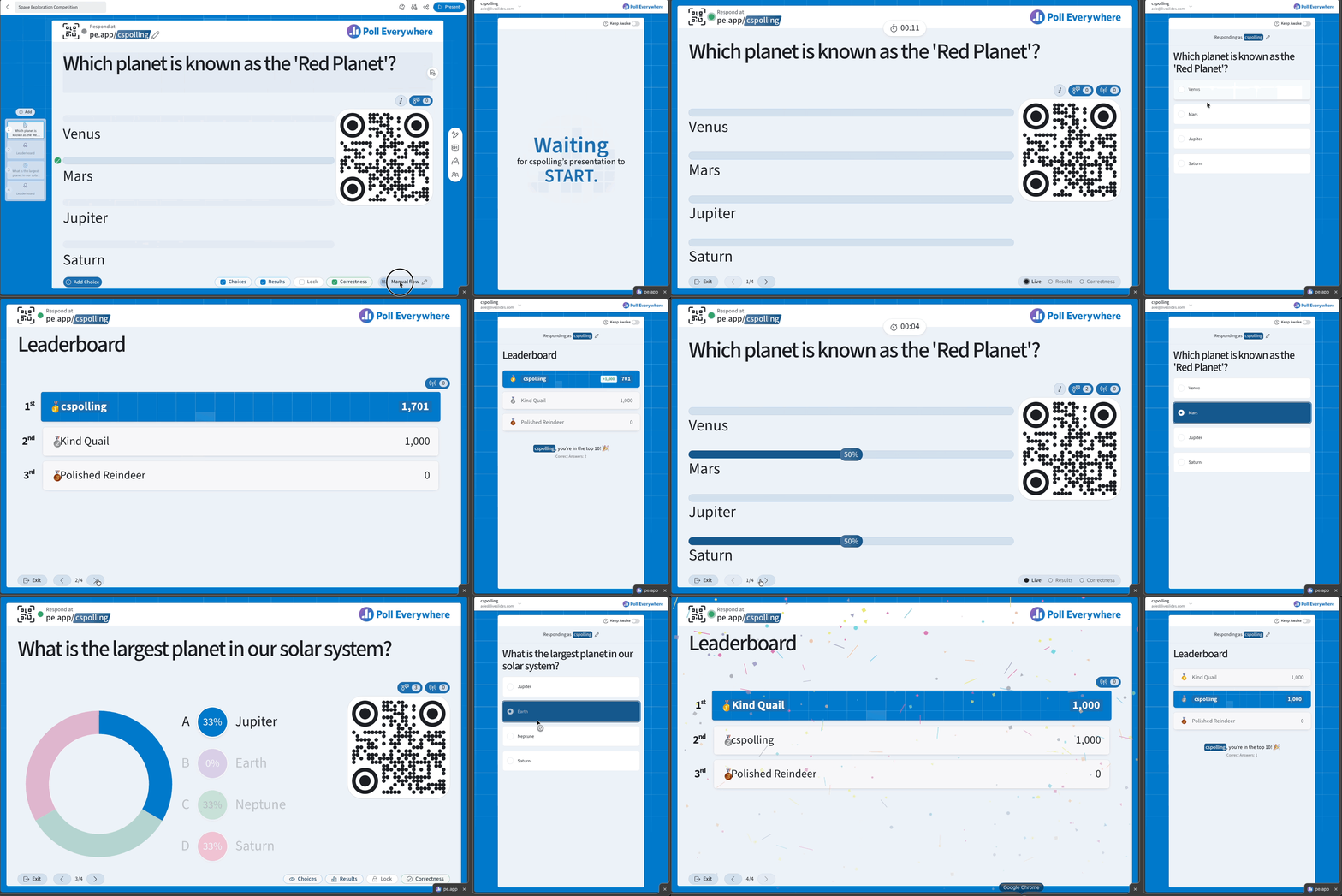
Adding a timer
Toggle the Timer on inside the flow modal to set a countdown for your question. When the timer is on, you'll see the duration you've set reflected in the preview carousel — what you configure is exactly how it will behave when you present.
Setting results display
You can choose whether results are visible to your audience during or after the response window.
- Change your results preference in the flow modal
- The question will start your next presentation with the setting you saved — no separate "Save question settings" step required
- A small info bar in the presentation view will remind you what's set: "Results will be shown when you start this presentation"
Note: Adjusting results using hotkeys or controls during a live presentation does not change how the question will start next time
Marking correct answers
If a question type supports correctness (Multiple Choice and Clickable Image), you can designate a correct answer at any time:
- Click the correct choice and select ✓, either while building the question or at any time afterwards.
Once a correct answer is set, a Correctness step is automatically added to any stepped flow for that question. It will not appear if no correct answer has been set, and it only shows up for question types that support it.
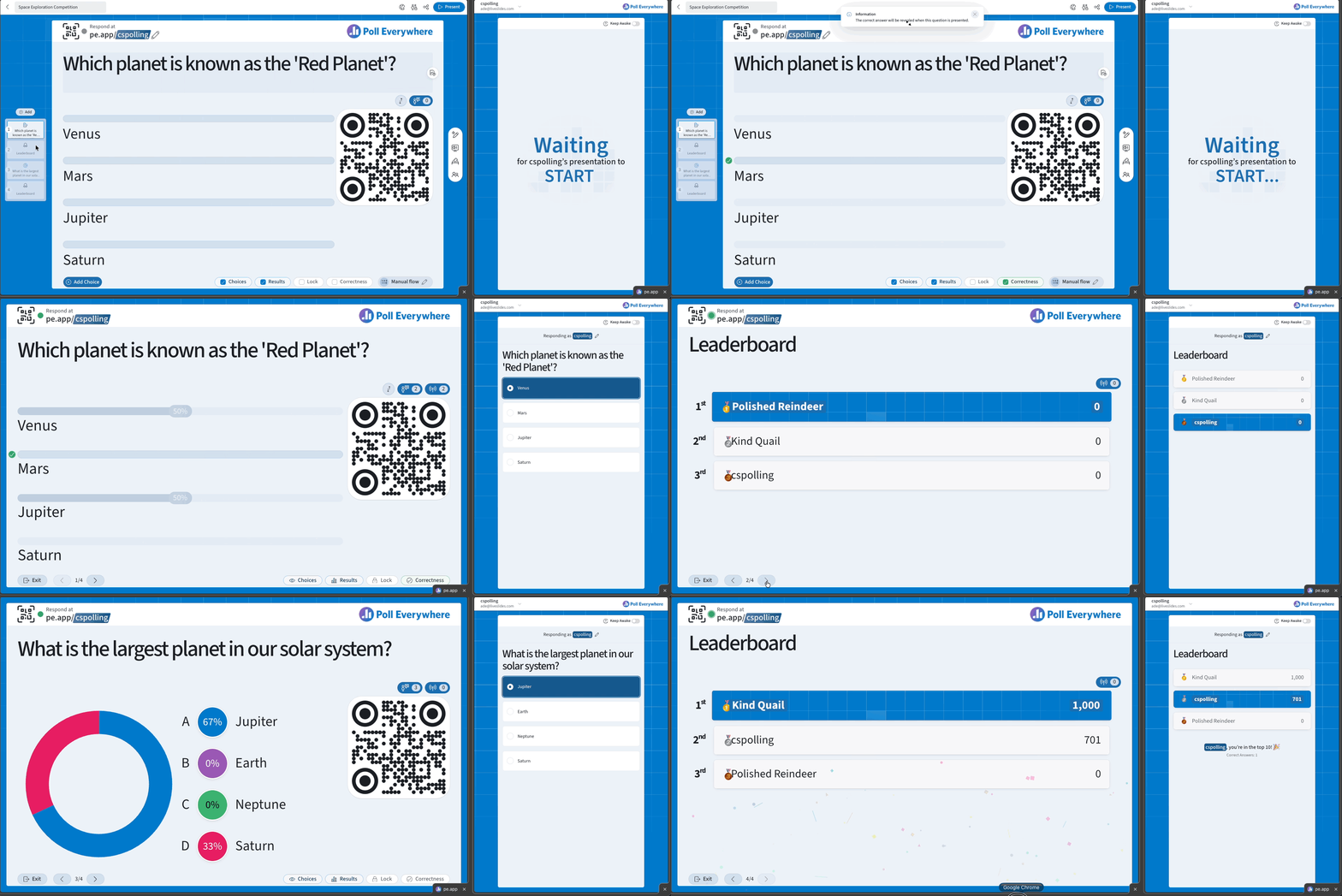
Applying settings to all questions in a poll
In the flow modal, you can choose Apply to all questions in this poll to apply your selected flow type to every question at once. A few things to know:
- Leaderboard and Attendance activities are excluded — they aren't response questions and don't use question flows
- Any new questions you add after applying a poll-wide default will inherit that default automatically
- You can still override individual questions by opening their own flow modal and changing the settings
Set your default flow
Set the flow new questions start with in My settings → Defaults → Question flow. Administrators can set (and lock) it for everyone in Organization settings → Defaults → Question flows.
Running Question Flows during a presentation
Question Flows work natively in the Poll Everywhere web app. When you activate a question with a flow:
- The flow starts automatically
- Use the right arrow key (or the navigation buttons) to advance through steps
- Use the left arrow to go back
- Reaching the last step completes the question
Live App (poll presentation window)
The Live App behaves the same as the web — there is no extra click needed to start the flow. When you open a question with a flow in the Live App:
- The flow starts automatically as soon as the question is activated
- Navigate forward and backward using arrow keys or the on-screen buttons
- Reaching the end of the flow closes the Live App
PowerPoint
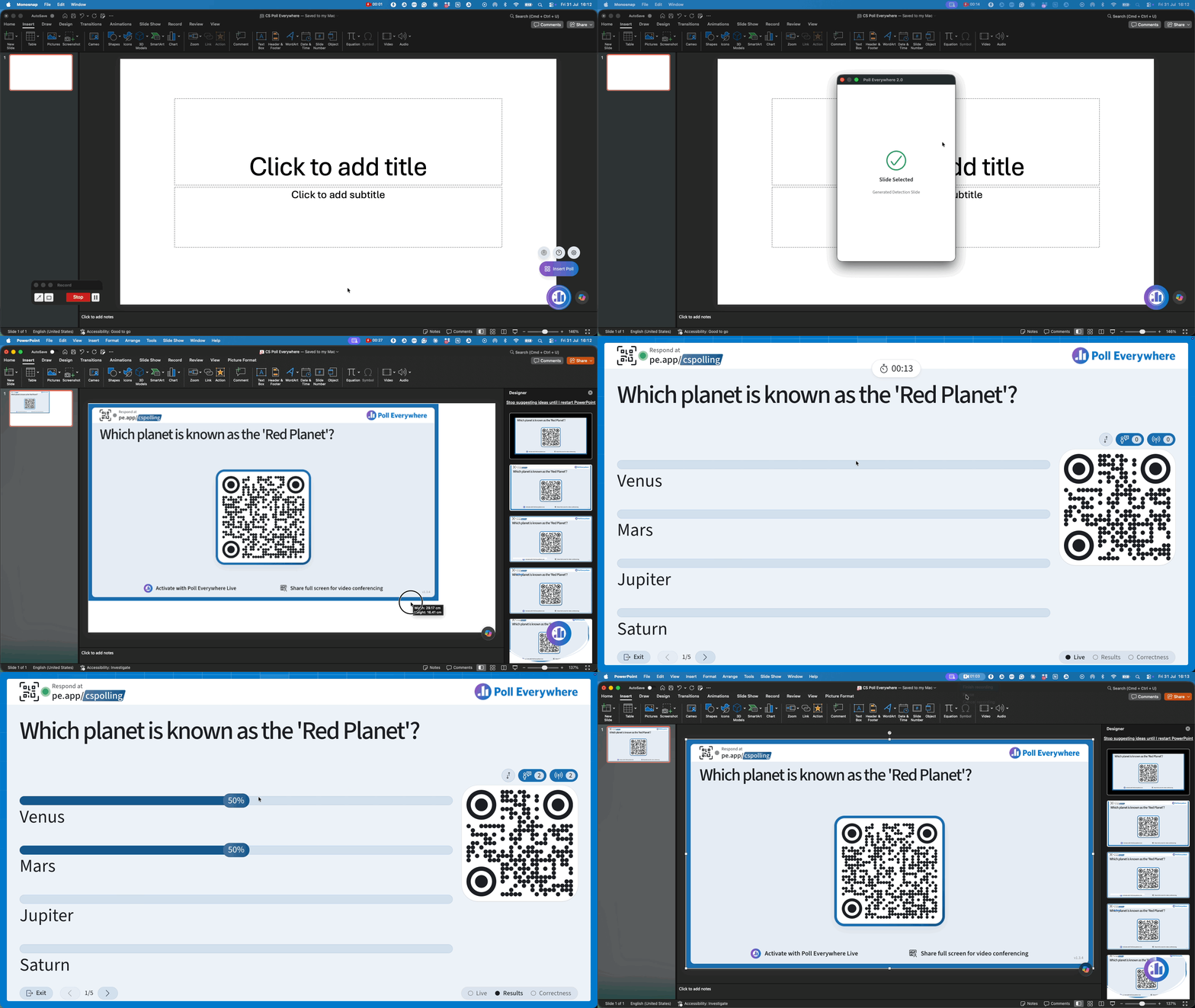
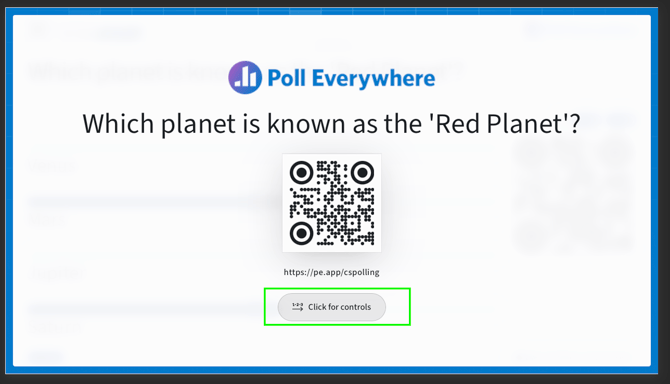
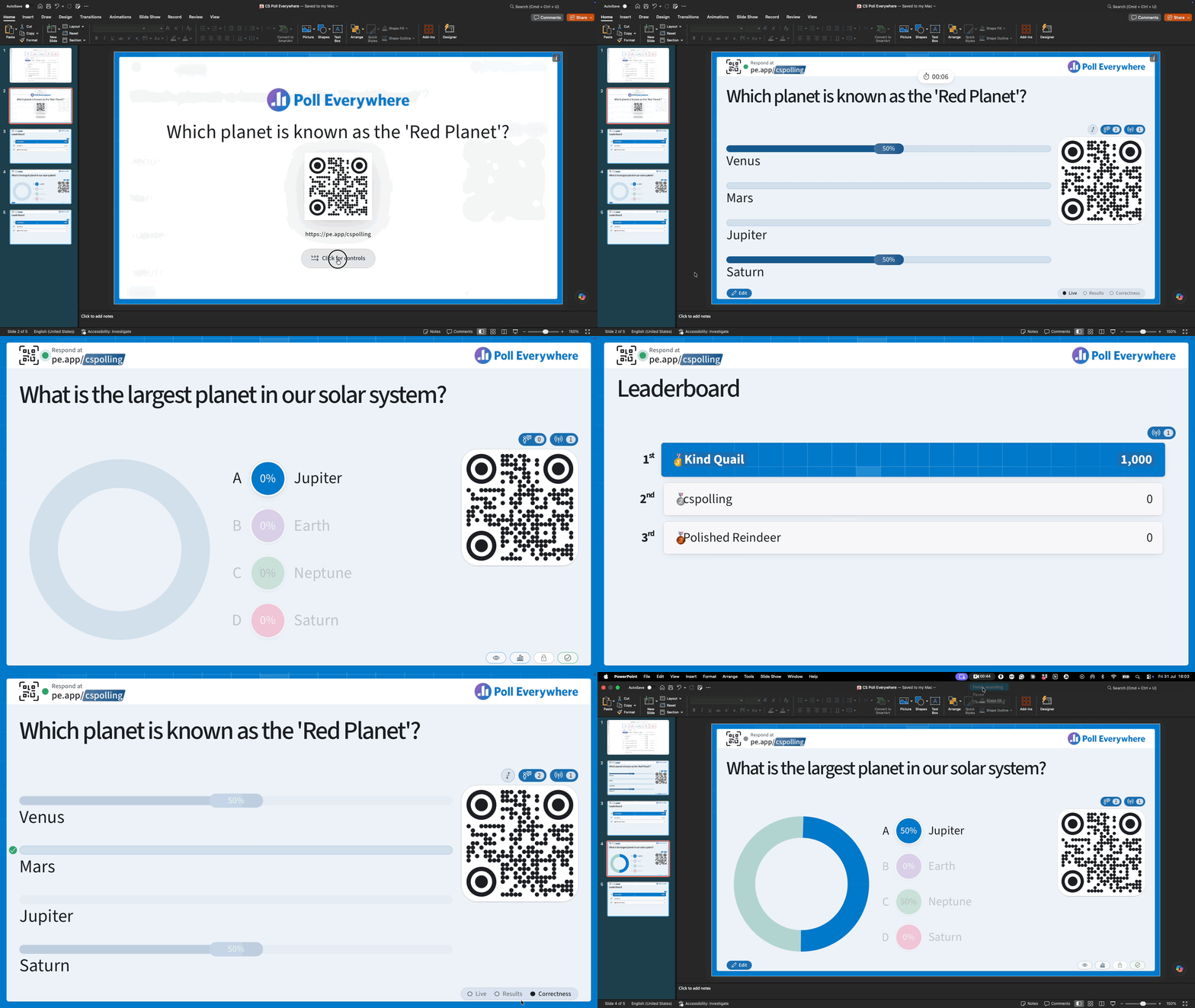
PowerPoint requires one extra step because arrow keys normally control slide navigation. Poll Everywhere uses a Click for controls prompt to safely transfer keyboard focus from PowerPoint to the poll.
- Advance to the poll slide
- Click once anywhere on the poll — this focuses the PE content and hands keyboard control to the flow
- Use your right arrow key or clicker to advance through each step
- When the flow reaches its last step, pressing the right arrow returns keyboard focus to PowerPoint and advances to the next slide
How flows look by activity type
The preview carousel in the flow modal is tailored to each activity type — so what you see in the preview is a faithful representation of your actual presentation experience:
| Activity type | Flow preview shows |
|---|---|
| Multiple Choice | Live responses coming in → results → correctness (if set) |
| Open-Ended | Live responses coming in → results view |
| Clickable Image / Pinpoint | Live voting on the image → results plotted → correctness (if set) |
| Competition | Question reveal → timer starts → choices appear → results |
| Word Cloud, Ranking, others | Varies by type — preview reflects the available steps |
Activities like Leaderboard and Attendance do not use Question Flows.
Quick reference: flow setup vs. presentation
| Task | Where to do it |
|---|---|
| Choose a flow type | Bottom bar → flow name (e.g. Manual flow) → Flow window |
| Set the timer | Flow window → Timer |
| Set results display | Flow window (flow type or Manual checkboxes) |
| Set correct answer | Click the choice → ✓ |
| Apply flow to all questions | Flow window → Apply to all questions in this poll |
| Set your default flow | My settings → Defaults → Question flow |
| Advance through steps (web/Live App) | Right arrow key or navigation buttons |
| Advance through steps (PowerPoint) | Click to start → right arrow / clicker |