
Ranking polls ask participants to put a list of choices in order, from first to last. Use them to prioritize topics, vote on preferences or see which option your audience values most. Each participant sees the choices in a different starting order, so no choice gets an advantage from where it sits in the list.
In this article
Create a Ranking poll
- Go to Polls, open the Multiple choice tab and select Ranking. To add one to a poll you already have, select Add in the slide pane and choose Ranking.
- Click the question title and type your question.
- Click each Choice and type an option. Select Add choice for more.
- To change the order you see while editing, drag a choice by its handle or use the up and down arrows.
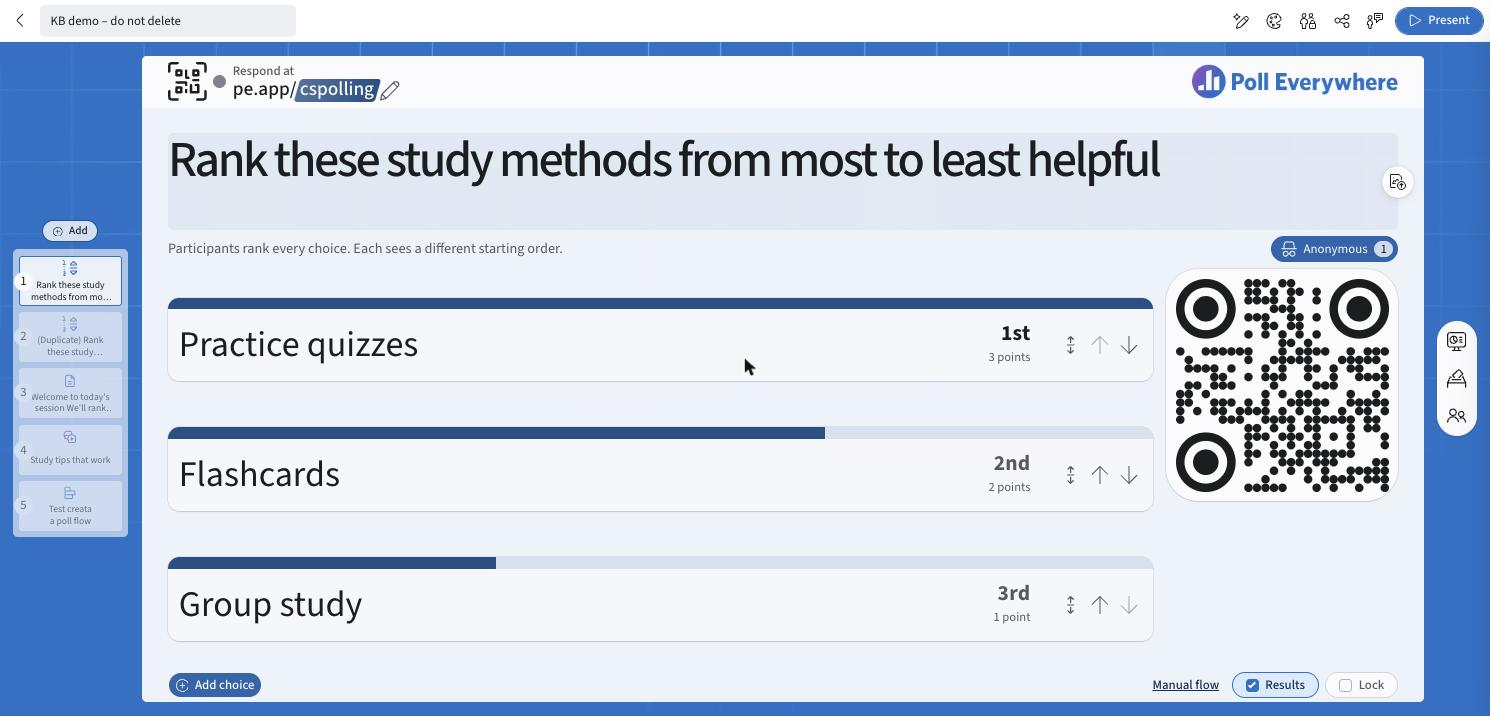
Under the title, the slide shows how participants will respond, for example Participants rank every choice. Each sees a different starting order.

You can also switch an existing multiple choice question to Ranking. Open Visualization in the right rail and select Ranking.
Ranking settings
Open Response settings in the right rail.
| Setting | What it does |
|---|---|
| Rank every choice | Participants put all of the choices in order. |
| Rank only a few | Participants order their top choices and leave the rest unranked. Set how many with Rank the top [n] of N choices. |
| Randomize participant choices | On by default. Each participant sees the choices in a different order, so no choice gains an advantage from its position. |
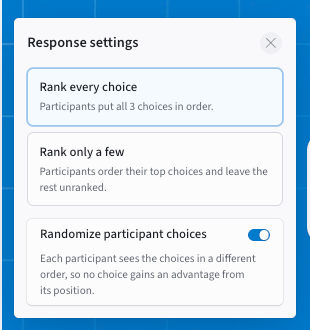
Tip: Randomize participant choices is also available on other multiple choice questions (Bar, Donut, Likert and Radar), under Response settings.
How participants rank
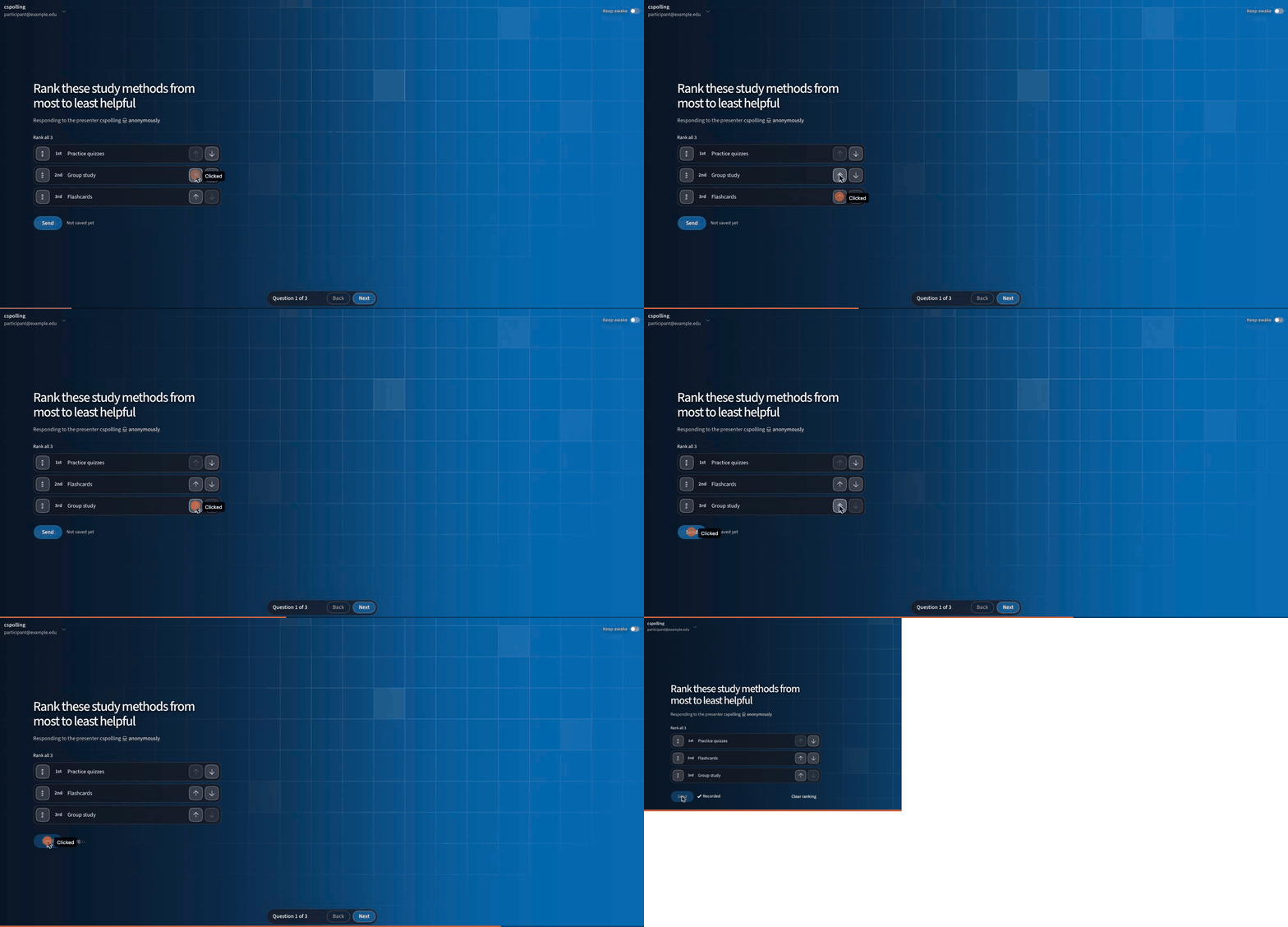
Participants see the list with a position next to each choice (1st, 2nd, 3rd…). They reorder it in any of these ways:
- Drag a choice by its handle.
- Tap the up or down arrow next to a choice.
- With a keyboard, press Tab to reach a choice's up or down arrow and press Enter.
When the order is right, they select Send. The page confirms with Recorded. To start over, they select Clear ranking. With Rank only a few, participants order only their top choices.
Presenting and results
Select Present as usual. Ranking questions use the Results and Lock controls in the bottom bar. Ranking questions have no correct answer, so Correctness is not shown.
Each choice earns points from the position participants give it. With three choices, 1st place is worth 3 points, 2nd is worth 2 and 3rd is worth 1. The results show each choice's overall place (1st, 2nd, 3rd…) and its total points, with a bar for each.
Ranking questions also work in response links. See Using Response Links.
Related: Multiple Choice Polls · Create a Poll
If you have any questions or run into issues, please contact the Technical Support team.