
A poll is one or more questions or slides you present to your audience to collect responses, feedback or questions.
Step 1: Choose how to start
Go to Polls in the left navigation. You can:
- Pick a poll type card. Use the tabs above the cards to browse the types:
| Tab | Poll types |
|---|---|
| Recommended | Bar, Word cloud, Clickable image, Q&A, Competition |
| Multiple choice | Bar, Donut, Likert, Radar, Ranking |
| Open ended | Word cloud, Q&A |
| Other | Competition, Attendance, Content slide, Media slide |
- Start with AI. Describe your goal and let AI build the poll. See Create Polls with AI.
- New poll or Import questions from a CSV file.


Step 2: Type your question
The editor opens with a placeholder title. Click Question title and type your prompt. Select the title to open its formatting toolbar: B, I, Tt (text size) and Formatting help.
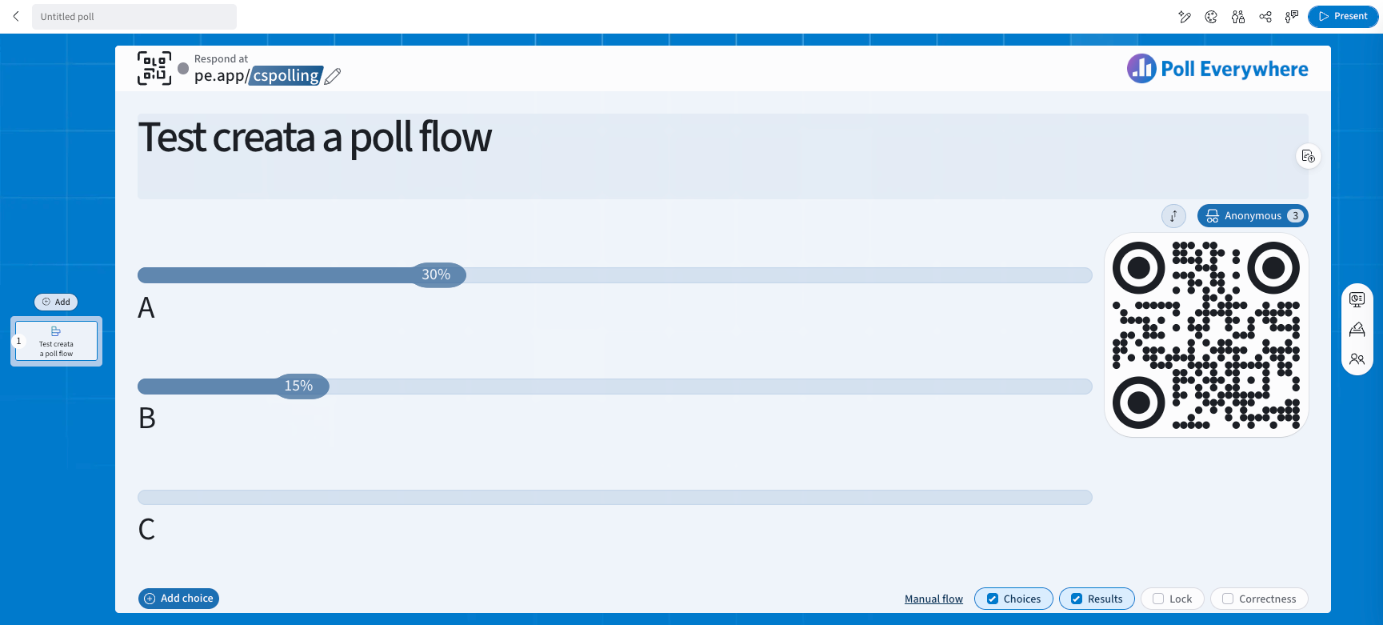
Step 3: Add and manage choices (multiple choice)
- Click a choice and type your answer.
- Select + Add choice (bottom left) to add more options.
- Click into a choice to open its toolbar:
- ✓: mark as a correct answer. Correct answers show in green when revealed.
- 🗑: delete the choice.
- B / I / image: format the text or add an image.
- Drag the handle on the left of a choice to reorder it.

Step 4: Change the visualization (optional)
Open Visualization on the right rail and pick a different chart. The options are grouped as:
- Multiple choice: Bar, Donut, Likert, Radar, Ranking
- Open ended: Word cloud, Q&A
- Pinpoint: Clickable image
Your question and existing responses are kept when you switch.
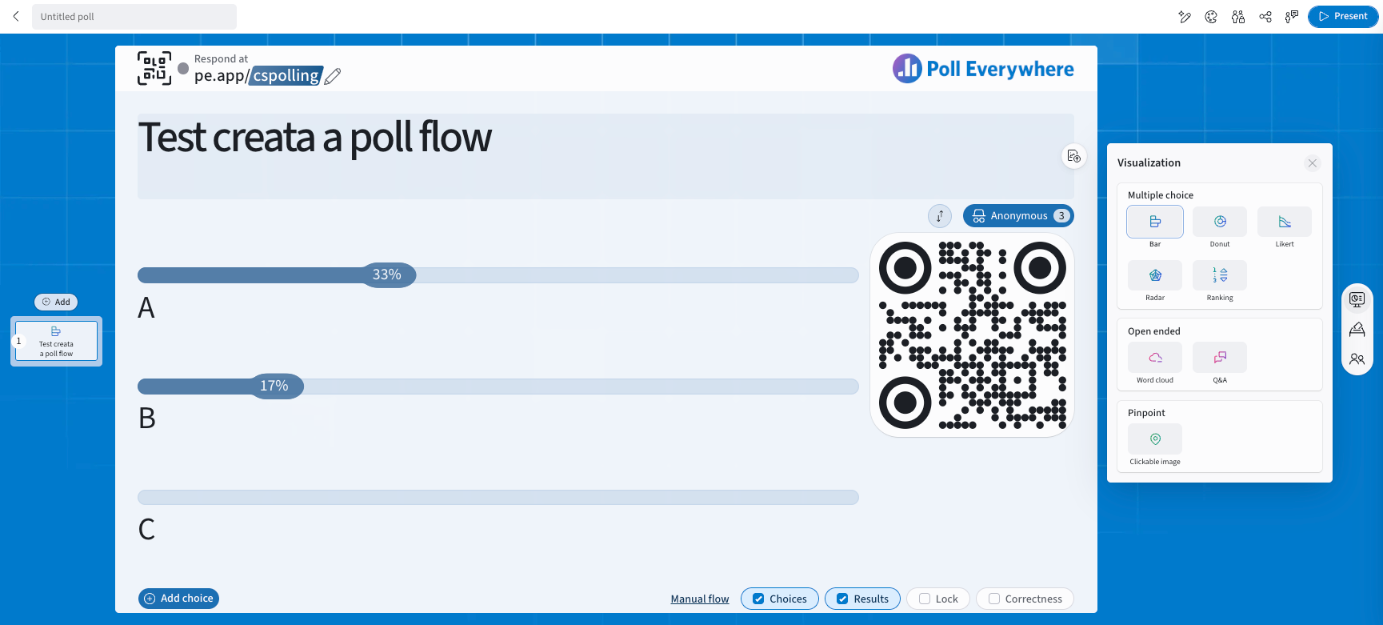
Step 5: Add more slides
Select Add above the slide thumbnails on the left and choose any question type, Competition, Attendance, Content or Media.
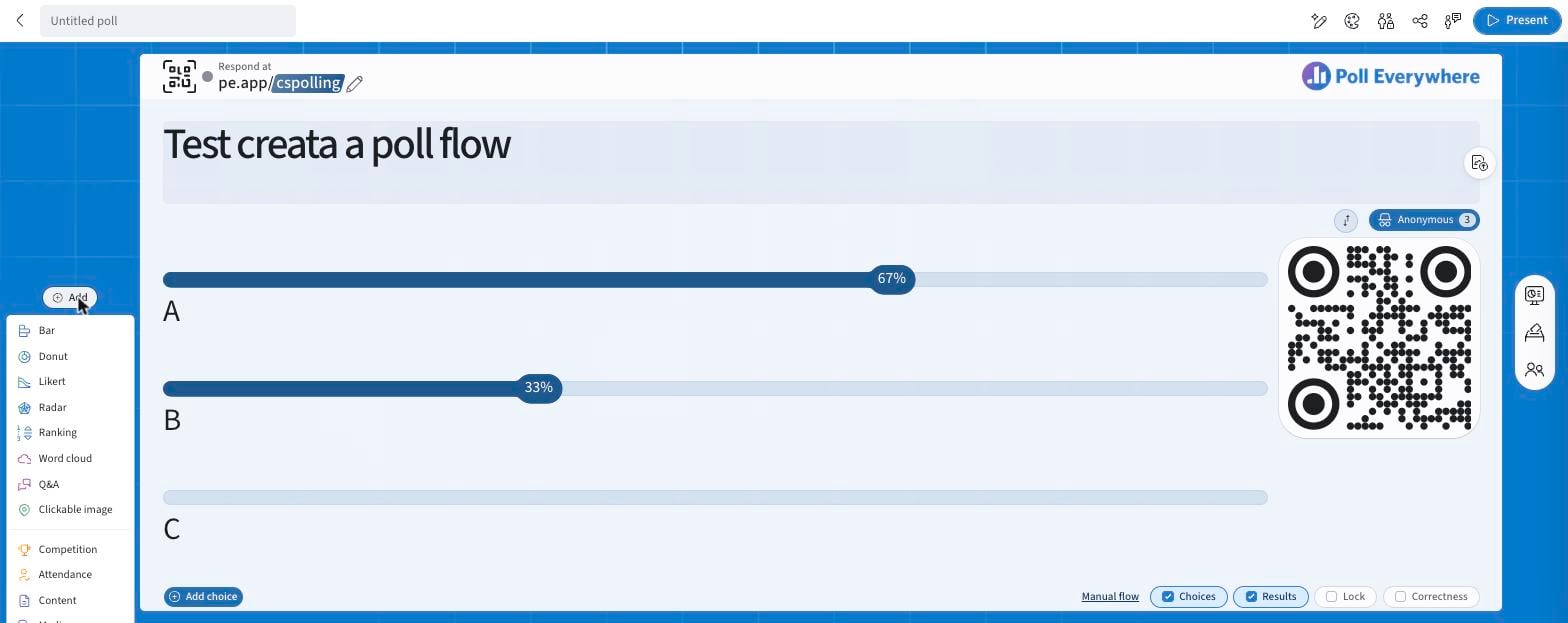
Open-ended polls (Word cloud and Q&A)
Enter your question. Participants type free-text answers. See Word Cloud and Q&A for settings.
Competitions
A Competition is a series of multiple-choice questions with Leaderboard slides between them. Mark at least one correct answer per question so points can be awarded. See Competition in Poll Everywhere 2.0.
More slide types and shortcuts: see Ranking Polls, Content and Media Slides and Copying and Duplicating Questions.
Present
When you're ready, select Present (top right). See Question Page for the presentation controls.
If you have any questions or run into issues, please contact the Technical Support team.