
Mark which answers are correct on a question, then reveal them to your audience when you're ready. Set correctness marks the correct answers, and the question's flow decides when they're shown on the presentation screen.
Correct answers are available on multiple choice questions shown as a Bar, Donut, Radar or Likert chart, and on Clickable image questions. See Which questions can have correct answers.
In this article
- Mark correct answers
- Clickable image questions
- Reveal the correct answer in a Manual flow
- Correct answers in other flows
- Which questions can have correct answers
Mark correct answers
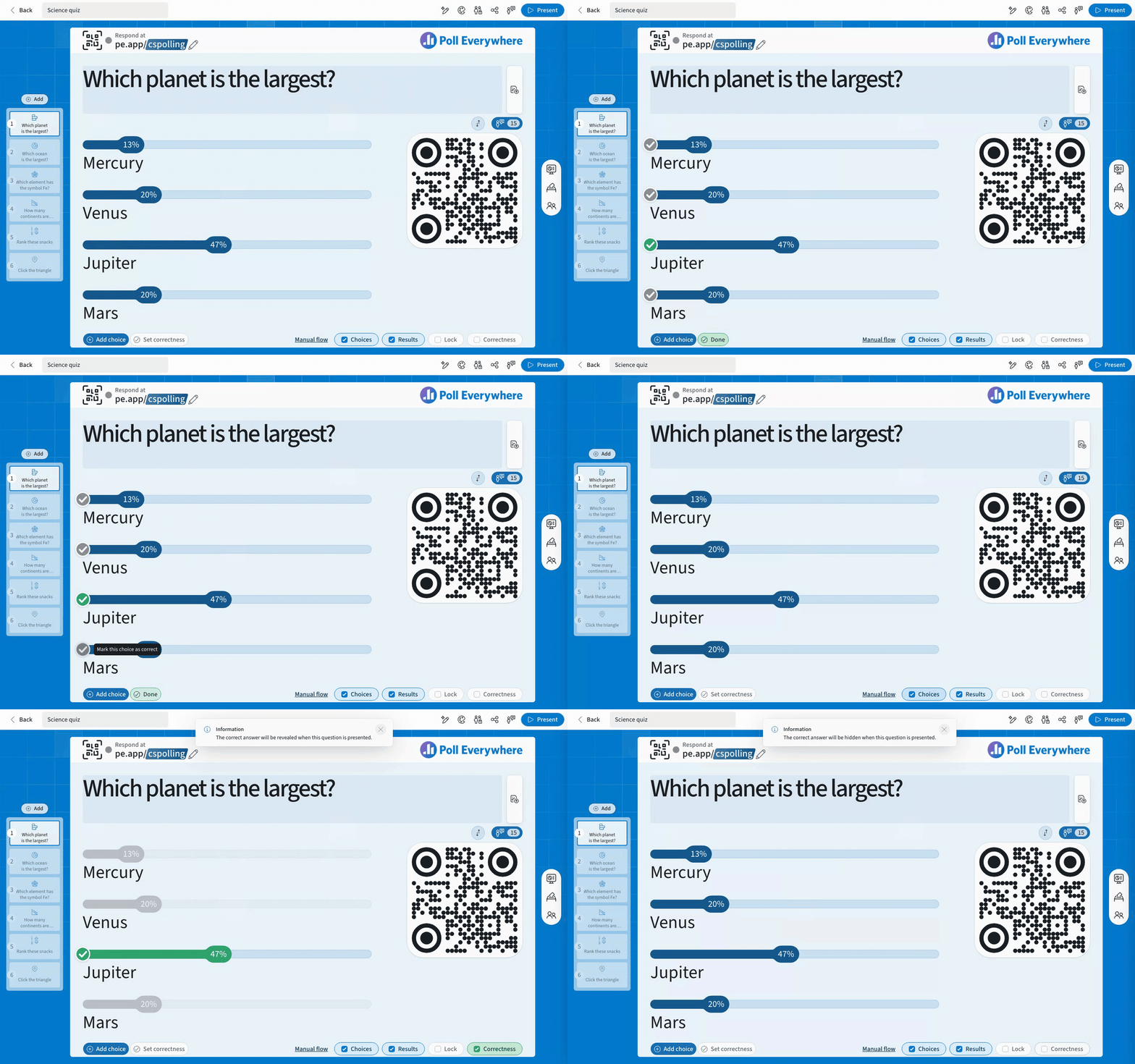
- Open the poll and select a multiple choice question in the slide pane.
- Select Set correctness next to Add choice at the bottom of the slide.
- A check appears on every choice. Select a choice's check to mark it correct, and it turns green. Select it again to unmark it. You can mark more than one choice.
- Select Done.
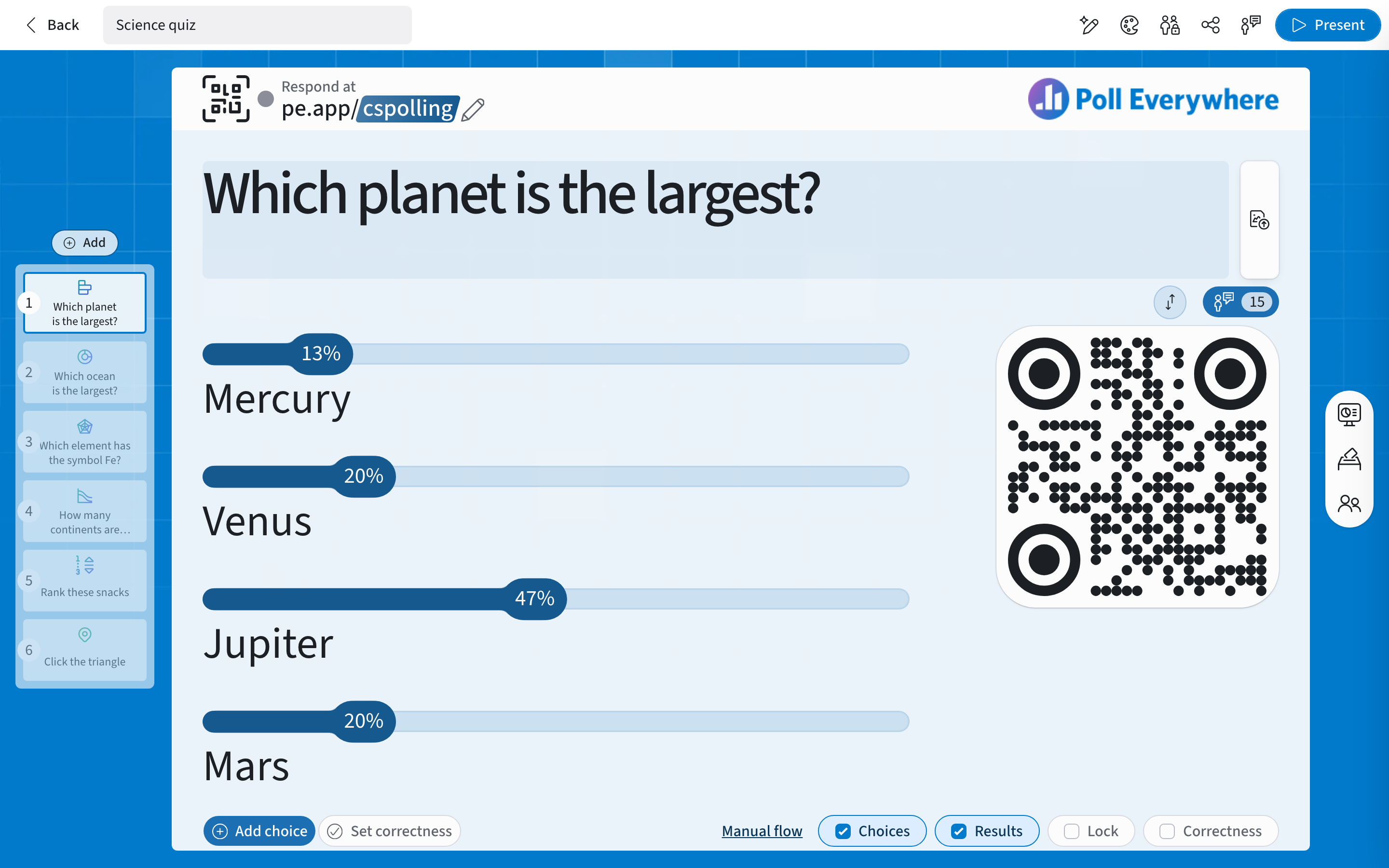
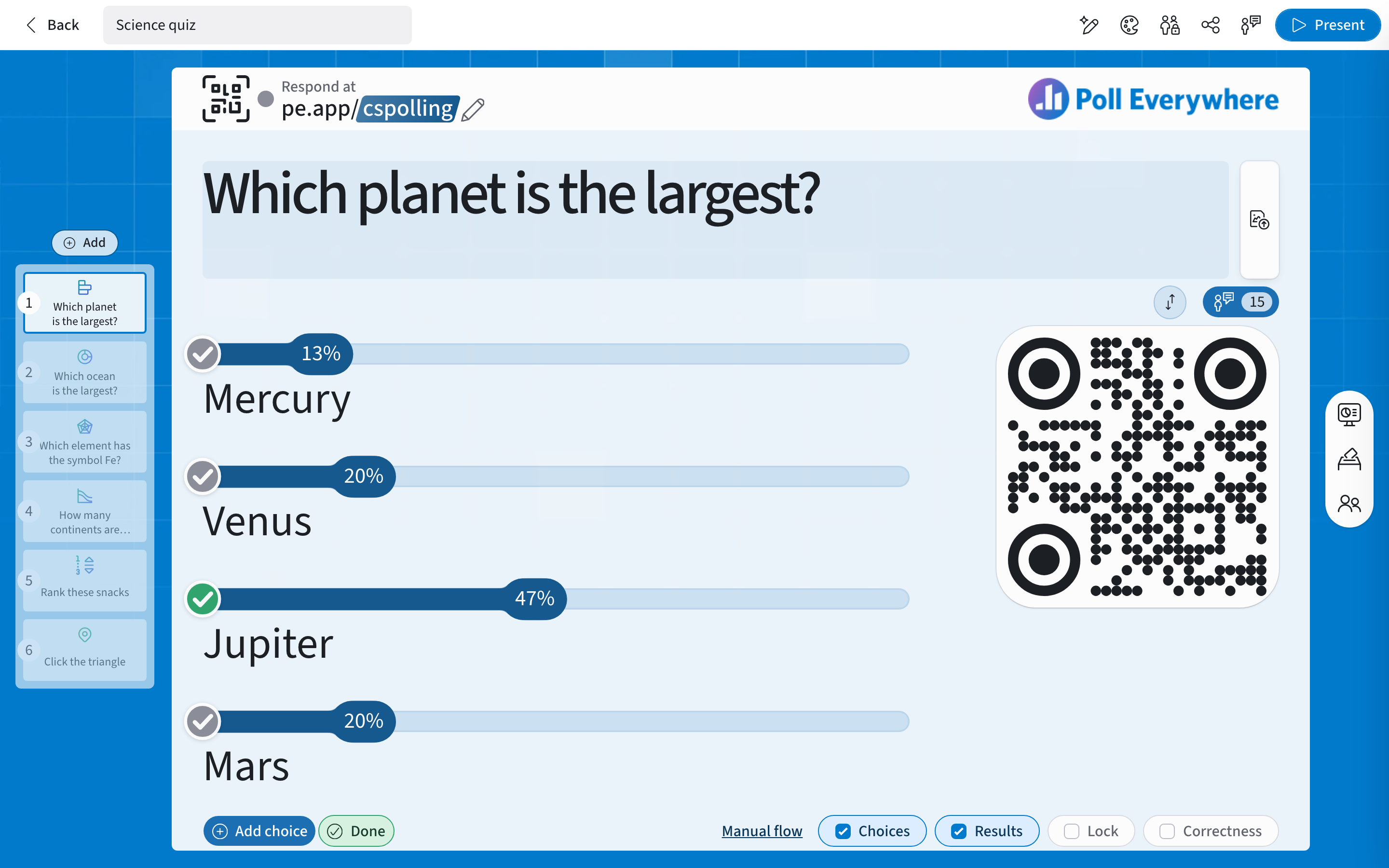
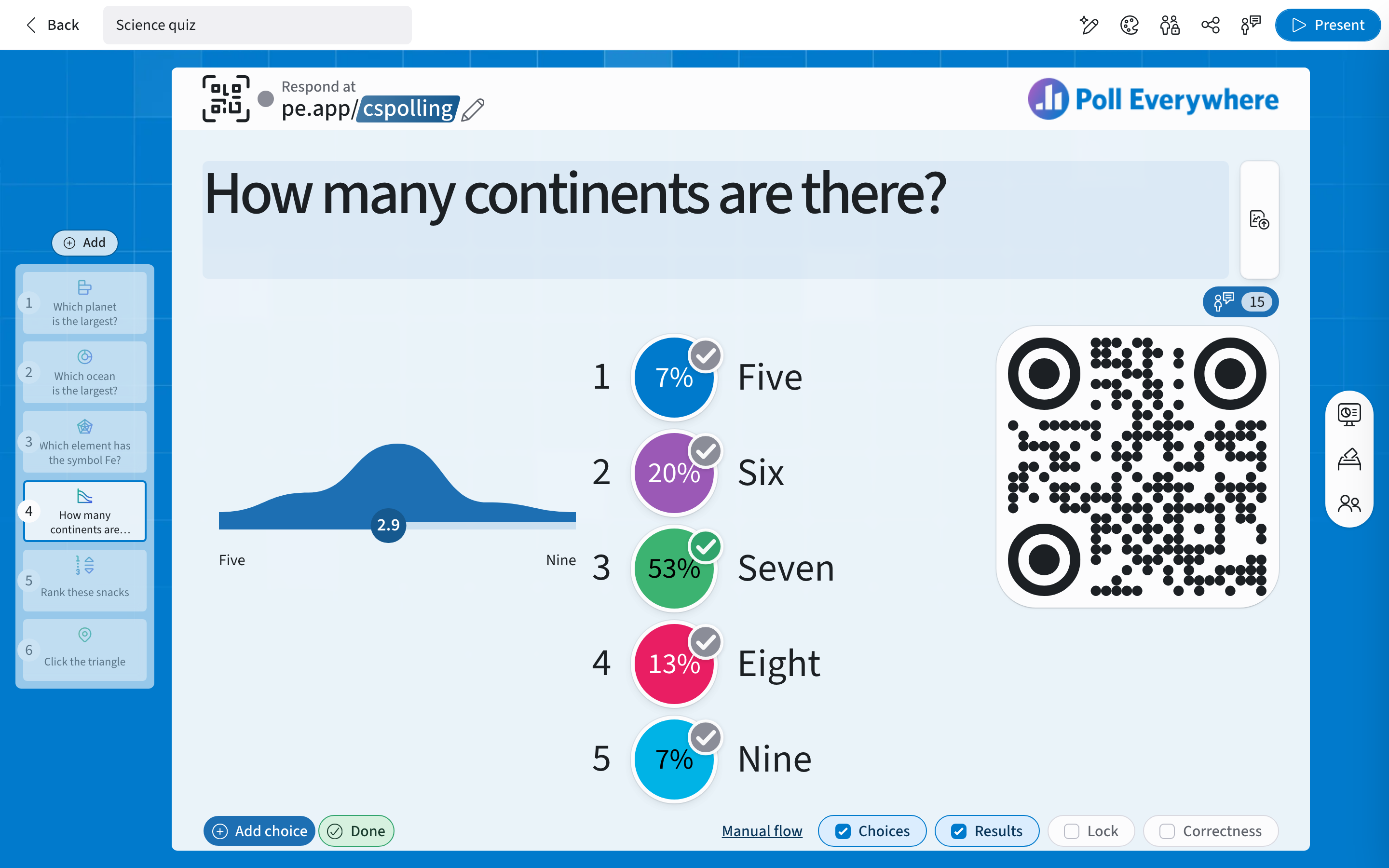
On a bar chart the check sits at the start of each bar. On donut, radar and likert charts it sits on each choice's percentage. You can keep editing choice text while you set correctness.
Clickable image questions
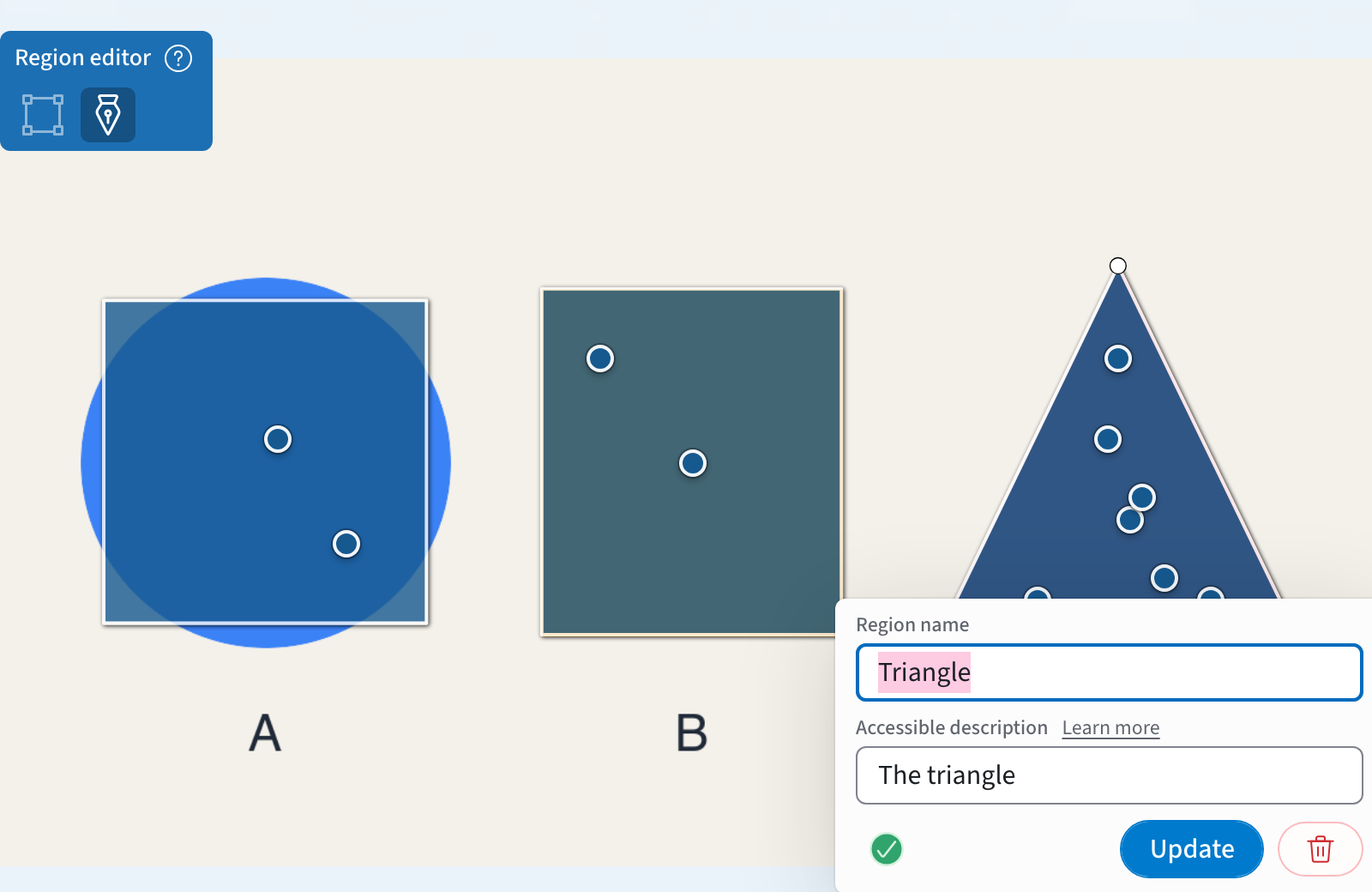
Clickable image questions don't use Set correctness. You mark correct regions in the region editor instead.
- Open the question and select a region on the image.
- In the region's panel, select the check below Accessible description so it turns green.
- Select Update, or Create for a new region.
Reveal the correct answer in a Manual flow
When a question uses Manual flow, a Correctness button appears in the slide's controls once at least one answer is marked correct. Until then, the button isn't shown.

- While presenting, select Correctness to reveal the correct answer. The other answers fade and the correct one is marked with a green check. Select it again to hide the answer.
- In the editor, Correctness sets whether the answer is already revealed when you start presenting the question.
- If you unmark every correct answer, or delete the only correct choice, Correctness turns off and the button goes away until you mark an answer again.
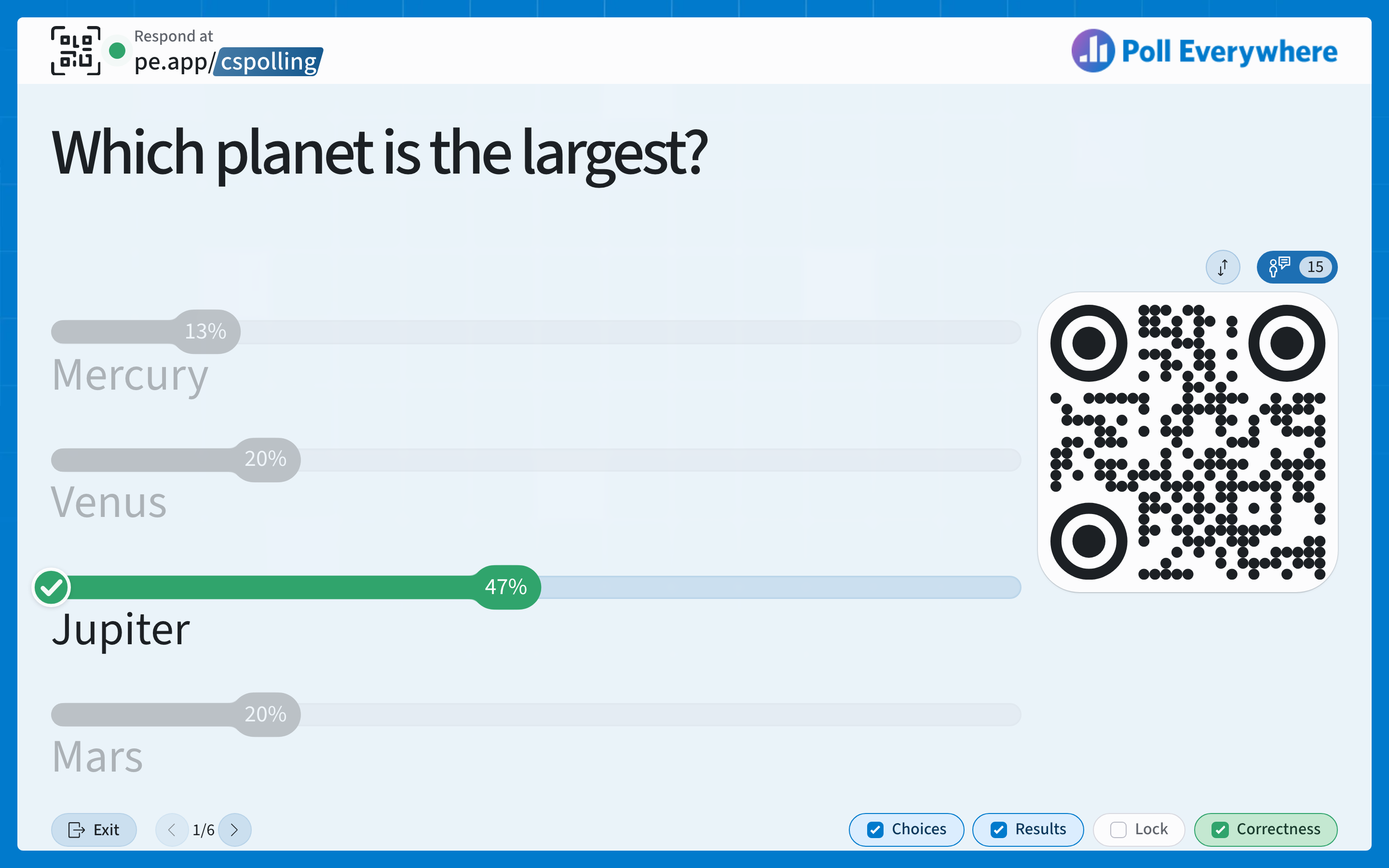
The correct answer is revealed on the presentation screen. Participants' devices don't show which answer was correct.
Correct answers in other flows
The Live responses, Quiz and Question first flows end with a Correctness step that reveals the correct answer. The step is only included when the question has a correct answer marked. If nothing is marked correct, the flow skips it.
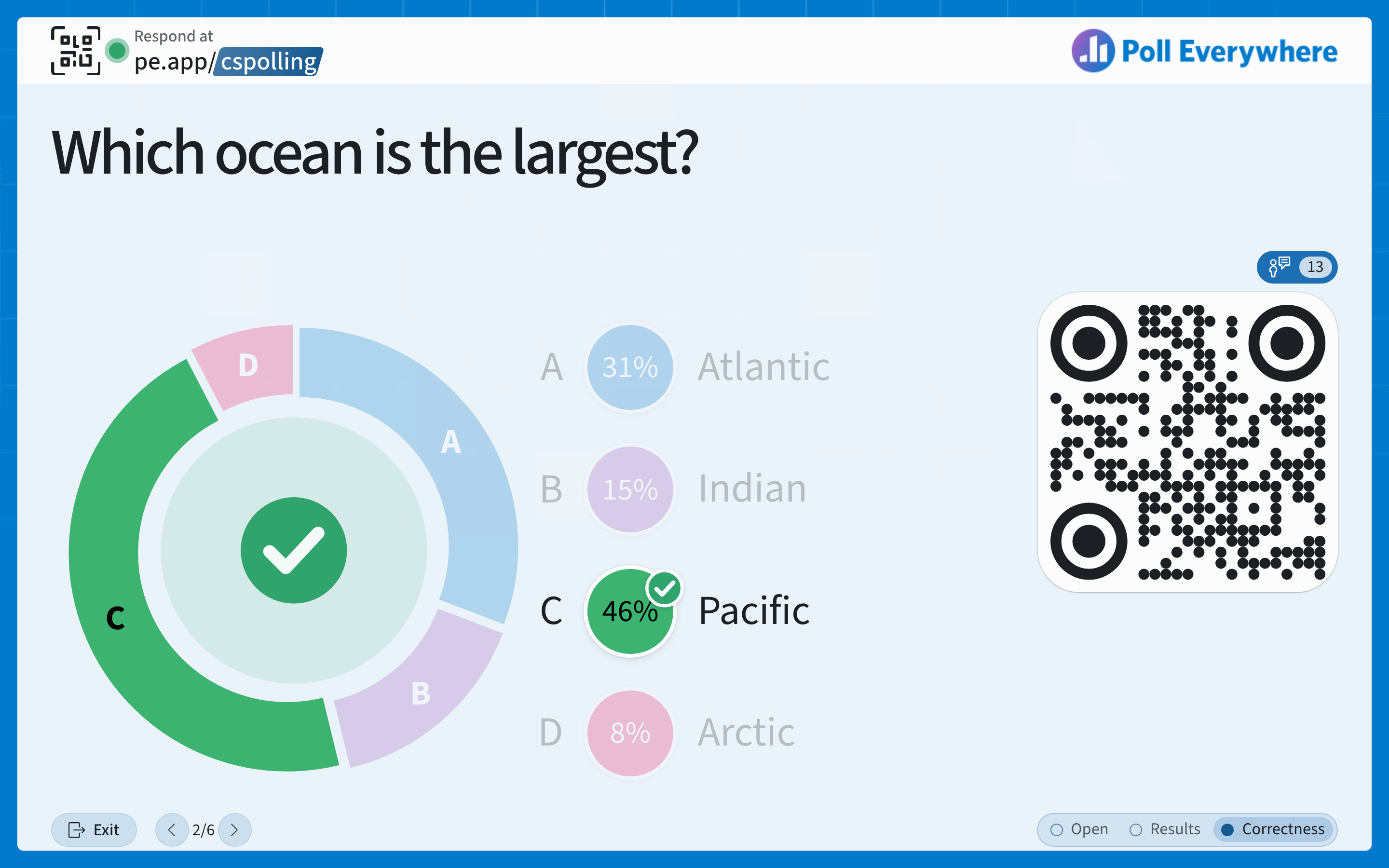
To give a question its reveal step, mark a correct answer with Set correctness.
Which questions can have correct answers
- Bar, Donut, Radar and Likert multiple choice questions, with Set correctness.
- Clickable image questions, by marking regions correct in the region editor.
- Ranking, Q&A and Word cloud questions have no correct answer. Set correctness and the Correctness button don't appear on them, and flows don't include a Correctness step.
Related: Multiple Choice Polls · Clickable Image in Poll Everywhere 2.0 · Question Flows in Poll Everywhere 2.0
If you have any questions or run into issues, please contact the Technical Support team.