
In this article:
- Introduction
- Pre-requisites
- Which Blackboard experience does your course use?
- Blackboard Ultra Course View
- Blackboard Original Course View
- Using Poll Everywhere 2.0 in Your Course
- Set Up a Grading Configuration
- Create an Assignment in Poll Everywhere 2.0
- Create an Assignment in Blackboard
- Gradebook Integration
- Troubleshooting
Introduction
Instructors can import their course rosters from their school's Blackboard Learn LMS into Poll Everywhere. This automatically registers each student as a Poll Everywhere participant. Registering students with Poll Everywhere allows educators to easily identify how students responded to their activities and export Poll Everywhere gradebook reports as grade columns within Blackboard.
Pre-requisites
- Ensure your Blackboard administrator has registered Poll Everywhere 2.0 as an LTI tool and created the necessary placements. See: Poll Everywhere 2.0 Blackboard Setup Guide for Administrators
- Ensure you are logged in to Blackboard as an instructor with course access
Which Blackboard experience does your course use?
Blackboard Learn courses use one of two views, and the steps differ between them:
- Ultra Course View — the modern interface with a "Details & Actions" sidebar and a "Course Content" outline. Follow the Ultra Course View section.
- Original Course View — the classic interface with a left-hand course menu (Home Page, Content, Discussions, Tools…). Follow the Original Course View section. Blackboard displays a banner in Original courses noting they are supported only through December 31, 2026.
Blackboard Ultra Course View
Option A: Launch from Books & Course Tools
Use this option to open your Poll Everywhere course dashboard — create and present activities, review responses, take attendance, and manage your roster.
Step 1: As an instructor, open the course you wish to use Poll Everywhere 2.0 in.
Step 2: Under Details & Actions, click Books & Tools → View course & institution tools.
Step 3: Locate Poll Everywhere 2.0 in the list of available tools and click it to launch.
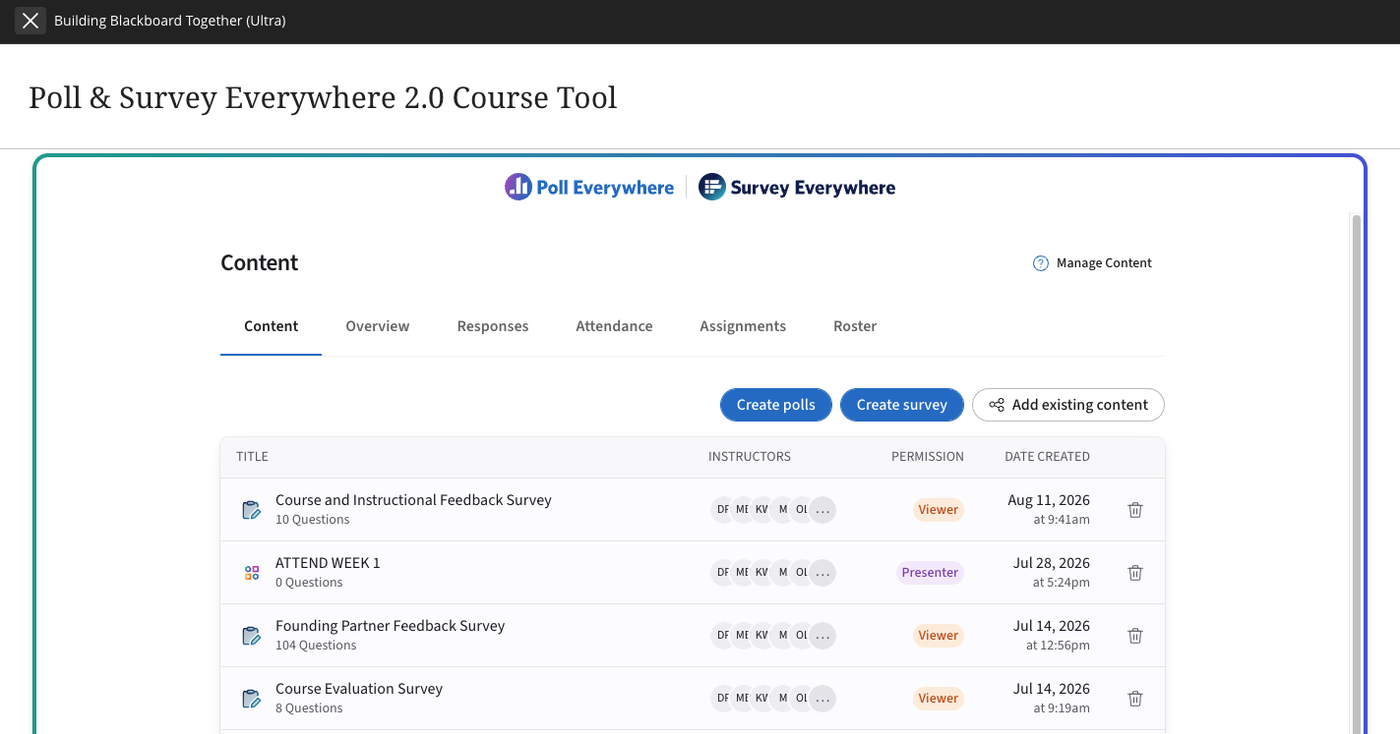
Step 4: If this is your first time launching, you will be prompted to log in to your Poll Everywhere account and link the course. Poll Everywhere then opens inside Blackboard:
Option B: Add activities to course content via Content Market
Use this option to embed a specific poll or survey in your course content so students can respond to it directly — optionally graded.
This is useful for icebreakers, discussion prompts, follow-up activities and online class engagement. You can add Poll Everywhere 2.0 content anywhere the Deep Linking placement is available in Blackboard, and apply a grading configuration if needed.
Step 1: As an instructor, open the course and navigate to Course Content.
Step 2: Click the + button where you want the activity, then select Content Market.
Step 3: Under Institution Tools, select the Poll Everywhere 2.0 Deep Linking tile.
Step 4: Select the poll or survey you want to add.
Step 5: Configure the assignment title and (optionally) grading, then click Create Assignment. The activity appears in your course content, where students can launch it.
Blackboard Original Course View
In the Original Course View, Poll Everywhere is added through a content area. The tool does not appear on the course Tools page — that placement type is Ultra-only, so don't go looking for it there.
Step 1: As an instructor, open the course and click a content area in the course menu (for example, Content). Make sure Edit Mode is ON.
Step 2: Open the Build Content menu and select Poll Everywhere 2.0 Deep Linking.
Step 3: If this is your first time launching, you will be prompted to log in to your Poll Everywhere account and link the course. Then select the poll or survey you want to add.
Step 4: Configure the assignment title and (optionally) grading, then click Create Assignment.
Step 5: The activity appears as a content item in the content area. You and your students launch Poll Everywhere from this link.
Using Poll Everywhere 2.0 in Your Course
After launching Poll Everywhere 2.0 from Blackboard:
Step 1: On your first launch, you will be asked to log in to your Poll Everywhere account. Use your existing Poll Everywhere credentials or create a new account.
Step 2: Your Blackboard course roster will automatically sync with Poll Everywhere. Students enrolled in the Blackboard course will appear as participants.
Step 3: You can now:
- Create and present interactive activities (multiple choice, word clouds, Q&A, etc.)
- View individual student responses
- Take attendance
- Export grades back to Blackboard's gradebook
Pro tip: Students can also access Poll Everywhere 2.0 directly through the same course link. They will be automatically registered as participants based on their Blackboard enrollment.
Launching Poll Everywhere from Books & Course Tools syncs the roster automatically, and rosters also update every night with auto-sync. Students on the roster are added to your organization automatically as participants. No invitation email is sent, and they have nothing to accept. Students who already have a Poll Everywhere account are added at the next roster sync (when you launch from Books & Course Tools or at the nightly auto-sync). Everyone else is added the first time they sign in. You can check each student's status in the Membership column on the Roster tab.
Important: Set all polls to restrict participation to students in your class. This makes sure responses are attributed correctly for grades, points and attendance.
The Books & Course Tools launch opens the course Content page. It shows only the Poll Everywhere content created for this course, so it may be blank at first even if you already have Poll Everywhere content elsewhere.
- Select Create polls to create content for this course from within Blackboard.
- Select Add existing content to use folders and polls you created outside the Blackboard integration.
Set Up a Grading Configuration
Setting up a grading configuration is the most important step before you grade Poll Everywhere activities.
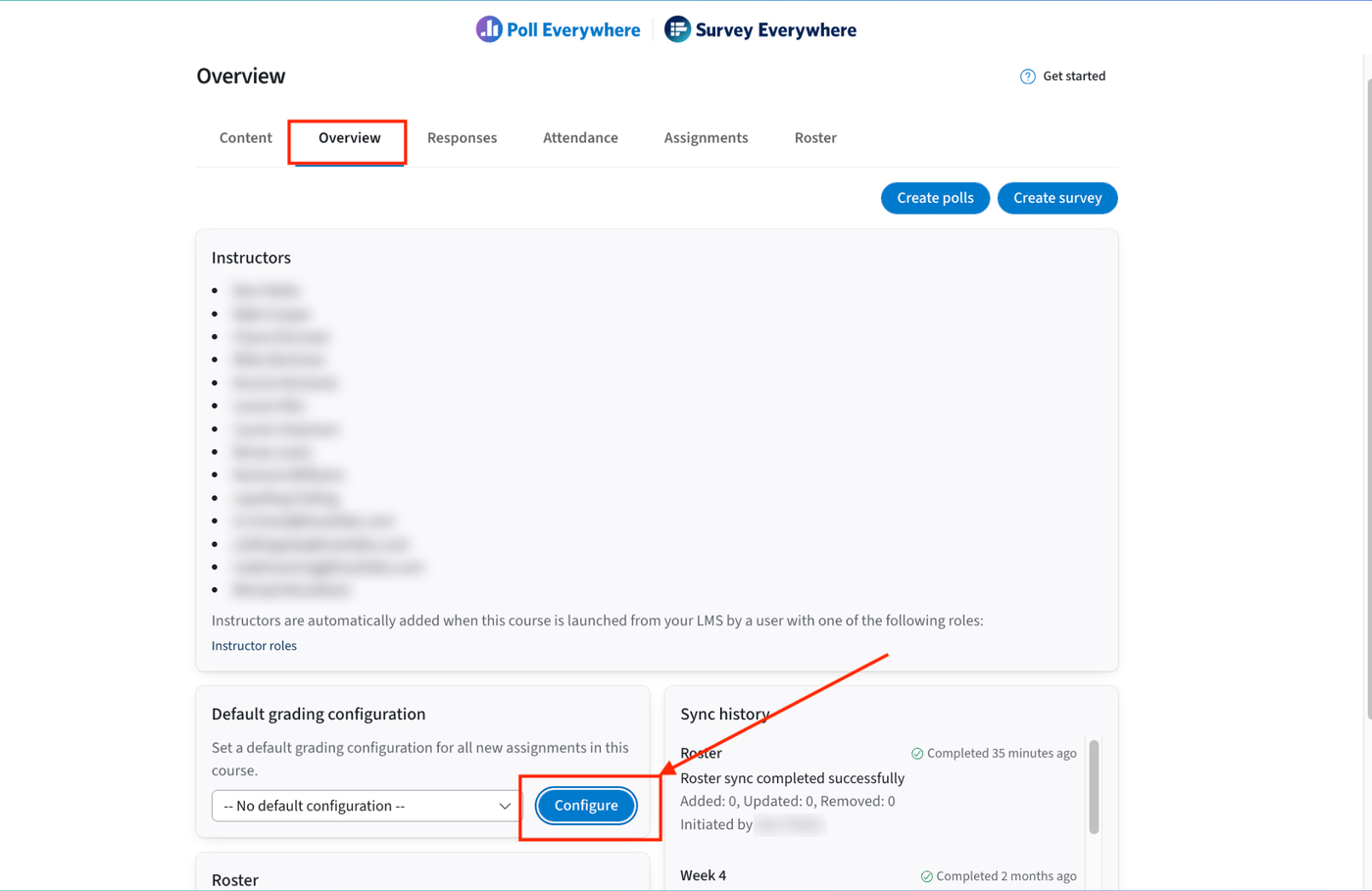
Step 1: In the course, open the Overview tab. Under Default grading configuration, select Configure.
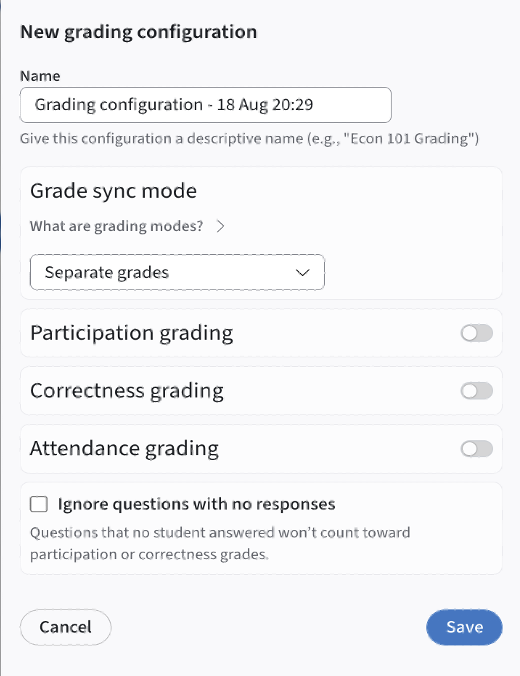
Step 2: Give the configuration a descriptive name (for example, "Econ 101 Grading") and turn on what Poll Everywhere should track: Participation, Correctness and/or Attendance grading.
Step 3: If needed, use Grade sync mode to combine several grading types into one grade using a weighted average or a simple sum, or keep them as separate grades.
Step 4: Select Save. The named configuration can now be applied to assignments.
For more detail, see Syncing Rosters and Setting Grading Configurations.
Create an Assignment in Poll Everywhere 2.0
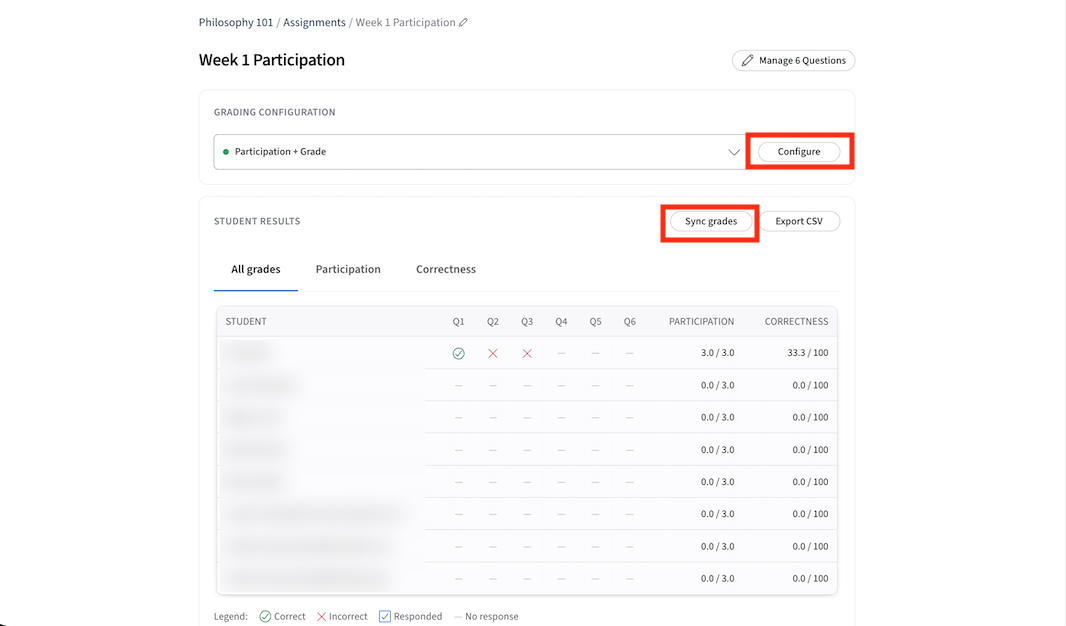
Use this option when you want to grade several Poll Everywhere activities that you ran in a live class.
Step 1: Open the Assignments tab and select New assignment.
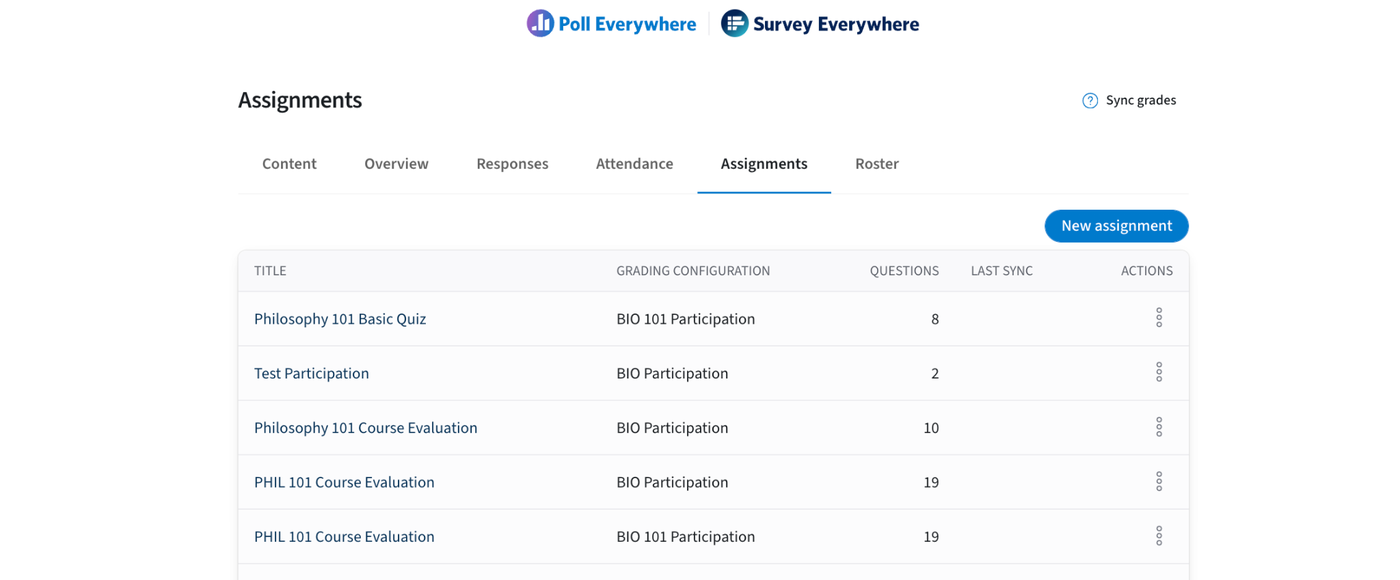
Step 2: Select the polls or activities to include, name the assignment and apply your grading configuration.
Step 3: Preview the calculated results in Student results. When you are ready, select Sync grades to send the matching item(s) to Blackboard.
Create an Assignment in Blackboard
Use this option for a single graded question or a fully asynchronous quiz.
Step 1: In Blackboard, create a new assignment.
Step 2: Insert content, then select Poll Everywhere 2.0 under Content Market.
Step 3: Select the Poll Everywhere 2.0 content you want to link to the assignment.
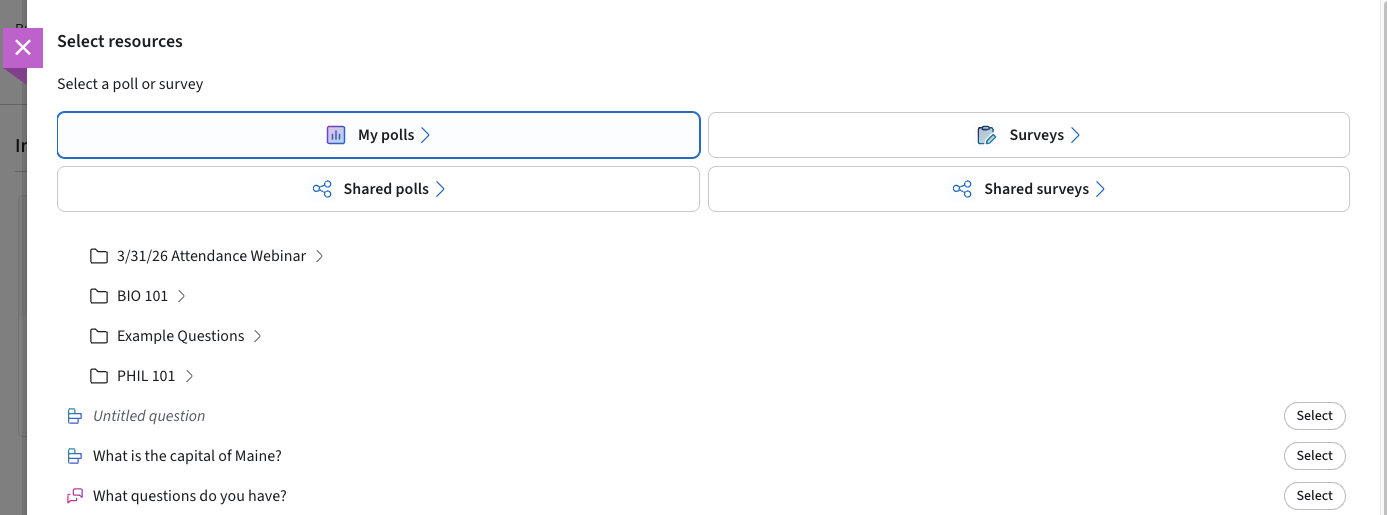
Step 4: Apply your preferred grading configuration. Grades and points can be set to sync automatically when students complete the assignment.
Gradebook Integration
Poll Everywhere can sync grades back to your Blackboard gradebook:
Step 1: Create a graded activity in Poll Everywhere — when adding an activity via deep linking, choose a grading configuration on the Create Assignment screen.
Step 2: After students respond, Poll Everywhere pushes scores to Blackboard as a grade column.
Step 3: Review grades in Blackboard:
- Ultra Course View: Gradebook → Grade Columns
- Original Course View: Control Panel → Grade Center → Full Grade Center
Troubleshooting
- "Poll Everywhere 2.0 not found in Books & Tools or Content Market" (Ultra): Contact your Blackboard administrator to ensure the tool has been registered and placements have been created. See the Administrator Setup Guide for details.
- "Poll Everywhere 2.0 not listed under Tools" (Original): This is expected — in the Original Course View, Poll Everywhere is added through a content area's Build Content menu, not the Tools page.
- "Unable to link course": Ensure you are logged in as an instructor (not a student) and that you have the correct permissions in Blackboard.
- "Roster not syncing": Verify that the administrator enabled Membership Service Access (roster sync) when registering the tool. Contact your admin if needed.
If you have any questions or run into issues, please contact the Technical Support team.