
Content and Media slides let you add information to a poll without asking a question. Use a Content slide for text, such as a welcome message, instructions or a summary. Use a Media slide to show an image, a video or audio. You present them in the same flow as your questions.
In this article

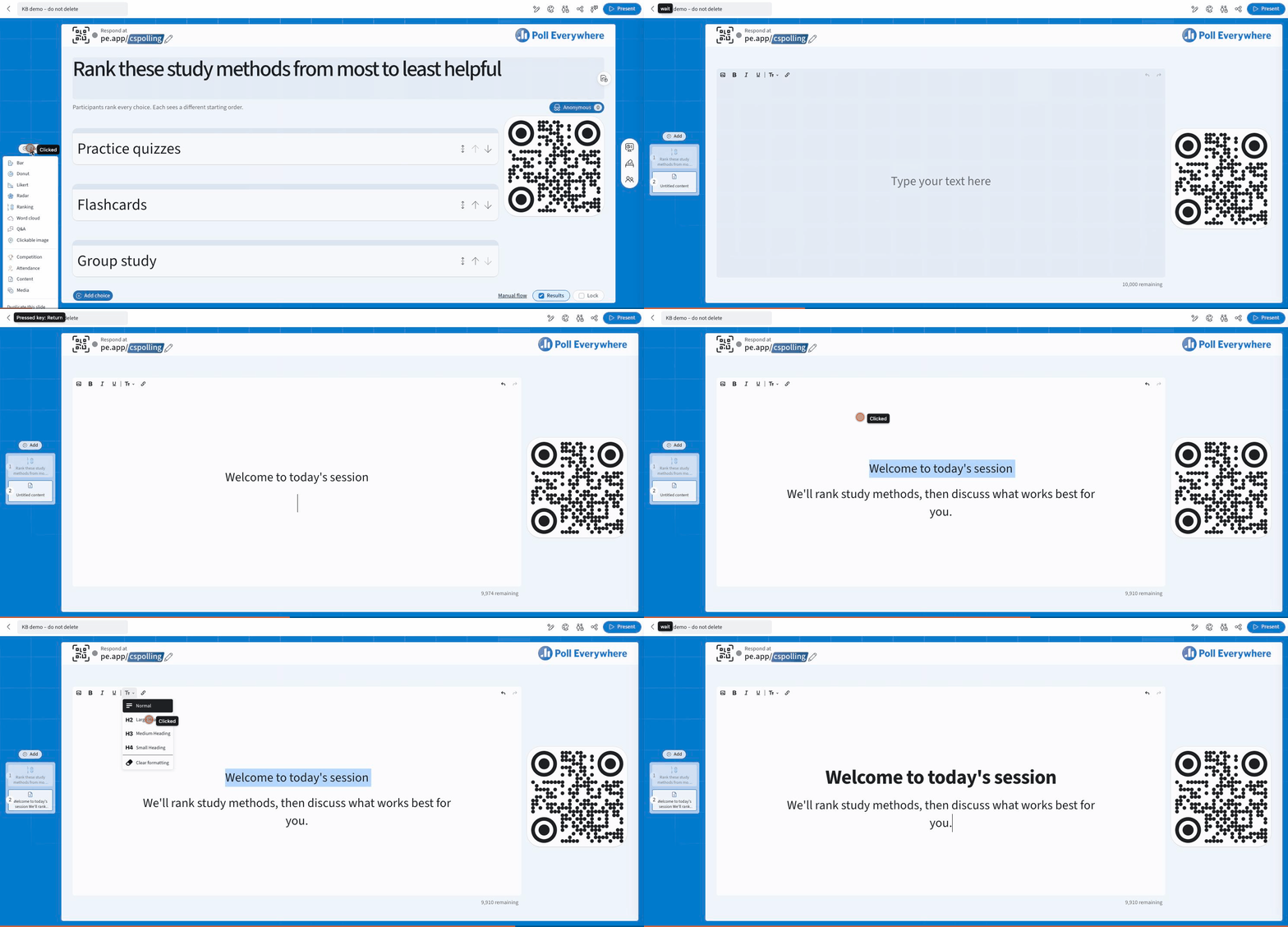
Add a Content slide
- To start a new poll, go to Polls, open the Other tab and select Content slide. To add one to an existing poll, select Add in the slide pane and choose Content.
- Click Type your text here and write your content.
- Format it with the toolbar: Bold, Italic, Underline, headings (the Tt menu: Normal, Large Heading, Medium Heading, Small Heading) and links. You can also add an image from the toolbar.
A Content slide can hold up to 10,000 characters. A counter shows how many are left. Your changes save automatically.
Add a Media slide
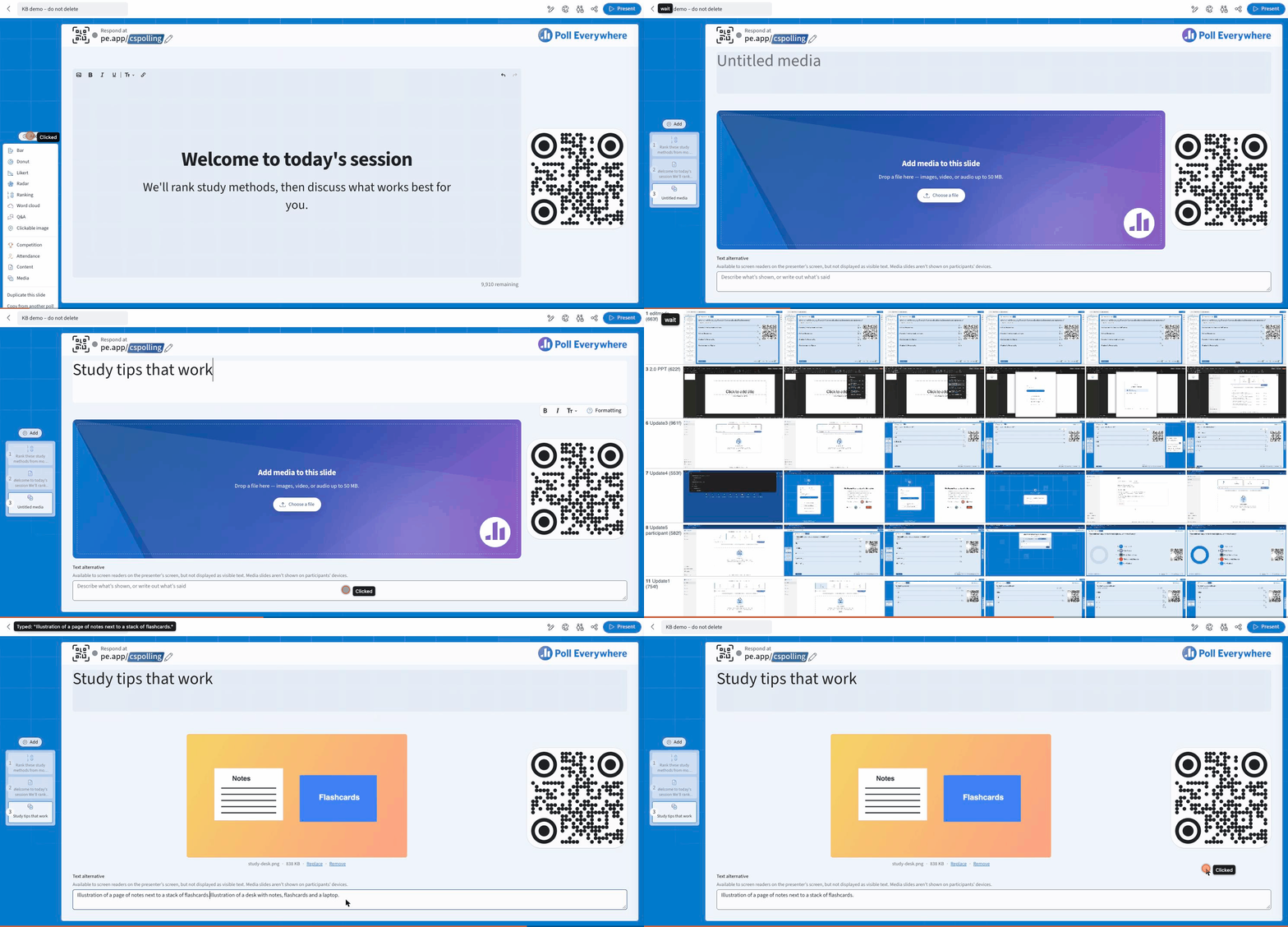
- Go to Polls → Other → Media slide, or select Add → Media in the slide pane.
- Click Media title and type a title.
- Drop a file onto the slide or select Choose a file. You can use images, video or audio up to 50 MB.
- Under Text alternative, describe what's shown, or write out what's said. Screen readers read this text on the presenter's screen, but it isn't displayed as visible text.
To change the file, select Replace or Remove under the preview.
What participants see
- Media slides appear only on the presentation screen. They aren't shown on participants' devices.
- Content and Media slides don't collect responses. They're skipped in response links, which show only your questions.
Tip: AI tools can also add Content slides when you build or improve a poll. See Improve Polls with AI.
Related: Create a Poll · Question Page
If you have any questions or run into issues, please contact the Technical Support team.